


How to find outdated help articles after a product release

A release can make a newly edited help article wrong overnight. Start with the customer task the release changed. Search for the old labels, links and screenshots, then follow each candidate article in the released interface using the reader’s role. An article is outdated when a reader in its stated audience can no longer reach the promised outcome by following its instructions.
Keep one row per affected instruction in the release audit worksheet (CSV). It gives Support a current answer, the documentation owner a specific edit, and the release team a way to distinguish stale instructions from a product defect.
Turn the release into a list of affected tasks
Ask the release owner to describe one thing a customer will do differently. “Navigation refresh” is too broad to search. “Project admins now start invitations from the Members page” gives you a task, a screen and a role. Capture the old and new names, the first affected version, rollout conditions and the end state the user should see. If the change is behind a flag, note which accounts can see it.
Search the help center for both sets of labels. Look beyond article titles. A heading might say “Add a colleague” while the screenshot still points to an old Team menu. Check image captions, reused content blocks, linked videos, onboarding emails and saved support replies that send customers to the same step. When a shared block is wrong, identify every page that inherits it before assigning separate edits.
For a large help center, start with articles needed to finish setup, regain access or change billing. Then look at articles linked in repeat tickets and failed searches for the old terms. Those signals help set review order. A spike in tickets alone cannot tell you whether the article, the rollout or the feature is at fault.
Worked example: a pipeline guide with the old GitLab sidebar path
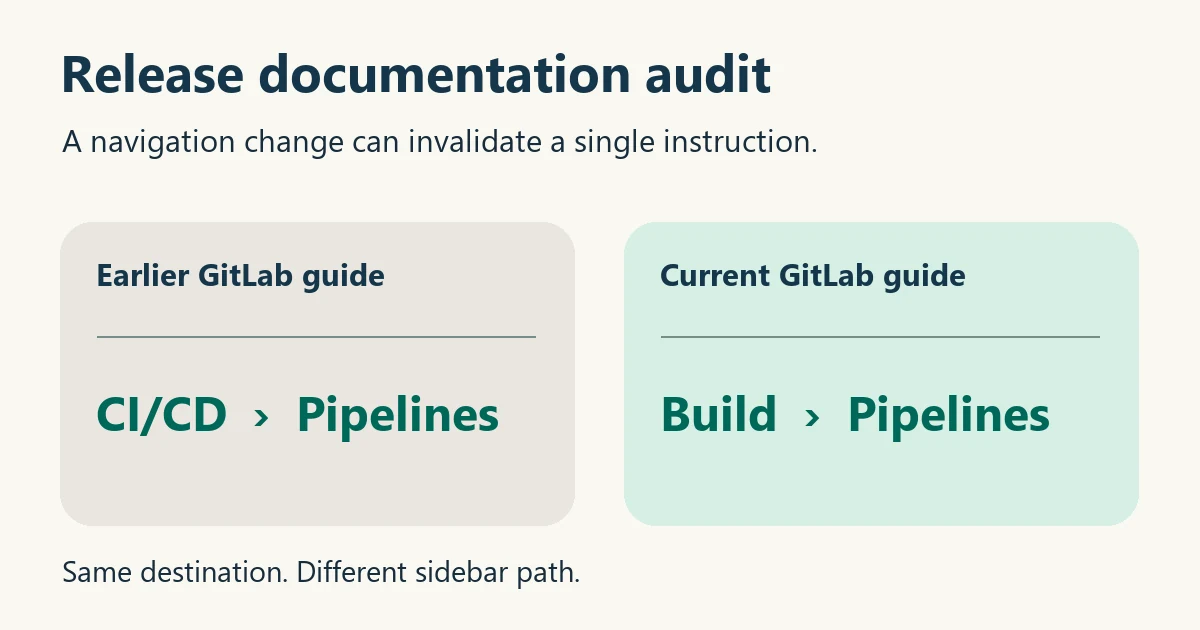
GitLab’s version 15.11 pipeline guide sent readers through CI/CD → Pipelines. Its current documentation sends readers through Build → Pipelines. The destination and search term “Pipelines” persist, so a link checker or a search for the destination page alone would miss the changed instruction. Compare the versioned GitLab guide with the current GitLab guide.
Suppose your own training library contains a “Find a failed pipeline” article based on that earlier path. Search your copy for “CI/CD,” “Pipelines,” and screenshots of the old sidebar. Keep a version-specific tutorial if you still support that release. For an article intended for current users, ask someone with access to an appropriate project to start from the project home, open the pipeline list and select the relevant run. Record which step first differed. This is a comparison of public documentation and an example audit procedure. GitLab’s archived guide correctly documents an earlier version.
Decide whether to fix the article, clarify its audience or report a defect
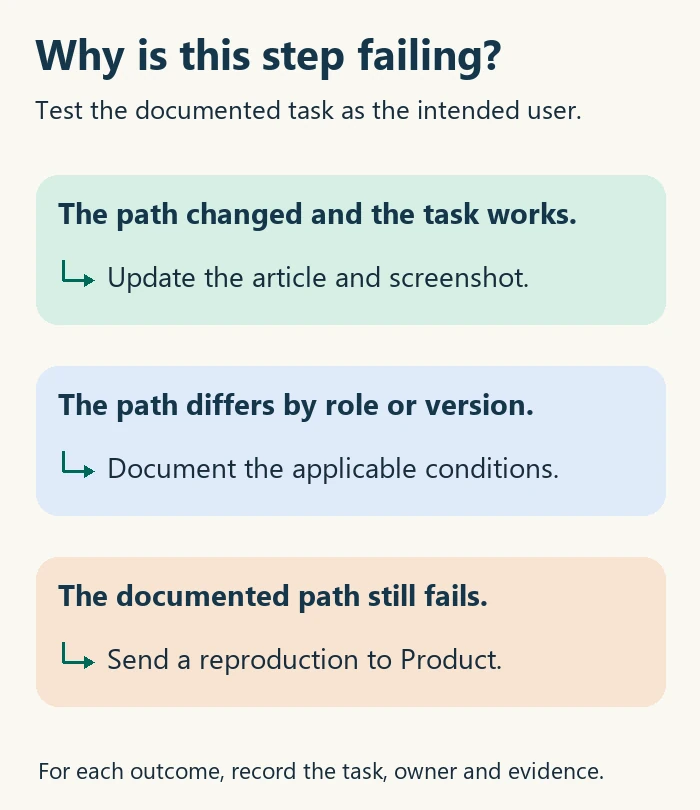
- The old path fails and the new path works. Update the first incorrect instruction, its screenshot, and any description of the next screen. Keep the customer’s old search term in the text where it helps them recognize the change.
- Different users see different paths. Repeat the task with the role, plan, version or rollout cohort the article promises to support. Add a prerequisite or a version-specific branch if both paths are valid. A member who lacks billing permissions should not be told to keep looking for an admin control.
- The expected path also fails. Give Product the role, build, steps, expected outcome and observed result. Give Support an accurate interim answer. A rewrite that tells readers to retry the same broken step will leave the ticket open.
FullSession Max can identify discrepancies between documented instructions and the interface while helping customers use an application. Give the content owner the exact step and audience to verify. For a pattern already surfacing in customer questions, the support-ticket guide explains how to assign the issue and check whether the customer completed the task.
Use the release audit worksheet
Download the editable CSV worksheet and open it in your spreadsheet tool. It includes a worked row and a blank row. Create one record per instruction so a corrected screenshot cannot accidentally close an unresolved permissions issue.
- Identify the change. Enter the release, changed UI element, article or shared snippet, and intended version and audience.
- Record both paths. Copy the documented instruction. Separately record what the reviewer saw and link to evidence, such as a screenshot from a test account or a versioned release note. Keep private customer data out of the record.
- Define success. Write the observable result, such as “the intended teammate accepted the invitation.” Opening the Members screen proves only the navigation step.
- Assign the decision. Classify the row as a confirmed mismatch, audience difference, suspected defect or awaiting reproduction. Give it an owner and a priority based on how much the problem blocks users.
- Verify the repair. Have a second person follow the published instructions in the intended role. Record the version, outcome and date. Recheck any shared support replies or guides that copied the original step.
Measure what still needs verification after the release
Report verified coverage as the number of affected instructions tested in the released UI divided by the number identified for this release. This measures the review of your known inventory. Unlisted articles and unreported changes remain blind spots. Report confirmed mismatches separately from suspected defects and items waiting for rollout access.
For example, if a release touches twelve known instructions and the team tests nine, verified coverage is 75%. If two of those nine are wrong, there are two confirmed documentation fixes and three instructions still awaiting a test. Updating the two articles clears the known fixes once retested. It does not resolve the remaining three.
On the next release, ask the feature owner to attach the affected task, old label and relevant help links before rollout. That small addition makes the next audit faster. If customers repeatedly get stuck where a guide and screen disagree, see how Max provides contextual help inside the product and bring one affected task to your evaluation.
See what’s costing you, and prove whats fixing it is worth
Watch the real journey, rank every issue by revenue impact, and validate the result against baseline.





All systems operational.