If you are trying to improve Activation in a SaaS PLG funnel, heatmaps can feel like three versions of the same answer: “users clicked here,” “users scrolled this far,” “users moved their cursor there.” The real value is knowing which map to open first for the problem you have, and how to validate the signal before you ship a change.
In this guide, you will learn what each heatmap type actually measures, what it cannot prove, and a practical sequence for using heatmaps plus replay to diagnose activation drop-offs. If you are evaluating tools, start with the FullSession heatmaps product page: FullSession Heatmaps.
Quick Takeaway
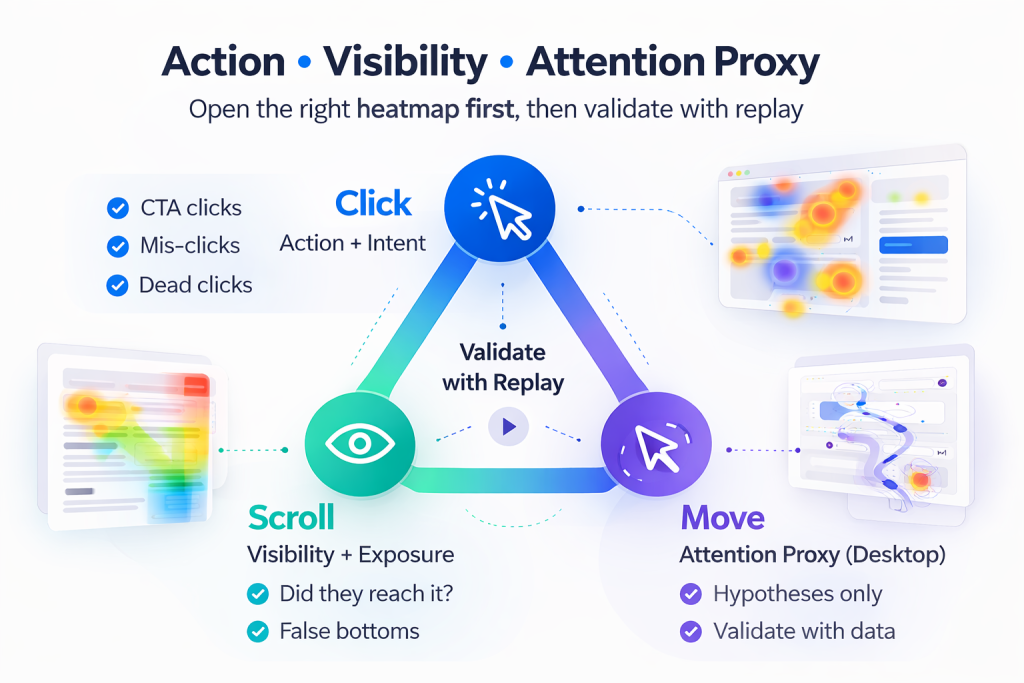
- If the problem is low clicks or mis-clicks, start with a click heatmap (action and intent).
- If the problem is users not reaching key content, start with a scroll heatmap (visibility and exposure).
- If the problem is confusion or scattered attention, use a move heatmap last (attention proxy), then validate with replay.
A reliable workflow is: Click (action), then Scroll (visibility), then Move (attention proxy), and finally Replay (ground truth). Pairing heatmaps with session replay is where teams stop guessing and start confirming: Session Replay.
What a “Heatmap” Means in Practice
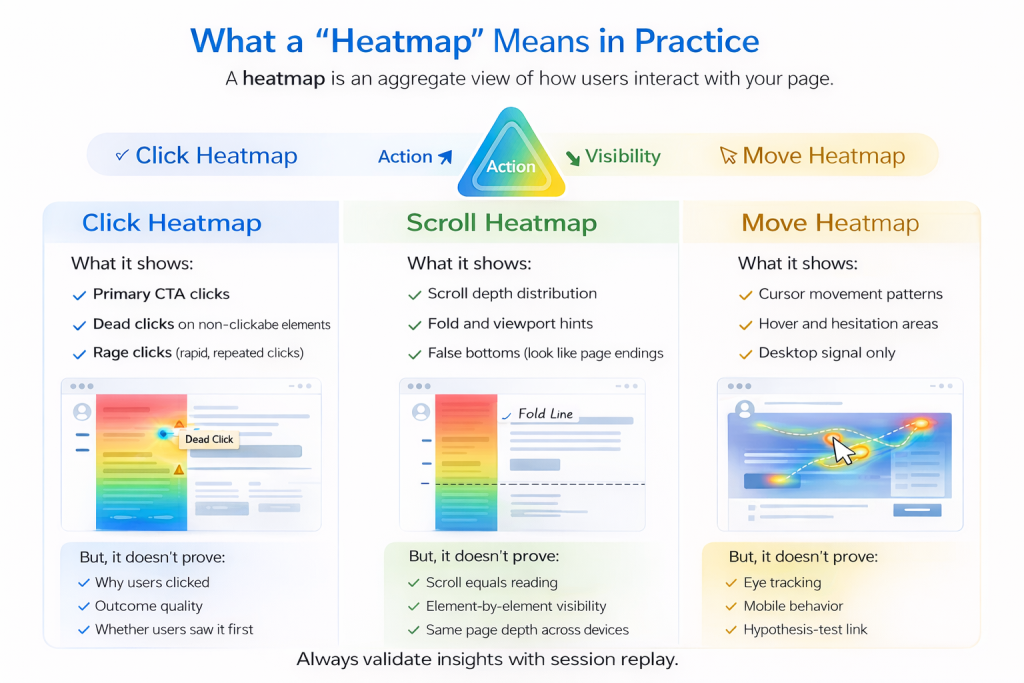
A heatmap is an aggregate visualization of user interaction on a page or screen. It helps you answer questions like: where users try to act, what content is actually seen, and what areas might pull attention, cautiously for move maps. The key is to match the map to the kind of evidence you need: action, visibility, or attention proxy. For online stores, ecommerce heatmap software can help teams compare click, scroll, and behavior signals across product pages, carts, and checkout flows.
Click Heatmap
What it shows
A click heatmap aggregates where users click or tap. For activation work, it is strongest when you suspect users are trying to progress but failing, hesitating, or choosing the wrong path.
- Primary CTA clicks
- Navigation and secondary action clicks
- Dead clicks (depending on tooling)
- Rage clicks (depending on tooling)
What it does not prove
Click heatmaps do not tell you why a user clicked, whether a click led to a successful outcome, or whether the user saw the content before clicking. Treat clicks as intent signals, then confirm outcomes with funnel steps or replay.
Scroll Heatmap
What it shows
A scroll heatmap summarizes how far users scroll. It is most useful when activation depends on content that is below the initial view, such as setup guidance, proof, or the next step module.
- Scroll depth distribution (who reaches 25%, 50%, 75%, 100%)
- Fold and viewport interpretation hints
- False bottoms where users stop because the page looks finished
What it does not prove
Scroll depth is not reading. Treat scroll as visibility and exposure, not engagement. Confirm real behavior with replay, segmented by device.
Move Heatmap
What it shows
Move heatmaps visualize cursor movement patterns on desktop. They can suggest exploration and deliberation areas, but they are best used as hypothesis generators.
What it does not prove
Cursor movement is not eye tracking. It can be distorted by device type, user habits, and the absence of a cursor on mobile. Use move maps cautiously, and validate with click, scroll, and replay.
Which Heatmap Should You Use First?
“Users are not converting on the CTA”
Start with a click heatmap. Look for primary CTA share, dead clicks, and click dispersion. Then confirm the drop-off step using Funnels and Conversions.
“Users do not seem to see the thing we need them to see”
Start with a scroll heatmap. Look for early stop zones and false bottoms. Validate behavior with Session Replay, segmented by device.
“Users look lost or distracted”
Start with click, then scroll, then move (last). Confirm confusion patterns on replay, and check whether errors are involved with Errors and Alerts.
A Practical Workflow: Heatmaps Plus Replay
This sequence turns heatmaps into a decision system for activation work.
Step 1: Define the page job and success event
Action label: Define the activation micro-conversion. Choose one success event, such as “Connect integration,” “Create first project,” or “Invite teammate.”
Step 2: Segment before you interpret
Action label: Split by device and intent context. At minimum segment by device, new vs returning, and traffic source or entry path.
Step 3: Open the click heatmap first
Action label: Find intent and friction clicks. Look for CTA share, dead clicks on UI, and click dispersion that implies uncertainty.
Step 4: Use the scroll heatmap to confirm exposure
Action label: Check whether key modules were seen. Look for depth drop-offs and false bottoms created by layout cues.
Step 5: Use move heatmap only to form hypotheses
Action label: Spot attention hotspots carefully. If the hotspot is meaningful, you should see clicks nearby or replay evidence of deliberation.
Step 6: Validate with session replay before changing UI
Action label: Confirm the story in real sessions. Heatmaps show what happens in aggregate. Replay shows how it happens. Start with FullSession Heatmaps, then validate with Session Replay.
Common Misreads and How to Avoid Them
Misread: “Scroll to 80% means they read it”
Fix: Treat scroll as visibility, not engagement. Validate with replay and downstream events.
Misread: “Move heatmap is attention”
Fix: Treat movement as a proxy. Confirm with corresponding clicks or replay evidence of hesitation.
Misread: “Click heatmap proves the CTA is bad”
Fix: Clicks do not equal outcomes. Pair with funnel outcomes and error signals using Errors and Alerts.
FAQ
Are move heatmaps useful on mobile?
Not directly. Mobile lacks cursor movement, so use click or tap maps, scroll exposure, and replay for mobile behavior.
Should I start with scroll heatmaps for landing pages?
Only if your main question is visibility. If the issue is action, start with click heatmaps.
What is the difference between dead clicks and rage clicks?
Dead clicks are clicks on non-interactive elements. Rage clicks are repeated clicks in a small area in a short time window. Replay is the best way to confirm the cause.
How many sessions do I need before trusting a heatmap?
Enough to represent the segment you care about. Use heatmaps for direction, then validate with targeted replay samples and conversion outcomes.
Related Answers
- FullSession Heatmaps
- Session Replay
- Funnels and Conversions
- Errors and Alerts
- PLG Activation Solutions
If you want heatmaps to drive activation improvements, treat them as a system: click for intent, scroll for visibility, move for hypotheses, and replay for validation. Start with FullSession Heatmaps, confirm behavior in Session Replay, and route the work into your activation program via PLG Activation Solutions.

Roman Mohren is CEO of FullSession, a privacy-first UX analytics platform offering session replay, interactive heatmaps, conversion funnels, error insights, and in-app feedback. He directly leads Product, Sales, and Customer Success, owning the full customer journey from first touch to long-term outcomes. With 25+ years in B2B SaaS, spanning venture- and PE-backed startups, public software companies, and his own ventures, Roman has built and scaled revenue teams, designed go-to-market systems, and led organizations through every growth stage from first dollar to eight-figure ARR. He writes from hands-on operator experience about UX diagnosis, conversion optimization, user onboarding, and turning behavioral data into measurable business impact.