Category: Solving Common Problems

  • Form abandonment: how to measure it, diagnose root causes, and prioritize fixes (not just a checklist)

    Form abandonment: how to measure it, diagnose root causes, and prioritize fixes (not just a checklist)

    If you’re a CRO manager at a PLG SaaS, you’ve probably seen this pattern: signups hold steady, but activation flattens. The onboarding form looks “fine.” Funnel charts show where people disappear then everyone argues about why. That’s form abandonment in practice, and it’s fixable when you treat it like a diagnostic problem, not a list of UX tips.

    Early in the workflow, it helps to ground your measurement in funnels and conversion paths (not just overall conversion rate). Start by mapping your onboarding journey in a tool or view like funnels and conversions, and keep the activation outcome tied to your PLG motion.

    Quick Takeaway / Answer Summary (40–55 words)
    Form abandonment is when a user starts a form but leaves before a successful submit. To reduce it, measure drop-offs at the step and field level, diagnose whether the blocker is intent, trust, ability, usability, or technical failure, then prioritize fixes by drop-off × business value × effort, with guardrails for lead quality.

    What is form abandonment?

    Form abandonment happens when a user begins a form (they see it and start interacting) but does not complete a successful submission.

    Form abandonment rate is the share of users who start the form but don’t finish successfully.

    Definition box: the simplest way to calculate it

    • Form starts: sessions/users that interact with the form (e.g., focus a field, type, or progress to step 2)
    • Successful submits: sessions/users that reach “success” (confirmation screen, successful API response, or “account created” event)

    Form abandonment rate = (Form starts − Successful submits) ÷ Form starts

    Two practical notes:

    1. In multi-step flows, calculate both overall abandonment and step-level abandonment (Step 1 → Step 2, Step 2 → Step 3, etc.).
    2. Track “submit attempts” separately from “successful submits”—a lot of “abandonment” is actually submit failure.

    Why does form abandonment matter for SaaS activation?

    Why should you care about form abandonment if the KPI is activation, not just signup?
    Because forms often sit on the critical path to the first value moment: onboarding, workspace creation, inviting teammates, connecting data sources, selecting a template, or choosing a plan key steps that directly impact
    PLG activation.

    If the form blocks progress, you get:

    • Lower activation because users never reach the “aha” action
    • More support load (“I tried to sign up but…”)
    • Misleading experiments (you test copy while a validation loop is the real culprit)

    But here’s the nuance most posts miss

    Not every abandonment is bad. Some abandoners are:

    • Low-intent visitors who were never going to activate
    • Users who lack required information (ability), not motivation
    • People who hit a trust threshold you may need in regulated contexts

    Your goal isn’t “maximize completions at all costs.” It’s: reduce preventable abandonment without degrading lead quality, increasing fraud, or weakening trust.

    How do you measure form abandonment without fooling yourself?

    What should you track to measure form abandonment accurately?
    Track it as a funnel with explicit states (start → progress → submit attempt → success/fail), then add field-level signals to explain the drop-offs.

    Start with a form funnel (macro)

    At minimum:

    1. Viewed form
    2. Started form
    3. Reached submit
    4. Submit attempted
    5. Submit success (and Submit fail)

    If you already have a baseline funnel view (or you build one in funnels and conversions), you’ll quickly see if the big cliff is:

    • Early (start rate is low → intent mismatch or trust)
    • Mid-form (field friction / unclear requirements)
    • Late (submit failure, technical errors, hidden constraints)

    Add field-level diagnostics (micro)

    Track:

    • Field drop-off: which field is the last interaction before exit
    • Time-in-field: long dwell time can mean confusion or lookup effort
    • Validation errors: client-side and server-side; count + field association
    • Return rate: users who leave and come back later (and whether they succeed)

    Don’t ignore “failure mode” abandonment

    A huge share of abandonments are not “user changed mind.” They’re:

    • Submit button does nothing
    • API error or timeout
    • Validation loop (“fix this” but no clear instruction)
    • Form resets after an error
    • Mobile keyboard covers the CTA or error message

    If you only measure “start vs completion,” these get mislabeled as intent problems, and you’ll ship the wrong fixes.

    What causes form abandonment? Use the 5-bucket diagnostic taxonomy

    What’s the fastest way to diagnose why people abandon a form?
    Classify the drop-off into one of five buckets—intent, trust, ability, usability, technical failure—then apply the minimum viable fix for that bucket before you redesign the whole thing.

    1) Intent mismatch

    Signals

    • High form views, low starts
    • Drop-off before the first “commitment” field
    • Disproportionately high abandonment from certain traffic sources

    Likely root cause

    • The user expected something else (pricing, demo, content)
    • The form appears too early in the journey
    • The value exchange isn’t clear

    Minimum viable fix

    • Clarify value and “what happens next”
    • Align the CTA that leads into the form
    • Gate less (or move form later) if activation requires early momentum

    2) Trust / privacy concern

    Signals

    • Drop-off spikes at sensitive fields (phone, company size, billing, “work email”)
    • Rage-clicking around privacy text or tooltips
    • Higher abandonment on mobile (less screen space for reassurance)

    Likely root cause

    • “Why do you need this?” is unanswered
    • Fear of spam / sales pressure
    • Unclear data handling

    Minimum viable fix

    • Add microcopy: why the field is needed, and how it’s used
    • Use progressive disclosure for sensitive asks
    • Set expectations: “No spam,” “You can edit later,” “We’ll only use this for X”

    3) Ability (they can’t provide the info)

    Signals

    • Long time-in-field on “domain,” “billing address,” “team size,” “tax ID”
    • Users pause, switch apps, or abandon at lookup-heavy fields
    • Higher return rate (they come back later with info)

    Likely root cause

    • You’re asking for info users don’t have yet
    • The form assumes a context (e.g., admin) the user isn’t in

    Minimum viable fix

    • Make fields optional where possible
    • Allow “I don’t know” or “skip for now”
    • Collect later (after activation) when the user has more context

    4) Usability / cognitive load

    Signals

    • Mid-form cliff across many sources/devices
    • Errors repeat; users bounce between fields
    • Mobile drop-off is materially worse than desktop

    Likely root cause

    • Too many fields, unclear labels, poor grouping
    • Confusing validation rules or error placement
    • Accessibility issues (focus states, contrast, screen reader labels)

    Minimum viable fix

    • Reduce required fields; group logically
    • Inline validation with clear, specific messages
    • Mobile-first layout, correct input types, keyboard-friendly controls

    5) Technical failure

    Signals

    • Submit attempts without success
    • Abandonment correlates with slow performance, browser versions, or releases
    • Users retry, refresh, or get stuck in a loop

    Likely root cause

    • Network/API errors, timeouts
    • Client-side bugs, state resets
    • Third-party script conflicts

    Minimum viable fix

    • Improve error handling + retry; preserve user input on failure
    • Make failure states visible and actionable
    • Pair engineering triage with real sessions (not just logs)

    A simple prioritization model: what to fix first

    How do you prioritize form fixes without guessing?
    Score candidates using Drop-off × Business value × Effort, then add guardrails so you don’t “win” a conversion metric while harming activation quality.

    Step 1: Build a shortlist from evidence

    From your funnel + field data, list the top issues:

    • Top abandonment step(s)
    • Top abandoning fields
    • Top error messages / submit failure reasons
    • Top segments (mobile, new users, certain sources)

    Step 2: Score each candidate

    Use a lightweight rubric:

    Candidate issueDrop-off severityActivation impactEffort / risk
    Sensitive field causing exitsHighMedium–HighLow–Medium
    Validation loop on phone fieldMediumMediumLow
    Submit timeout on step 3Medium–HighHighMedium–High
    Optional field causing confusionMediumLow–MediumLow

    Keep the table simple and mobile-friendly. Your goal is not precision—it’s a shared decision model.

    Step 3: Add guardrails (the part most teams skip)

    Define “success” beyond completion:

    • Primary: form completion (or step completion)
    • Secondary: time-to-complete, validation error rate, submit failure rate
    • Downstream: activation rate, quality signals (e.g., domain verified, team invite, first project created)

    This prevents the classic trap: you reduce friction, completions rise, but activation gets worse because you let low-intent or low-quality entries flood the funnel.

    The diagnostic workflow (numbered steps)

    What’s the most reliable workflow to reduce form abandonment?
    Run a tight loop: quantify the drop, diagnose the bucket, apply the smallest fix, then validate with guardrails.

    1. Measure the funnel state-by-state
      Identify whether the cliff is start rate, mid-form progression, submit attempts, or submit success.
    2. Drill into the top abandoning step/field
      Look for long time-in-field, repeated errors, resets, and device differences.
    3. Classify the root cause (intent / trust / ability / usability / technical)
      Don’t brainstorm solutions until you can name the bucket.
    4. Pick the minimum viable fix for that bucket
      Avoid redesigning the whole form when microcopy or validation behavior is the real issue.
    5. Validate with guardrails, not just “conversion”
      Confirm completion improves and activation-quality signals don’t degrade.
    6. Document the pattern and templatize it
      The goal is not one fix—it’s a repeatable playbook for every form in your product.

    Fixes by root-cause bucket (minimum viable first)

    Intent: make the value exchange explicit

    • Tighten the CTA and surrounding copy so the form matches the promise
    • Add “what happens next” in one sentence
    • Move non-essential fields to later steps after the user has momentum

    Trust: explain why you’re asking (copy patterns that work)

    Instead of “Phone number (required),” try:

    • “Phone number (only used for account recovery and security alerts)”
    • “Work email (so your team can join the right workspace)”
    • “Company size (helps us recommend the right onboarding path)”

    The goal is reassurance without a wall of policy text.

    Ability: reduce lookup burden

    • Provide “skip for now”
    • Make uncertain fields optional
    • Add helper UI: autocomplete, sensible defaults, “I’m not sure” paths

    Usability: reduce cognitive load and validation pain

    • Reduce required fields to what’s needed for the next activation step
    • Use progressive disclosure and conditional logic
    • Make validation messages specific and placed where the user is looking

    Technical failure: preserve progress and make failure recoverable

    • Preserve user input on any error
    • Provide retry and clear error states (not silent failures)
    • Track and prioritize by user impact, not just error volume

    Scenario A (SaaS activation)

    A CRO manager notices activation is down, but signups are flat. The onboarding form isn’t long—so the team assumes it’s a motivation issue. Funnel measurement shows the cliff happens after users click “Create workspace,” not at the start. Field-level data points to repeated validation errors on a “workspace URL” field. Session evidence shows a common loop: users enter a name that’s “invalid,” but the error message doesn’t explain the naming rule, and the form clears the input on refresh. The fix isn’t a redesign: tighten validation rules, make the error message explicit, preserve input, and suggest available alternatives. Completion improves, and—more importantly—more users reach the first meaningful in-product action.

    Scenario B (different failure mode)

    In a different SaaS flow, a “Request access” form sits in front of a core feature. Abandonment spikes at two fields: phone number and “annual budget.” The team considers removing both, but the downstream quality signal is important for sales-assisted activation. Field timing shows users hesitate for a long time, then exit—especially on mobile. The root cause isn’t pure intent; it’s trust + ability. Users don’t know why those fields are needed and often don’t have a budget number handy. The minimum viable fix is progressive disclosure: explain how the data is used, make budget a range with “not sure,” and allow phone to be optional with a clear security/support rationale. Completions rise without turning the flow into a low-quality free-for-all.

    When to use FullSession (mapped to Activation)

    If you’re responsible for activation, form abandonment is rarely “a UX problem” in isolation—it’s a measurement + diagnosis + prioritization problem. FullSession fits when you need to connect where users drop to why it happens and what to fix first, using a workflow that keeps experiments honest.

    • Start with funnels and conversions to find the steepest drop-off step and segment it (mobile vs desktop, new vs returning, source).
    • Tie the remediation work to the activation journey in /solutions/plg-activation so fixes map to the outcome, not vanity completions.
    • Then validate fixes with real-user evidence (sessions, error states, and form behavior) before you scale changes across onboarding.

    If you want to see how this workflow looks on your own onboarding journey, you can get a FullSession demo and focus on one critical activation form first.

    FAQs

    What’s the difference between form abandonment and low conversion rate?

    Low conversion rate is the outcome; form abandonment is a specific behavioral failure inside the journey—users start but don’t finish successfully. A page can convert poorly even if abandonment is low (e.g., low starts due to low intent).

    What’s a “good” form abandonment rate?

    There isn’t a universal benchmark that transfers cleanly across form types and traffic quality. Instead, compare by segment (device/source/new vs returning) and by step/field to find your biggest cliffs and easiest wins.

    Should you always reduce required fields?

    Not always. Removing fields can raise completion while lowering lead quality or weakening security signals. Prefer “minimum viable” reductions: keep what’s needed for the next activation moment, and defer the rest.

    How do I know if abandonment is caused by technical failures?

    Look for a gap between submit attempts and submit success, spikes after releases, browser/device clustering, timeouts, and repeated retries. Treat “silent submit failure” as a top priority because it’s pure waste.

    What’s the fastest fix that usually works?

    For many SaaS onboarding forms: clearer validation messaging + preserving input on error + optional/progressive disclosure for sensitive fields. These are high-leverage because they reduce frustration without changing your funnel strategy.

    How do I avoid false wins in A/B tests for forms?

    Define guardrails up front: completion plus time-to-complete, error rate, and at least one downstream activation/quality signal. If completion rises but downstream quality drops, it’s not a win.

  • Best FullStory Alternatives for SaaS Teams: How to Compare Tools Without Guessing

    Best FullStory Alternatives for SaaS Teams: How to Compare Tools Without Guessing

    If you are searching “FullStory alternative for SaaS,” you are usually not looking for “another replay tool.” You are looking for fewer blind spots in your activation funnel, fewer “can’t reproduce” tickets, and fewer debates about what actually happened in the product.

    You will get a better outcome if you pick an alternative based on the job you need done, then test that job in a structured trial.If you want a direct, side-by-side starting point while you evaluate, use this comparison hub: /fullsession-vs-fullstory.

    Definition

    What is a “FullStory alternative for SaaS”?
    A FullStory alternative for SaaS is any tool (or stack) that lets product, growth, support, and engineering answer two questions together: what users did and why they got stuck, with governance that fits SaaS privacy and access needs.

    Why SaaS teams look for a FullStory alternative

    Most teams do not switch because session replay as a concept “didn’t work.” They switch because replay worked, then scaling it created friction.

    Common triggers tend to fall into a few buckets: privacy and masking requirements, unpredictable cost mechanics tied to session volume, workflow fit across teams, and data alignment with your product analytics model (events vs autocapture vs warehouse).

    Common mistake: buying replay when you need a decision system

    Teams often think “we need replays,” then discover they actually need a repeatable way to decide what to fix next. Replay is evidence. It is not prioritization by itself.

    What “alternative” actually means in SaaS

    For SaaS, “alternative” usually means one of three directions. Each is valid. Each has a different tradeoff profile.

    1) Replay-first with product analytics context

    You want fast qualitative truth, but you also need to connect it to activation steps and cohorts.Tradeoff to expect: replay-first tools can feel lightweight until you pressure-test governance, collaboration, and how findings roll up into product decisions.

    2) Product analytics-first with replay as supporting evidence

    Your activation work is already driven by events, funnels, and cohorts, and you want replay for “why,” not as the core workflow.Tradeoff to expect: analytics-first stacks can create a taxonomy and instrumentation burden. The replay might be “there,” but slower to operationalize for support and QA.

    3) Consolidation and governance-first

    You are trying to reduce tool sprawl, align access control, and make sure privacy policies hold under real usage.

    Tradeoff to expect: consolidation choices can lead to “good enough” for everyone instead of “great” for the critical job.

    The SaaS decision matrix: job-to-be-done → capabilities → trial test

    If you only do one thing from this post, do this: pick the primary job. Everything else is secondary.

    SaaS job you are hiring the tool forPrimary ownerCapabilities that matter mostTrial test you must pass
    Activation and onboarding drop-off diagnosisPLG / Product AnalyticsReplay + funnels, friction signals (rage clicks, dead clicks), segmentation, collaborationCan you isolate one onboarding step, find the break, and ship a fix with confidence?
    Support ticket reproduction and faster resolutionSupport / CSReplay links, strong search/filtering, sharing controls, masking, notesCan support attach evidence to a ticket without overexposing user data?
    QA regression and pre-release validationEng/QAReplay with technical context, error breadcrumbs, environment filtersCan QA confirm a regression path quickly without guessing steps?
    Engineering incident investigationEng / SREError context, performance signals, correlation with releasesCan engineering see what the user experienced and what broke, not just logs?
    UX iteration and friction mappingPM / DesignHeatmaps, click maps, replay sampling strategyCan you spot consistent friction patterns, not just one-off weird sessions?


    A typical failure mode is trying to cover all five jobs equally in a single purchase decision. You do not need a perfect score everywhere. You need a clear win where your KPI is on the line.

    A 2–4 week evaluation plan you can actually run

    A trial fails when teams “watch some sessions,” feel busy, and still cannot make a decision. Your evaluation should be built around real workflows and a small set of success criteria.

    Step-by-step workflow (3 steps)

    1. Pick one activation slice that matters right now.
      Choose a single onboarding funnel or activation milestone that leadership already cares about.
    2. Define “evidence quality” before you collect evidence.
      Decide what counts as a satisfactory explanation of drop-off. Example: “We can identify the dominant friction pattern within 48 hours of observing the drop.”
    3. Run two investigations end-to-end and force a decision.
      One should be a growth-led question (activation). One should be a support or QA question (repro). If the tool cannot serve both, you learn that early.

    Decision rule

    If you cannot go from “metric drop-off” to “reproducible user story” to “specific fix” inside one week, your workflow is the problem, not the UI.

    What to test during the trial (keep it practical)

    During the trial, focus on questions that expose tradeoffs you will live with:

    • Data alignment: Does the tool respect your event model and naming conventions, or does it push you into its own?
    • Governance: Can you enforce masking, access controls, and retention without heroics?
    • Collaboration: Can PM, support, and engineering share the same evidence without screenshots and Slack archaeology?

    Cost mechanics: Can you predict spend as your session volume grows, and can you control sampling intentionally?

    Migration and governance realities SaaS teams underestimate

    Switching the session replay tool is rarely “flip the snippet and forget it.” The effort is usually in policy, ownership, and continuity.

    Privacy, masking, and compliance is not a checkbox

    You need to know where sensitive data can leak: text inputs, URLs, DOM attributes, and internal tooling access.

    A good evaluation includes a privacy walk-through with someone who will say “no” for a living, not just someone who wants the tool to work.

    Ownership and taxonomy will decide whether the stack stays useful

    If nobody owns event quality, naming conventions, and access policy, you end up with a stack that is expensive and mistrusted.

    Quick scenario: the onboarding “fix” that backfired

    A SaaS team sees a signup drop-off and ships a shorter form. Activation improves for one cohort, but retention drops a month later. When they review replays and funnel segments, they realize they removed a qualifying step that prevented bad-fit users from entering the product. The tool did its job. The evaluation plan did not include a “downstream impact” check.

    The point: your stack should help you see friction. Your process should prevent you from optimizing the wrong thing.

    When to use FullSession for activation work

    If your KPI is activation, you need more than “what happened.” You need a workflow that helps your team move from evidence to change.

    FullSession is a fit when:

    • Your growth and product teams need to tie replay evidence to funnel steps and segments, not just watch isolated sessions.
    • Support and engineering need shared context for “can’t reproduce” issues without widening access to sensitive data.
    • You want governance to hold up as more teams ask for access, not collapse into “everyone is an admin.”

    To see how this maps directly to onboarding and activation workflows, route your team here: User Onboarding

    FAQs

    What is the biggest difference between “replay-first” and “analytics-first” alternatives?

    Replay-first tools optimize for fast qualitative truth. Analytics-first tools optimize for event models, funnels, and cohorts. Your choice should follow the job you need done and who owns it.

    How do I evaluate privacy-friendly FullStory alternatives without slowing down the trial?

    Bake privacy into the trial plan. Test masking on the exact flows where sensitive data appears, then verify access controls with real team roles (support, QA, contractors), not just admins.

    Do I need both session replay and product analytics to improve activation?

    Not always, but you need both kinds of answers: where users drop and why they drop. If your stack cannot connect those, you will guess more than you think.

    What should I migrate first if I am switching tools?

    Start with the workflow that drives your KPI now (often onboarding). Migrate the minimum instrumentation and policies needed to run two end-to-end investigations before you attempt full rollout.

    How do I avoid “we watched sessions but did nothing”?

    Define evidence quality upfront and require a decision after two investigations. If the tool cannot produce a clear, shareable user story tied to a funnel step, it is not earning a seat.

    How do I keep costs predictable as sessions grow in SaaS?

    Ask how sampling works, who needs access, and what happens when you expand usage to support and engineering. A tool that is affordable for a growth pod can get expensive when it becomes org-wide.

  • Hotjar vs FullSession for SaaS: how PLG teams actually choose for activation

    Hotjar vs FullSession for SaaS: how PLG teams actually choose for activation

    If you own activation, you already know the pattern: you ship onboarding improvements, signups move, and activation stays flat. The team argues about where the friction is because nobody can prove it fast.

    This guide is for SaaS product and growth leads comparing Hotjar vs FullSession for SaaS. It focuses on what matters in real evaluations: decision speed, workflow fit, and how you validate impact on activation.

    TL;DR: A basic replay tool can be enough for occasional UX audits and lightweight feedback. If activation is a weekly KPI and your team needs repeatable diagnosis across funnels, replays, and engineering follow-up, evaluate whether you want a consolidated behavior analytics workflow. You can see what that looks like in practice with FullSession session replays.

    What is behavior analytics for PLG activation?

    Behavior analytics is the set of tools that help you explain “why” behind your activation metrics by observing real user journeys. It typically includes session replay, heatmaps, funnels, and user feedback. The goal is not watching random sessions. The goal is turning drop-off into a specific, fixable cause you can ship against.

    Decision overview: what you are really choosing

    Most “Hotjar vs FullSession” comparisons get stuck on feature checklists. That misses the real decision: do you need an occasional diagnostic tool, or a workflow your team can run every week?

    When a simpler setup is enough

    If you are mostly doing periodic UX reviews, you can often live with a lighter tool and a smaller workflow. You run audits, collect a bit of feedback, and you are not trying to operationalize replays across product, growth, and engineering.

    When activation work forces a different bar

    If activation is a standing KPI, the tool has to support a repeatable loop: identify the exact step that blocks activation, gather evidence, align on root cause, and validate the fix. If you want the evaluation criteria we use for that loop, start with the activation use case hub at PLG activation.

    How SaaS teams actually use replay and heatmaps week to week

    The healthiest teams do not “watch sessions.” They run a rhythm tied to releases and onboarding experiments. That rhythm is what you should evaluate, not the marketing page.

    A typical operating cadence looks like this: once a week, PM or growth pulls the top drop-off points from onboarding. Then they watch a small set of sessions at the exact step where users stall. Then they package evidence for engineering with a concrete hypothesis.

    Common mistake: session replay becomes a confidence trap

    Session replay is diagnostic, not truth. A common failure mode is assuming the behavior you see is the cause, when it is really a symptom.

    Example: users rage click on “Continue” in onboarding. You fix the button styling. Activation stays flat. The real cause was an error state or a slow response that replay alone did not make obvious unless you correlate it with the right step and context.

    Hotjar vs FullSession for SaaS: what to verify for activation workflows

    If you are shortlisting tools, treat this as a verification checklist. Capabilities vary by plan and setup, so the right comparison question is “Can we run our activation workflow end to end?”

    You can also use the dedicated compare hub as a quick reference: FullSession vs Hotjar.

    What you need for activationWhat to verify in HotjarWhat to verify in FullSession
    Find the step where activation breaksCan you isolate a specific onboarding step and segment the right users (new, returning, target persona)?Can you tie investigation to a clear journey and segments, then pivot into evidence quickly?
    Explain why users stallCan you reliably move from “drop-off” to “what users did” with replay and page context?Can you move from funnels to replay and supporting context using one workflow, not multiple tabs?
    Hand evidence to engineeringCan PMs share findings with enough context to reproduce and fix issues?Can you share replay-based evidence in a way engineering will trust and act on?
    Validate the fix affected activationCan you re-check the same step after release without rebuilding the analysis from scratch?Can you rerun the same journey-based check after each release and keep the loop tight?
    Govern data responsiblyWhat controls exist for masking, access, and safe use across teams?What controls exist for privacy and governance, especially as more roles adopt it?

    If your evaluation includes funnel diagnosis, anchor it to a real flow and test whether your team can investigate without losing context. This is the point of tools like FullSession funnels.

    A quick before/after scenario: onboarding drop-off that blocks activation

    Before: A PLG team sees a sharp drop between “Create workspace” and “Invite teammates.” Support tickets say “Invite didn’t work” but nothing reproducible. The PM watches a few sessions, sees repeated clicks, and assumes it is a confusing copy. Engineering ships a wording change. Activation does not move.

    After: The same team re-frames the question as “What fails at the invite step for the segment we care about?” They watch sessions only at that step, look for repeated patterns, and capture concrete evidence of the failure mode. Engineering fixes the root cause. PM reruns the same check after release and confirms the invite step stops failing, then watches whether activation stabilizes over the next cycle.

    The evaluation workflow: run one journey in both tools

    You do not need a month-long bake-off. You need one critical journey and a strict definition of “we can run the loop.”

    Pick the journey that most directly drives activation. For many PLG products, that is “first project created” or “first teammate invited.”

    Define your success criteria in plain terms: “We can identify the failing step, capture evidence, align with engineering, ship a fix, and re-check the same step after release.” If you cannot do that, the tool is not supporting activation work.

    Decision rule for PLG teams

    If the tool mostly helps you collect occasional UX signals, it will feel fine until you are under pressure to explain a KPI dip fast. If the tool helps you run the same investigation loop every week, it becomes part of how you operate, not a periodic audit.

    Rollout plan: implement and prove value in 4 steps

    This is the rollout approach that keeps switching risk manageable and makes value measurable.

    1. Scope one journey and one KPI definition.
      Choose one activation-critical flow and define the activation event clearly. Avoid “we’ll instrument everything.” That leads to noise and low adoption.
    2. Implement, then validate data safety and coverage.
      Install the snippet or SDK, confirm masking and access controls, and validate that the journey is captured for the right segments. Do not roll out broadly until you trust what is being recorded.
    3. Operationalize the handoff to engineering.
      Decide how PM or growth packages evidence. Agree on what a “good replay” looks like: step context, reproduction notes, and a clear hypothesis.

    Close the loop after release.
    Rerun the same journey check after each relevant release. If you cannot validate fixes quickly, the team drifts back to opinions.

    Risks and how to reduce them

    Comparisons are easy. Rollouts fail for predictable reasons. Plan for them.

    Privacy and user trust risk

    The risk is not just policy. It is day-to-day misuse: too many people have access, or masking is inconsistent, or people share sensitive clips in Slack. Set strict defaults early and treat governance as part of adoption, not an afterthought.

    Performance and overhead risk

    Any instrumentation adds weight. The practical risk is engineering pushback when performance budgets are tight. Run a limited rollout first, measure impact, and keep the initial scope narrow so you can adjust safely.

    Adoption risk across functions

    A typical failure mode is “PM loves it, engineering ignores it.” Fix this by agreeing on one workflow that saves engineering time, not just gives PM more data. If the tool does not make triage easier, adoption will stall.

    When to use FullSession for activation work

    If your goal is to lift activation, FullSession tends to fit best when you need one workflow across funnel diagnosis, replay evidence, and cross-functional action. It is positioned as a privacy-first behavior analytics software, and it consolidates key behavior signals into one platform rather than forcing you to stitch workflows together.

    Signals you should seriously consider FullSession:

    • You have recurring activation dips and need faster “why” answers, not more dashboards.
    • Engineering needs higher quality evidence to reproduce issues in onboarding flows.
    • You want one place to align on what happened, then validate the fix, tied to a journey.

    If you want a fast way to sanity-check fit, start with the use case page for PLG activation and then skim the compare hub at FullSession vs Hotjar.

    Next steps: make the decision on one real journey

    Pick one activation-critical journey, run the same investigation loop in both tools, and judge them on decision speed and team adoption, not marketing screenshots. If you want to see how this looks on your own flows, get a FullSession demo or start a free trial and instrument one onboarding journey end to end.

    FAQs

    Is Hotjar good for SaaS activation?

    It can be, depending on how you run your workflow. The key question is whether your team can consistently move from an activation drop to a specific, fixable cause, then re-check after release. If that loop breaks, activation work turns into guesswork.

    Do I need both Hotjar and FullSession?

    Sometimes, teams run overlapping tools during evaluation or transition. The risk is duplication and confusion about which source of truth to trust. If you keep both, define which workflow lives where and for how long.

    How do I compare tools without getting trapped in feature parity?

    Run a journey-based test. Pick one activation-critical flow and see whether you can isolate the failing step, capture evidence, share it with engineering, and validate the fix. If you cannot do that end to end, the features do not matter.

    What should I test first for a PLG onboarding flow?

    Start with the step that is most correlated with activation, like “first project created” or “invite teammate.” Then watch sessions only at that step for the key segment you care about. Avoid watching random sessions because it creates false narratives.

    How do we handle privacy and masking during rollout?

    Treat it as a launch gate. Validate masking, access controls, and sharing behavior before you give broad access. The operational risk is internal, not just external: people sharing the wrong evidence in the wrong place.

    How long does it take to prove whether a tool will help activation?

    If you scope to one journey, you can usually tell quickly whether the workflow fits. The slower part is adoption: getting PM, growth, and engineering aligned on how evidence is packaged and how fixes are validated.

  • Mobile vs. Desktop Heatmaps: What Changes and Why It Matters

    Mobile vs. Desktop Heatmaps: What Changes & Why Skip to content
    Responsive UX

    Mobile vs. Desktop Heatmaps: What Changes and Why It Matters

    By Roman Mohren, FullSession CEO • Last updated: Nov 2025

    ← Pillar: Heatmaps for Conversion — From Insight to A/B Wins

    TL;DR: Comparing mobile vs desktop heatmaps at key steps surfaces gesture-driven friction earlier and reduces time-to-fix on responsive UX issues. Updated: Nov 2025.

    Privacy: Sensitive inputs are masked by default; enable allow-lists sparingly for non-sensitive fields only.

    On this page

    Problem signals: how device context hides (or reveals) friction

    Mobile users tap; desktop users click and hover. That difference changes what heatmaps reveal—and which fixes move the needle.

    • Mobile sign-up stalls while desktop holds: often tap-target sizing, keyboard overlap, or validation copy that’s truncated on small screens.
    • Checkout coupon rage taps on mobile only: hitbox misalignment or disabled-state logic that doesn’t visually communicate.
    • Scroll-to-nowhere on long pages: mobile scroll depth heatmaps show where attention dies; desktop hover maps may incorrectly suggest engagement.
    • Variant wins on desktop, loses on mobile: responsive layout shifts move CTAs below the fold, raising scroll burden on smaller viewports.

    See Interactive Heatmaps

    Root-cause map (decision tree)

    1. Start with the funnel step showing the drop (e.g., address form, plan selection).
    2. Is the drop device-specific? Mobile only → inspect tap clusters, fold position, keyboard overlap. Desktop only → check hover→no click zones, tooltip reliance, precision-required UI.
    3. Is engagement high but progression low? Yes → likely validation or hitbox issue; review rage taps and disabled CTAs. No → content/IA problem; review scroll depth and element visibility.
    4. Do you see API 4xx/5xx near the hotspot? Yes → jump to Session Replay to inspect request/response and DOM state. No → stay in heatmap to test layout, copy, and target sizes.

    How to fix it in 3 steps (Interactive Heatmaps deep-dive)

    Step 1 — Segment by device & viewport

    Filter heatmaps to Mobile vs Desktop (optionally by iPhone/Android or breakpoint buckets). Enable overlays for rage taps, dead taps, and fold line. This reveals whether users are trying—and failing—to perform the intended action.

    Step 2 — Isolate the misbehaving element

    Use element-level stats to evaluate tap-through rate, time-to-next-step, and retry attempts. On mobile, prioritize: tap target size & spacing (44px+ recommended), keyboard overlap, disabled vs loading states.

    Step 3 — Validate with a short window

    Ship UI tweaks behind a flag and re-run heatmaps for 24–72 hours. Compare predicted median completion from your baseline to the observed median post-fix, and spot-check with Session Replay to ensure there’s no new friction.

    Evidence

    ScenarioPredicted median completionObserved median completionMethod / WindowUpdated
    Mobile CTA tap-target increasedHigher than baselineDirectionally higher on mobileDirectional pre/post; 30–60 daysNov 2025
    Coupon field validation clarifiedSlightly higherDirectionally higher; fewer retriesDirectional AA; 14–30 daysNov 2025
    Plan selector moved above fold (mobile)HigherDirectionally higher; lower scroll depthDirectional cohort; 30 daysNov 2025

    Tap-target increase

    Pred: Higher • Obs: Directionally higher • Win: 30–60d • Updated: Nov 2025

    Coupon copy

    Pred: Slightly higher • Obs: Directionally higher • Win: 14–30d • Updated: Nov 2025

    Above-fold selector

    Pred: Higher • Obs: Directionally higher • Win: 30d • Updated: Nov 2025

    Case snippet

    A consumer subscription site saw flat desktop conversion but sliding mobile sign-ups. Heatmaps showed dense rage taps on a disabled “Continue” button and shallow scroll depth on screens ≤ 650px. Session Replay confirmed a keyboard covering an address field plus a hidden error message. The team increased tap-target size, raised the CTA above the fold for small viewports, and added a visible loading/validation state. Within 48 hours of rollout to 25% of traffic, the mobile heatmap cooled and retries dropped. A week later, mobile completion stabilized, and desktop remained unaffected. With masking on, no sensitive inputs were captured—only interaction patterns and system states required for diagnosis.

    View a session replay example

    Next steps

    • Enable Interactive Heatmaps and segment by device and viewport.
    • Prioritize rage tap clusters and below-the-fold CTAs on mobile.
    • Validate fixes within 72 hours, confirm via Session Replay, and roll out broadly.

  • Error-State Heatmaps: Spot UI Breaks Before Users Churn

    Error-State Heatmaps: Catch UI Breaks Before Churn Skip to content
    MoFu • Troubleshooting

    Error-State Heatmaps: Find Breaking Points Before Users Bounce

    By Roman Mohren, FullSession CEO • Last updated: Nov 2025

    Pillar: Heatmaps for Conversion — From Insight to A/B Wins

    BLUF: Teams that pair error-state heatmaps with session replay surface breakpoints earlier, shorten time-to-diagnosis, and protect funnel completion on impacted paths. Updated: Nov 2025.

    Privacy: Inputs are masked by default; allow-list only when necessary.

    On this page

    Problem signals (what you’ll notice first)

    • Sudden drop-offs at a specific step (e.g., address or payment field) despite stable traffic mix.
    • Spike in rage clicks/taps clustered around a widget (date picker, coupon field, SSO button).
    • Support tickets with vague repro details (“button does nothing”).
    • A/B variant wins on desktop but loses on mobile—suggesting layout or validation issues.

    See Interactive Heatmaps

    Root-cause map (decision tree)

    1. Start: Is the drop isolated to mobile?
      Yes → Inspect mobile error-state heatmap: tap clusters + element visibility.
      If taps on disabled element → likely state/validation issue.
      If taps off-element → hitbox / layout shift.
    2. If not mobile-only: Cross-check by step & browser.
      If one browser spikes → polyfill or CSS specificity.
      If all browsers → API error or client-side guardrail.
    3. Next: Jump from the hotspot to Session Replay to see console errors, network payloads (422/400) mapped to the DOM state. Masked inputs still reveal interaction patterns (blur/focus, retries).

    View Session Replay

    How to fix it (3 steps) — Deep‑dive: Interactive Heatmaps

    1. Target the impacted step

    Filter heatmap by URL/step, device, and time window. Enable an error-state overlay (or use saved view filters) to surface clusters near sessions with failed requests.

    2. Isolate the misbehaving element

    Use element-level analytics to compare tap/click‑through vs success. Look for rage‑click frequency, hover‑without‑advance, or touchstart→no navigation. Mark suspect elements for replay review.

    3. Validate the fix with a short window

    Ship a fix behind a flag. Re-run the heatmap over 24–72 hours and compare predicted median completion to observed median. Confirm no privacy regressions (masking still on) in replay.

    Evidence (directional mini table)

    ScenarioPredicted median completionObserved median completionMethod / WindowUpdated
    Error‑state overlay enabled on payment stepHigher than baselineDirectionally higher after fix windowDirectional cohort; last 90 daysNov 2025
    Mobile hotspot fix (hitbox)Neutral to higherDirectionally higher on mobileDirectional pre/post; last 30 daysNov 2025
    Validation copy adjustedSlightly higherDirectionally higher; fewer retriesDirectional AA; last 14 daysNov 2025

    Payment step overlay

    Pred: Higher • Obs: Dir. higher • Method: Cohort (90d) • Updated: Nov 2025

    Hitbox fix (mobile)

    Pred: Neutral→Higher • Obs: Dir. higher • Method: Pre/Post (30d) • Updated: Nov 2025

    Validation copy

    Pred: Slightly higher • Obs: Dir. higher; fewer retries • Method: AA (14d) • Updated: Nov 2025

    Start Free Trial

    Case snippet

    A PLG SaaS team saw sign‑up completions sag on mobile while desktop held flat. Error‑state heatmaps showed dense tap clusters on a disabled “Continue” button—replay revealed a client‑side guard that awaited a third‑party validation call that occasionally timed out. With masking on, the team still observed the interaction path and network 422s. They widened the hitbox, added optimistic UI copy, and retried validation in the background. Within two days, the heatmap cooled and replays showed fewer repeated taps and abandonments. The team kept masking defaults and reviewed the Help Center checklist before rolling out broadly.

    Get a Demo

    Next steps

    • Add the snippet and enable Interactive Heatmaps for your target step.
    • Use error‑state overlay (or equivalent view) to prioritize hotspots.
    • Jump to Session Replay for the most‑impacted elements to validate and fix.
    • Re‑run heatmaps over 24–72 hours to confirm directional improvement.

  • Heatmaps + A/B Testing: Prioritize Hypotheses that Win

    Heatmaps + A/B Testing: Prioritize Winners Faster :root{–fs-max:920px;–fs-space-1:8px;–fs-space-2:12px;–fs-space-3:16px;–fs-space-4:24px;–fs-space-5:40px;–fs-radius:12px;–fs-border:#e6e6e6;–fs-text:#111;–fs-muted:#666;–fs-bg:#ffffff;–fs-accent:#111;–fs-accent-contrast:#fff} @media (prefers-color-scheme: dark){:root{–fs-bg:#0b0b0b;–fs-text:#f4f4f4;–fs-muted:#aaa;–fs-border:#222;–fs-accent:#fafafa;–fs-accent-contrast:#111}} html{scroll-behavior:smooth} body{margin:0;background:var(–fs-bg);color:var(–fs-text);font:16px/1.7 system-ui,-apple-system,Segoe UI,Roboto,Helvetica,Arial,sans-serif} .container{max-width:var(–fs-max);margin:0 auto;padding:var(–fs-space-4)} .eyebrow{font-size:.85rem;letter-spacing:.08em;text-transform:uppercase;color:var(–fs-muted)} .hero{display:flex;flex-direction:column;gap:var(–fs-space-2);margin:var(–fs-space-4) 0} .bluf{background:linear-gradient(180deg,rgba(0,0,0,.04),rgba(0,0,0,.02));padding:var(–fs-space-4);border-radius:var(–fs-radius);border:1px solid var(–fs-border)} .cta-row{display:flex;flex-wrap:wrap;gap:var(–fs-space-2);margin:var(–fs-space-2) 0} .btn{display:inline-block;padding:12px 18px;border-radius:999px;text-decoration:none;border:1px solid var(–fs-border);transition:transform .04s ease,background .2s ease,border-color .2s ease,box-shadow .2s ease} .btn:hover{transform:translateY(-1px)} .btn:active{transform:translateY(0)} .btn:focus-visible{outline:2px solid currentColor;outline-offset:2px} .btn-primary{background:var(–fs-accent);color:var(–fs-accent-contrast);border-color:var(–fs-accent)} .btn-primary:hover{box-shadow:0 6px 18px rgba(0,0,0,.15)} .btn-ghost{background:transparent;color:var(–fs-text)} .btn-ghost:hover{background:rgba(0,0,0,.05)} .sticky-wrap{position:fixed;right:20px;bottom:20px;z-index:50} .sticky-cta{background:var(–fs-accent);color:var(–fs-accent-contrast);border:none;border-radius:999px;padding:10px 18px;display:inline-flex;align-items:center;gap:8px;box-shadow:0 10px 24px rgba(0,0,0,.2)} @media (max-width:640px){.sticky-wrap{left:16px;right:16px}.sticky-cta{justify-content:center;width:100%}} .section{margin:var(–fs-space-5) 0; scroll-margin-top:80px} .section h2{margin:0 0 var(–fs-space-2)} .kicker{color:var(–fs-muted)} .grid{display:grid;gap:var(–fs-space-3)} .grid-2{grid-template-columns:1fr} @media(min-width:800px){.grid-2{grid-template-columns:1fr 1fr}} .table{width:100%;border-collapse:separate;border-spacing:0;margin:var(–fs-space-3) 0;border:1px solid var(–fs-border);border-radius:10px;overflow:hidden} .table th,.table td{padding:12px 14px;border-top:1px solid var(–fs-border);text-align:left;vertical-align:top} .table thead th{background:rgba(0,0,0,.04);border-top:none} .table tbody tr:nth-child(odd){background:rgba(0,0,0,.02)} .caption{font-size:.9rem;color:var(–fs-muted);margin-top:8px} .faq dt{font-weight:650;margin-top:var(–fs-space-2)} .faq dd{margin:6px 0 var(–fs-space-2) 0} .sr-only{position:absolute;width:1px;height:1px;overflow:hidden;clip:rect(0 0 0 0);white-space:nowrap} .pill-nav{display:flex;gap:10px;flex-wrap:wrap} .pill-nav a{padding:10px 14px;border-radius:999px;border:1px solid var(–fs-border);text-decoration:none} /* TOC */ .toc{background:linear-gradient(180deg,rgba(0,0,0,.02),rgba(0,0,0,.01));border:1px solid var(–fs-border);border-radius:var(–fs-radius);padding:var(–fs-space-4)} .toc h2{margin-top:0} .toc ul{columns:1;gap:var(–fs-space-3);margin:0;padding-left:18px} @media(min-width:900px){.toc ul{columns:2}} /* Cards on mobile for tables */ .cards{display:none} .card{border:1px solid var(–fs-border);border-radius:10px;padding:12px} .card h4{margin:0 0 6px} .card .meta{font-size:.9rem;color:var(–fs-muted)} @media(max-width:720px){.table{display:none}.cards{display:grid;gap:12px}} /* Optional tiny style enhancement */ a:not(.btn){text-decoration-thickness:.06em;text-underline-offset:.2em} a:not(.btn):hover{text-decoration-thickness:.1em} .related{border-top:1px solid var(–fs-border);margin-top:var(–fs-space-5);padding-top:var(–fs-space-4)} .related ul{display:flex;gap:12px;flex-wrap:wrap;padding-left:18px} { “@context”:”https://schema.org”, “@type”:”Article”, “headline”:”Heatmaps + A/B Testing: How to Prioritize the Hypotheses That Win”, “description”:”Use device-segmented heatmaps alongside A/B tests to identify friction, rescue variants, and focus on changes that lift conversion.”, “mainEntityOfPage”:{“@type”:”WebPage”,”@id”:”https://www.fullsession.io/blog/heatmaps-ab-testing-prioritization”}, “datePublished”:”2025-11-17″, “dateModified”:”2025-11-17″, “author”:{“@type”:”Person”,”name”:”Roman Mohren, FullSession CEO”,”jobTitle”:”Chief Executive Officer”}, “about”:[“FullSession Interactive Heatmaps”,”FullSession Funnels”], “publisher”:{“@type”:”Organization”,”name”:”FullSession”} } { “@context”:”https://schema.org”, “@type”:”FAQPage”, “mainEntity”:[ {“@type”:”Question”,”name”:”How do heatmaps improve A/B testing decisions?”,”acceptedAnswer”:{“@type”:”Answer”,”text”:”They reveal why a result is neutral or mixed by showing attention, rage taps, and below-fold CTAs—so you can rescue variants with targeted UX fixes.”}}, {“@type”:”Question”,”name”:”Can I compare heatmaps across experiment arms?”,”acceptedAnswer”:{“@type”:”Answer”,”text”:”Yes. Filter by variant param, device, and date range to see A vs B patterns side-by-side.”}}, {“@type”:”Question”,”name”:”Does this work for SaaS onboarding and pricing pages?”,”acceptedAnswer”:{“@type”:”Answer”,”text”:”Absolutely. Pair heatmaps with Funnels to see where intent stalls and to measure completion after UX tweaks.”}}, {“@type”:”Question”,”name”:”What about privacy?”,”acceptedAnswer”:{“@type”:”Answer”,”text”:”FullSession masks sensitive inputs by default. You can allow-list fields when strictly necessary; document the rationale.”}}, {“@type”:”Question”,”name”:”Will this slow my site?”,”acceptedAnswer”:{“@type”:”Answer”,”text”:”FullSession capture is streamed and batched to minimize overhead and avoid blocking render.”}}, {“@type”:”Question”,”name”:”How do I connect variants if I’m using a testing tool?”,”acceptedAnswer”:{“@type”:”Answer”,”text”:”Pass the experiment ID or variant label as a query param or data layer variable; FullSession lets you filter by it.”}}, {“@type”:”Question”,”name”:”How is FullSession different from other tools?”,”acceptedAnswer”:{“@type”:”Answer”,”text”:”FullSession combines interactive heatmaps with Funnels and (optional) session replay so you can move from where to why to fix in one workflow.”}} ] } Skip to content
    A/B Prioritization

    Heatmaps + A/B Testing: How to Prioritize the Hypotheses That Win

    By Roman Mohren, FullSession CEO • Last updated: Nov 2025

    ← Pillar: Heatmaps for Conversion — From Insight to A/B Wins

    TL;DR: Teams that pair device‑segmented heatmaps with A/B test results identify false negatives, rescue high‑potential variants, and focus engineering effort on the highest‑impact UI changes. Updated: Nov 2025.

    Privacy: Input masking is on by default; evaluate changes with masking retained.

    On this page

    Problem signals (why A/B alone wastes cycles)

    • Neutral experiment, hot interaction clusters. Variant B doesn’t “win,” yet heatmaps reveal dense click/tap activity on secondary actions (e.g., “Apply coupon”) that siphon intent.
    • Mobile loses, desktop wins. Aggregated statistics hide device asymmetry; mobile heatmaps show below‑fold CTAs or tap‑target misses that desktop doesn’t suffer.
    • High scroll, low conversion. Heatmaps show attention depth but also dead zones where users stall before key fields.
    • Rage taps on disabled states. Your variant added validation or tooltips, but users hammer a disabled CTA; the metric reads neutral while heatmaps show clear UX friction.

    See Interactive Heatmaps

    Root‑cause map (decision tree)

    1. Start: Your A/B test reads neutral or conflicting across segments. Segment by device & viewport.
    2. If mobile underperforms → Inspect fold line, tap clusters, keyboard overlap.
    3. If desktop underperforms → Check hover→no click and layout density.
    4. Map hotspots to funnel step. If hotspot sits before the drop → it’s a distraction/blocker. If after the drop → investigate latency/validation copy.
    5. Decide action. Variant rescue: keep the candidate and fix the hotspot. Variant retire: no actionable hotspot → reprioritize hypotheses.

    View Session Replay

    How to fix (3 steps) — Deep‑dive: Interactive Heatmaps

    Step 1 — Overlay heatmaps on experiment arms

    Compare Variant A vs B by device and breakpoint. Toggle rage taps, dead taps, and scroll depth. Attach funnel context so you see drop‑off adjacent to each hotspot. Analyze drop‑offs with Funnels.

    Step 2 — Prioritize with “Impact‑to‑Effort” tags

    For each hotspot, tag Impact (H/M/L) and Effort (H/M/L). Focus H‑impact / L‑M effort items first (e.g., demote a secondary CTA, move plan selector above fold, enlarge tap target).

    Step 3 — Validate within 72 hours

    Ship micro‑tweaks behind a flag. Re‑run heatmaps and compare predicted median completion to observed median (24–72h). If the heatmap cools and the funnel improves, graduate the change and archive the extra A/B path.

    Evidence (mini table)

    ScenarioPredicted median completionObserved median completionMethod / WindowUpdated
    Demote secondary CTA on pricingHigher than baselineHigherPre/post; 14–30 daysNov 2025
    Move plan selector above fold (mobile)HigherHigher; lower scroll burdenCohort; 30 daysNov 2025
    Copy tweak for validation hintSlightly higherHigher; fewer retriesAA; 14 daysNov 2025

    Demote secondary CTA

    Predicted: Higher • Observed: Higher • Window: 14–30d • Updated: Nov 2025

    Above‑fold selector (mobile)

    Predicted: Higher • Observed: Higher • Window: 30d • Updated: Nov 2025

    Validation hint copy

    Predicted: Slightly higher • Observed: Higher • Window: 14d • Updated: Nov 2025

    Case snippet

    A PLG team ran a pricing page test: Variant B streamlined plan cards, yet overall results looked neutral. Heatmaps told a different story—mobile users were fixating on a coupon field and repeatedly tapping a disabled “Apply” button. Funnels showed a disproportionate drop right after coupon entry. The team demoted the coupon field, raised the primary CTA above the fold, and added a loading indicator on “Apply.” Within 72 hours, the mobile heatmap cooled around the coupon area, rage taps fell, and the observed median completion climbed in the confirm step. They shipped the changes, rescued Variant B, and archived the test as “resolved with UX fix,” rather than burning another sprint on low‑probability hypotheses.

    View a session replay example

    Next steps

    • Add the snippet, enable Interactive Heatmaps, and connect your experiment IDs or variant query params.
    • For every “neutral” test, run a mobile‑first heatmap review and check Funnels for adjacent drop‑offs.
    • Ship micro‑tweaks behind flags, validate in 24–72 hours, and standardize an Impact‑to‑Effort rubric in your optimization playbook.

    FAQs

    How do heatmaps improve A/B testing decisions?
    They reveal why a result is neutral or mixed—by showing attention, rage taps, and below‑fold CTAs—so you can rescue variants with targeted UX fixes.
    Can I compare heatmaps across experiment arms?
    Yes. Filter by variant param, device, and date range to see A vs B patterns side‑by‑side.
    Does this work for SaaS onboarding and pricing pages?
    Absolutely. Pair heatmaps with Funnels to see where intent stalls and to measure completion after UX tweaks.
    What about privacy?
    FullSession masks sensitive inputs by default. Allow‑list only when necessary and document the rationale.
    Will this slow my site?
    FullSession capture is streamed and batched to minimize overhead and avoid blocking render.
    How do I connect variants if I’m using a testing tool?
    Pass the experiment ID / variant label as a query param or data layer variable; then filter by it in FullSession.
    We’re evaluating heatmap tools—how is FullSession different?
    FullSession combines interactive heatmaps with Funnels and optional session replay, so you can go from where → why → fix in one workflow.
    document.addEventListener(‘click’, function(e){ var t = e.target; if(t.matches(‘.bluf a, .hero a’)){ window.dataLayer = window.dataLayer || []; window.dataLayer.push({event:’bluf_click’, label:t.href}); } if(t.matches(‘.sticky-cta’)){ window.dataLayer = window.dataLayer || []; window.dataLayer.push({event:’trial_start’, label:’sticky’}); } if(t.matches(‘#next-steps .pill-nav a’)){ window.dataLayer = window.dataLayer || []; window.dataLayer.push({event:’switch_offer_view’, label:t.textContent.trim()}); } if(t.matches(‘#faqs dt’)){ window.dataLayer = window.dataLayer || []; window.dataLayer.push({event:’faq_expand’, label:t.textContent.trim()}); } });

  • Top 8 Session Recording And Replay Tools [Our 2025 Review]

    Top 8 Session Recording And Replay Tools [Our 2025 Review]

    Session recording and replay tools are essential for user experience analysis. They help you understand how to optimize your website, web app, or landing page. Finding the right tools with relevant features can be quite challenging, given the abundance of user session recording and replay tools available on the market.

    Session recording and replay tools have different features, benefits, limitations, and specific use cases. Some might be more useful than others, depending on your particular needs.

    One example is FullSession, our web analytics tool. It helps you watch and replay recordings of your website visitors in real time as they navigate your site and interact with your web elements.

    This way, you can understand user journeys and determine pain points affecting conversions.

    In addition to session recording and replays, FullSession provides interactive heatmaps, website feedback forms, funnel analysis, error tracking analysis and advanced analytics to help you optimize your product.

    To help you make your decision faster, we’ve created a list of the top eight user recordings and session replay tools for your business.

    Start a Free Trial to Experience FullSession

    Discover how our session recordings and replays help you capture the entire user journey.

    The 8 Best Session Recording Tools

    Why settle for a mediocre website or app performance? With session recording software, you can record, review, and analyze users’ actions in real-time to boost engagement rates and conversions. Check out the list below to get your hands on the best session recording software.

    1. FullSession

    FullSession is a user behavior analytics software that helps you capture and analyze user behavioral data across your web pages, landing pages, or web apps. It allows you to identify funnel drop-offs, usability issues, and bugs preventing your web visitors from converting into paying customers.

    Our analytics software is primarily for web designers, product managers, UX/UI researchers, and digital marketers. We are also popular in the e-commerce industry.

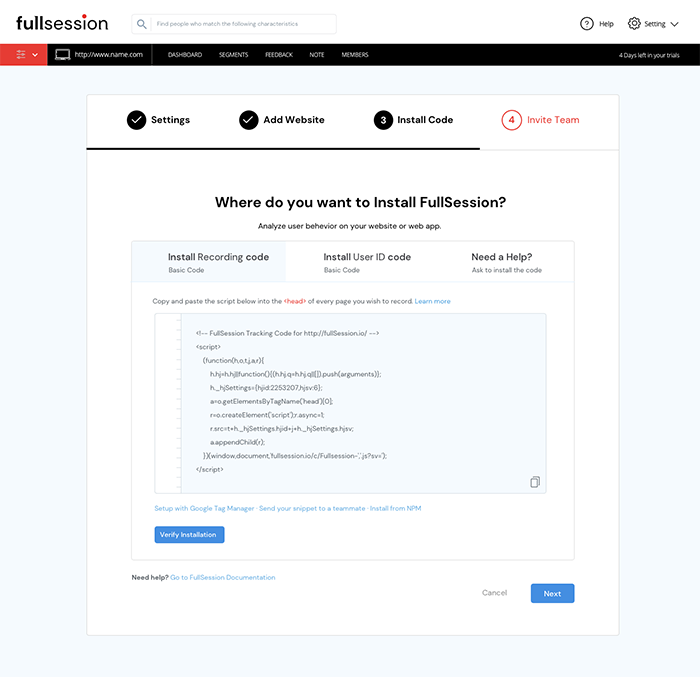
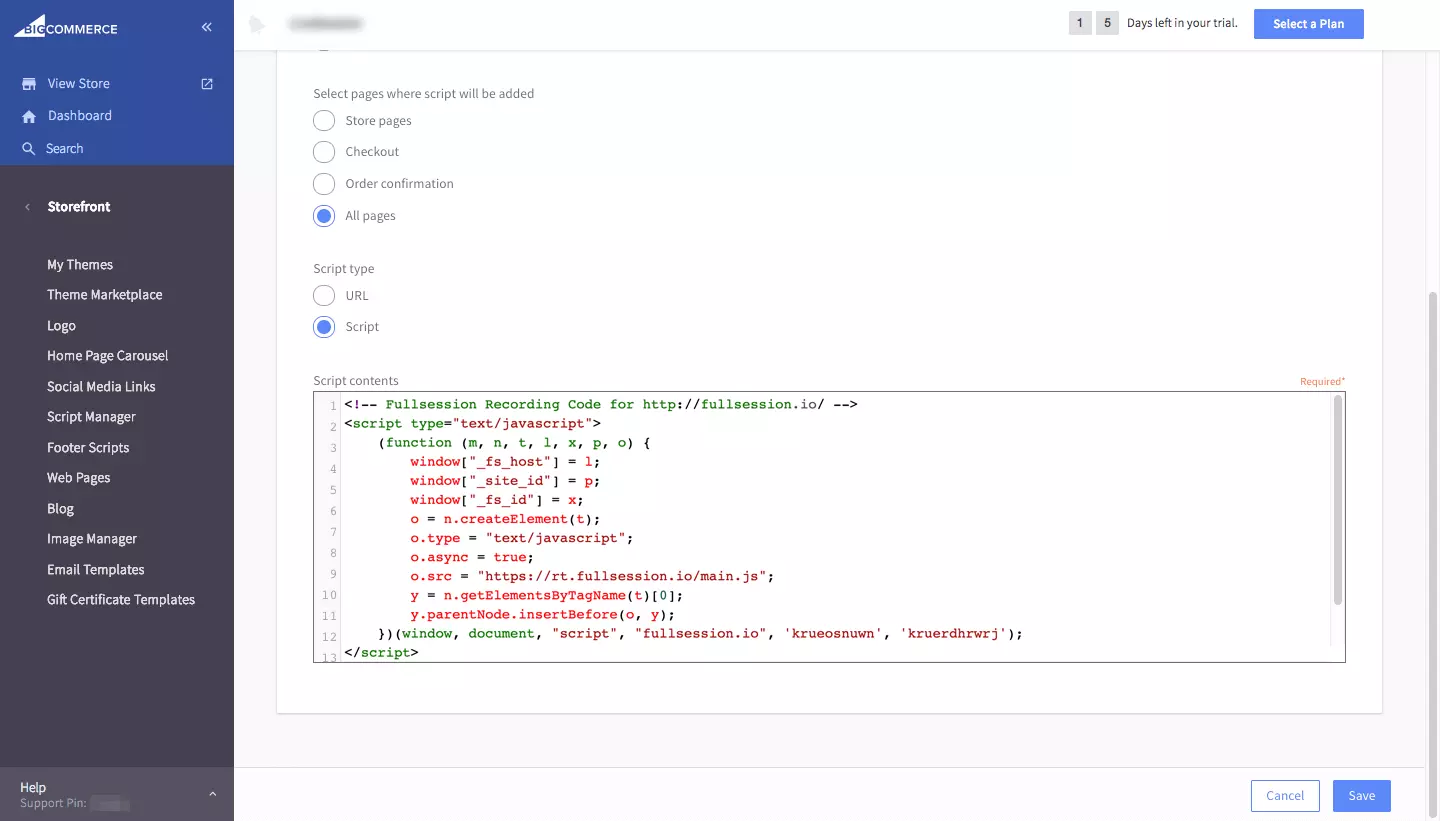
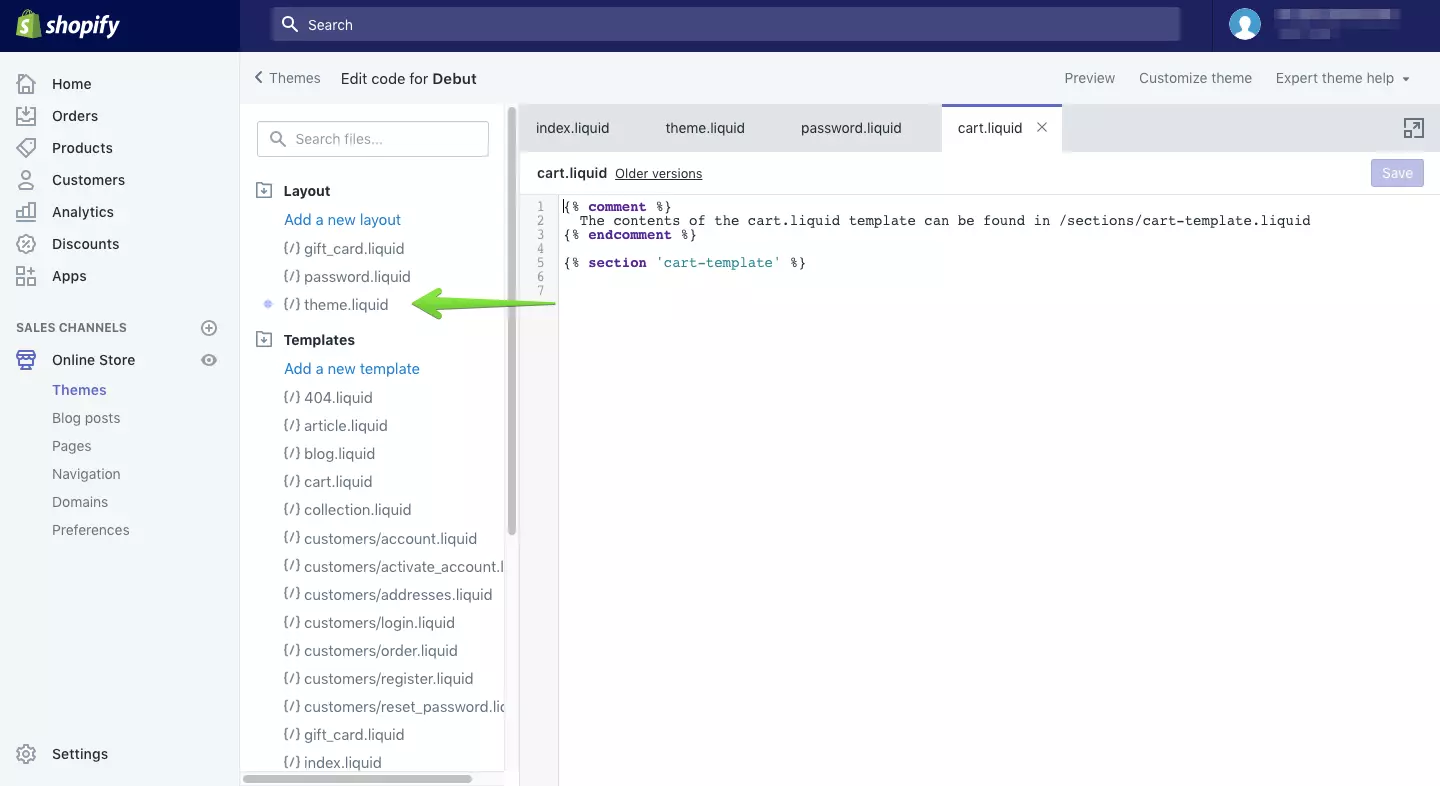
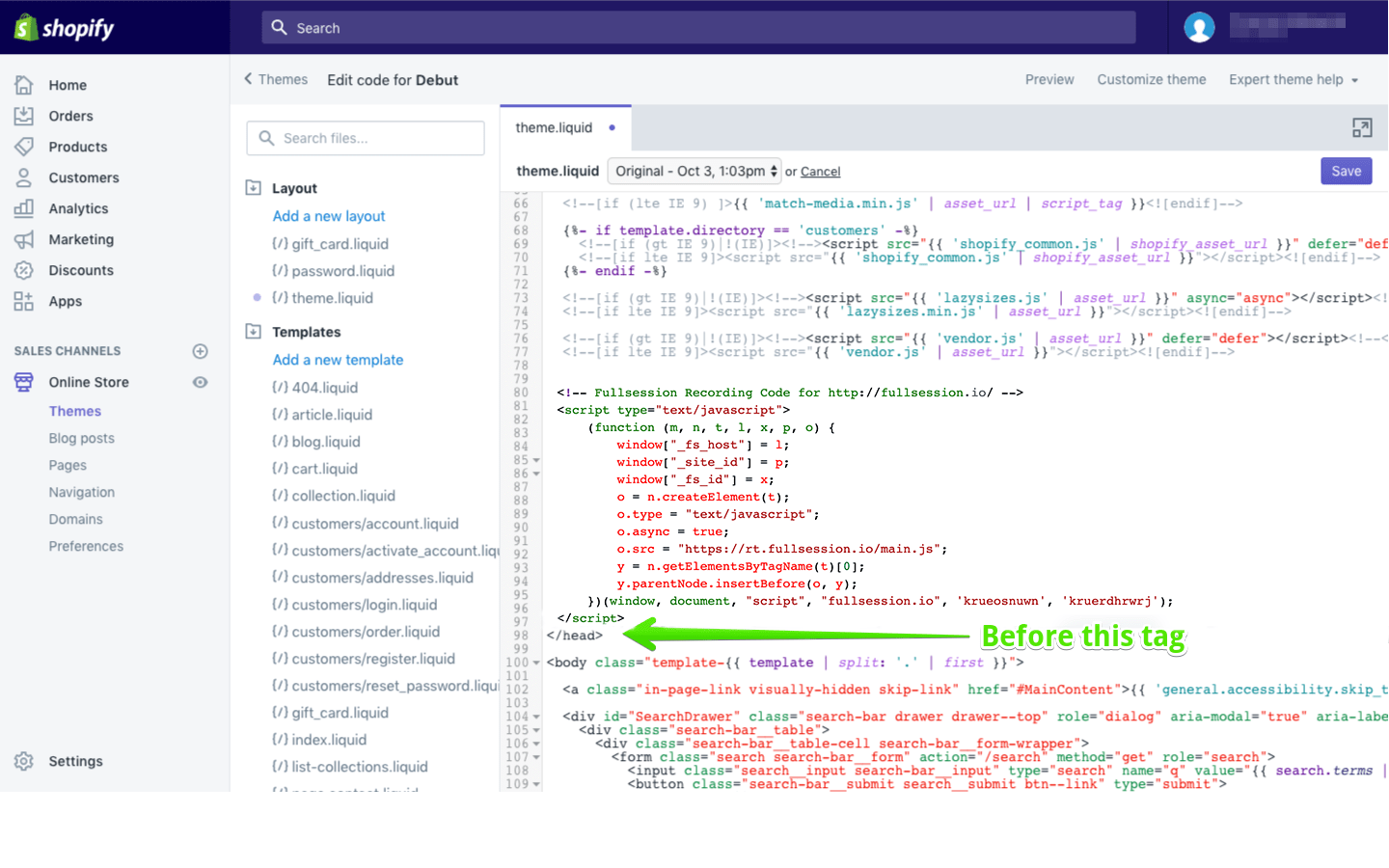
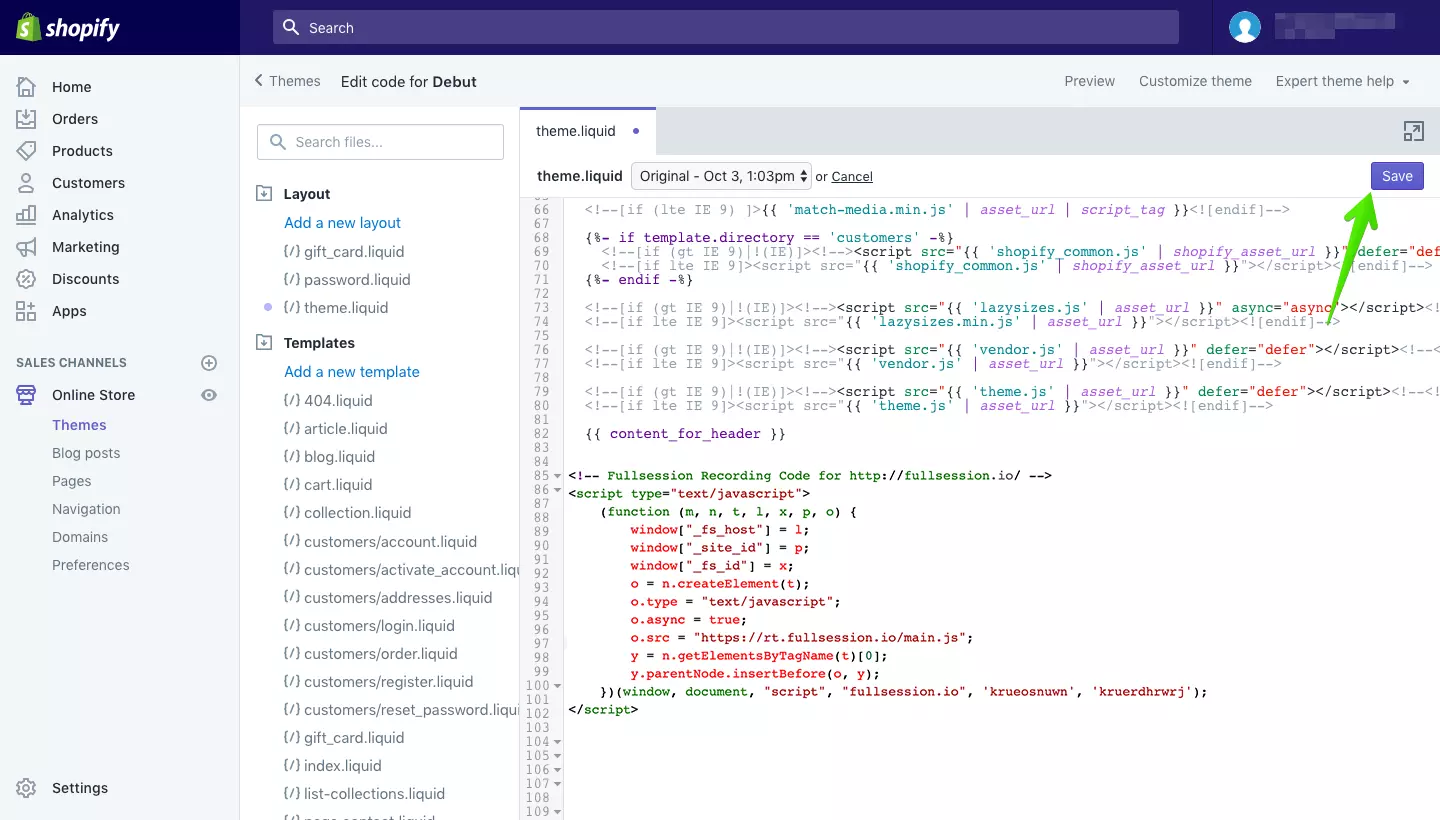
    You can deploy the FullSession platform by starting a free trial and adding our code snippet to the source code of your website.

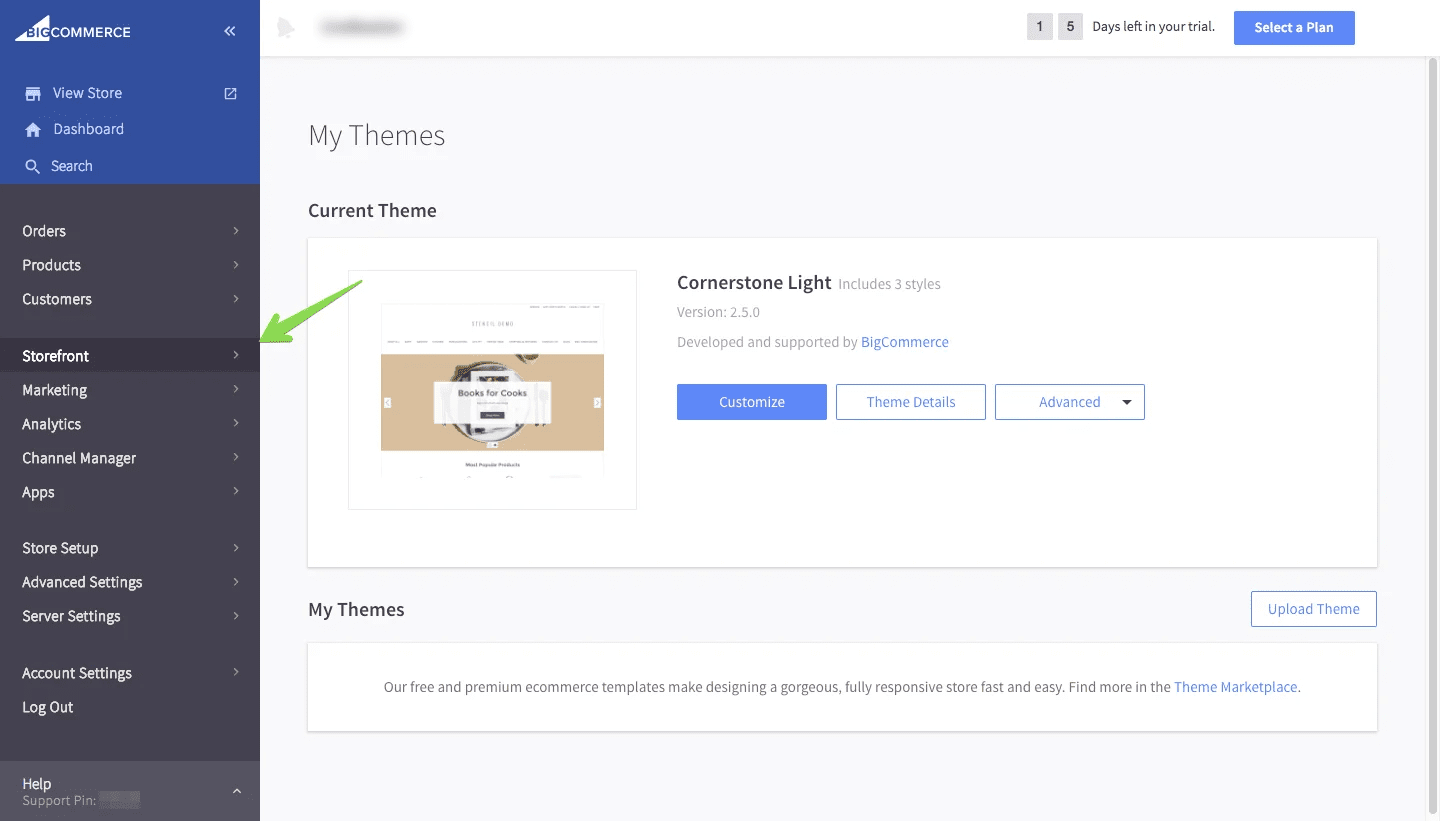
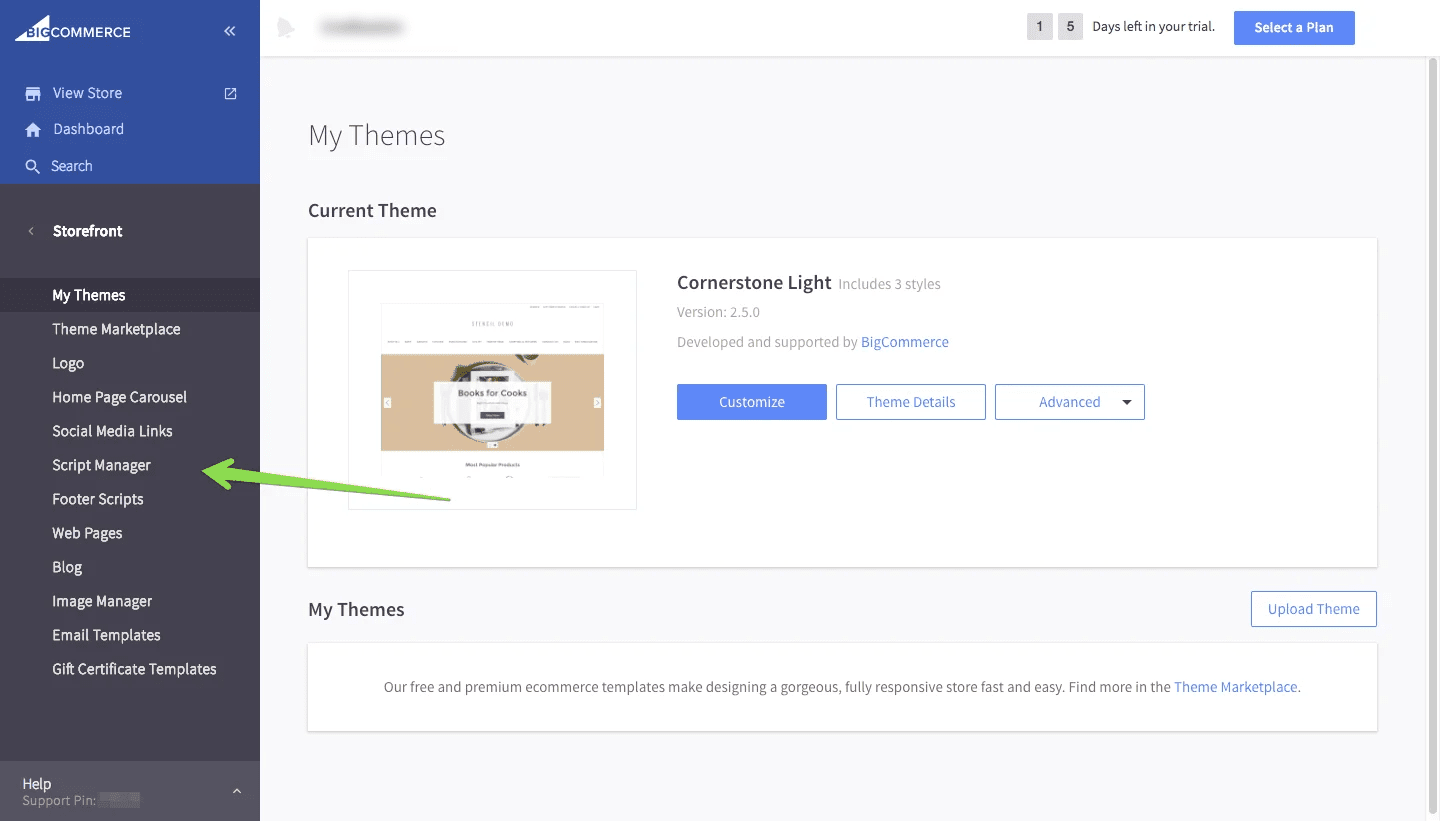
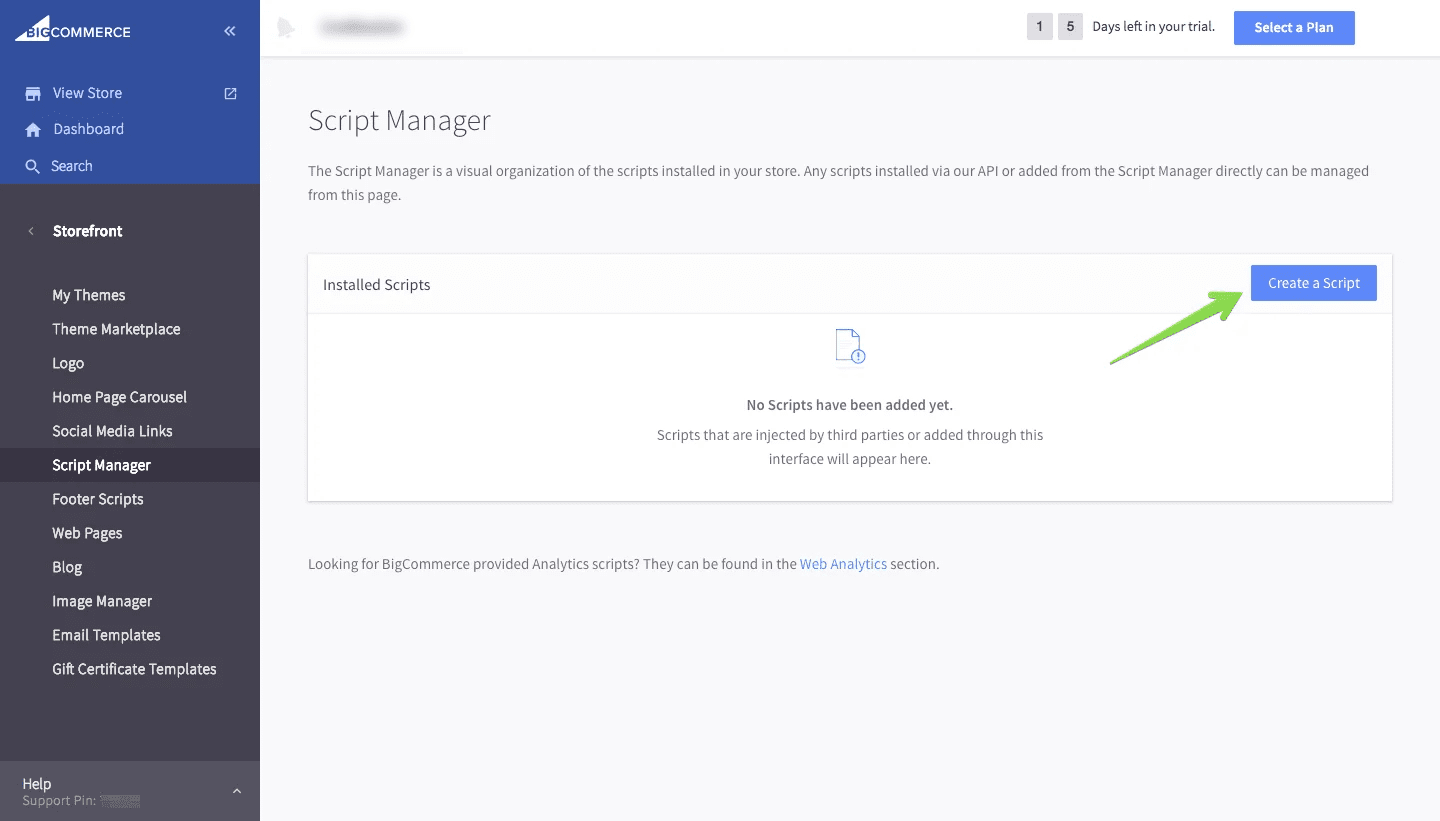
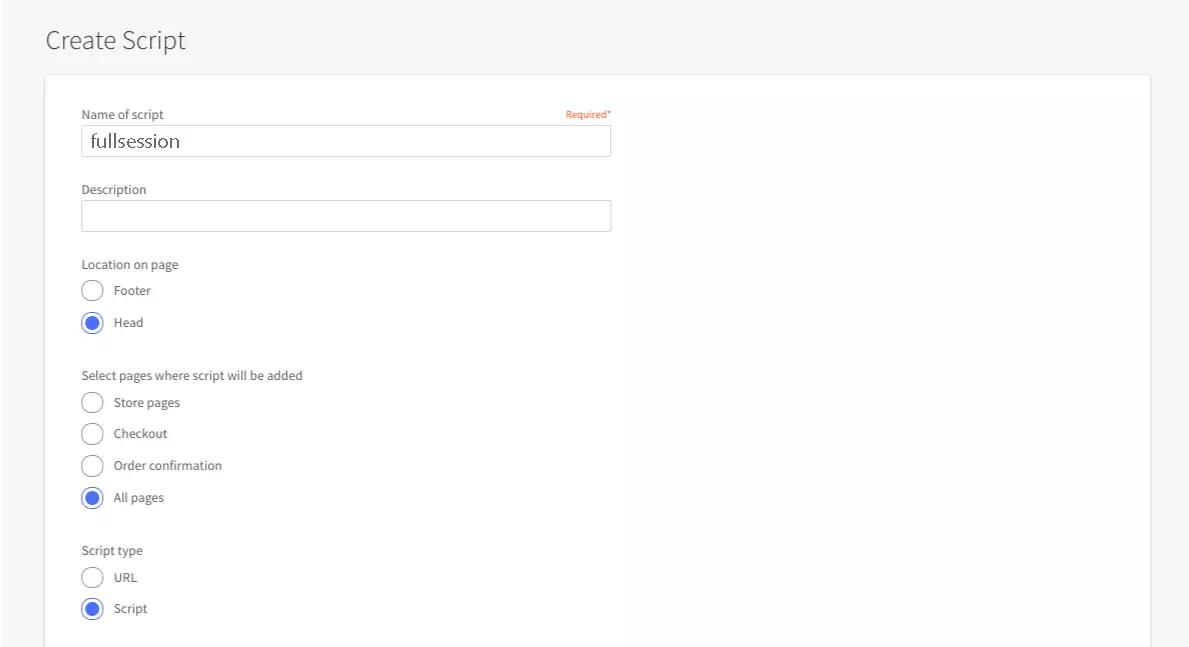
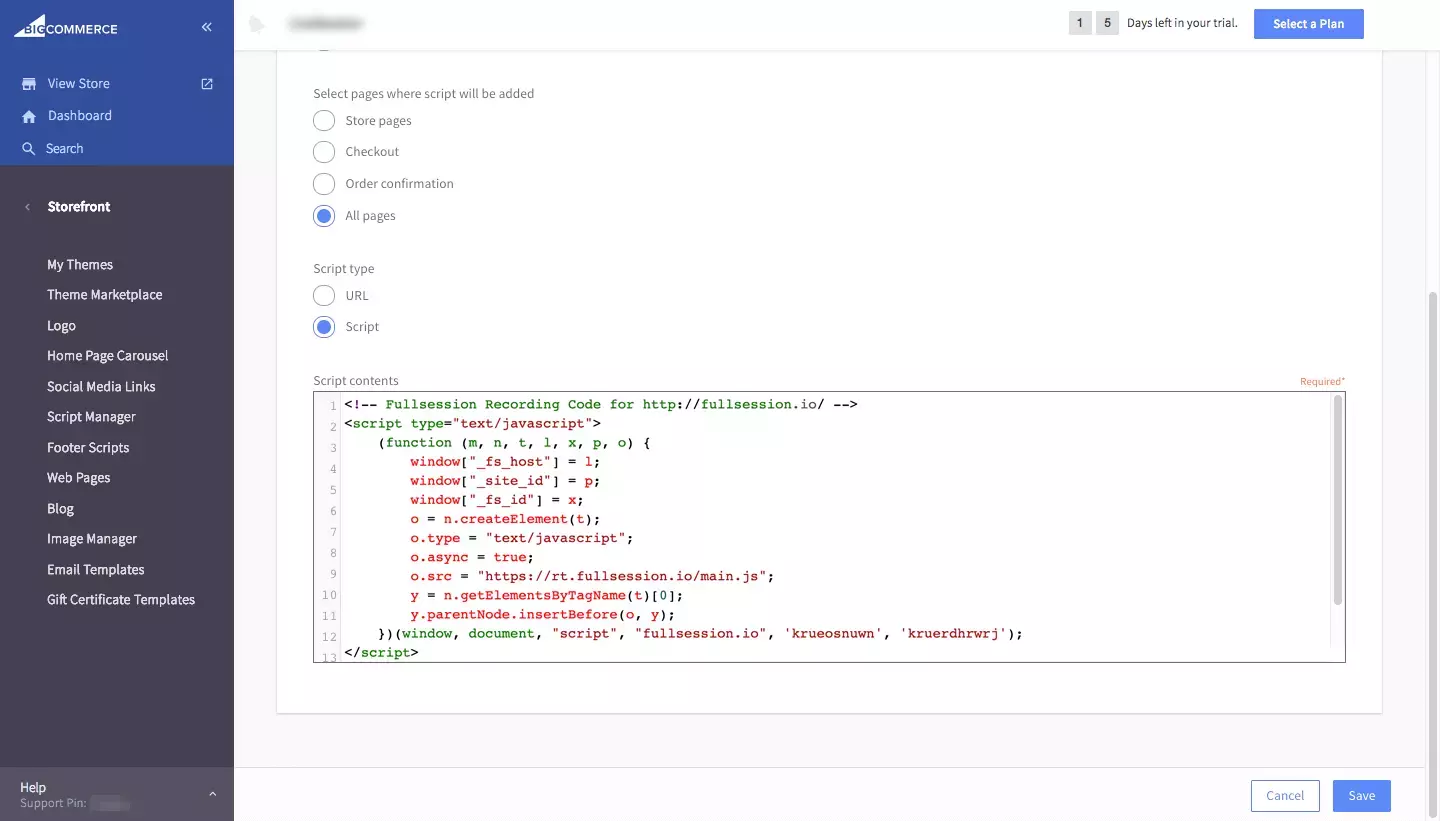
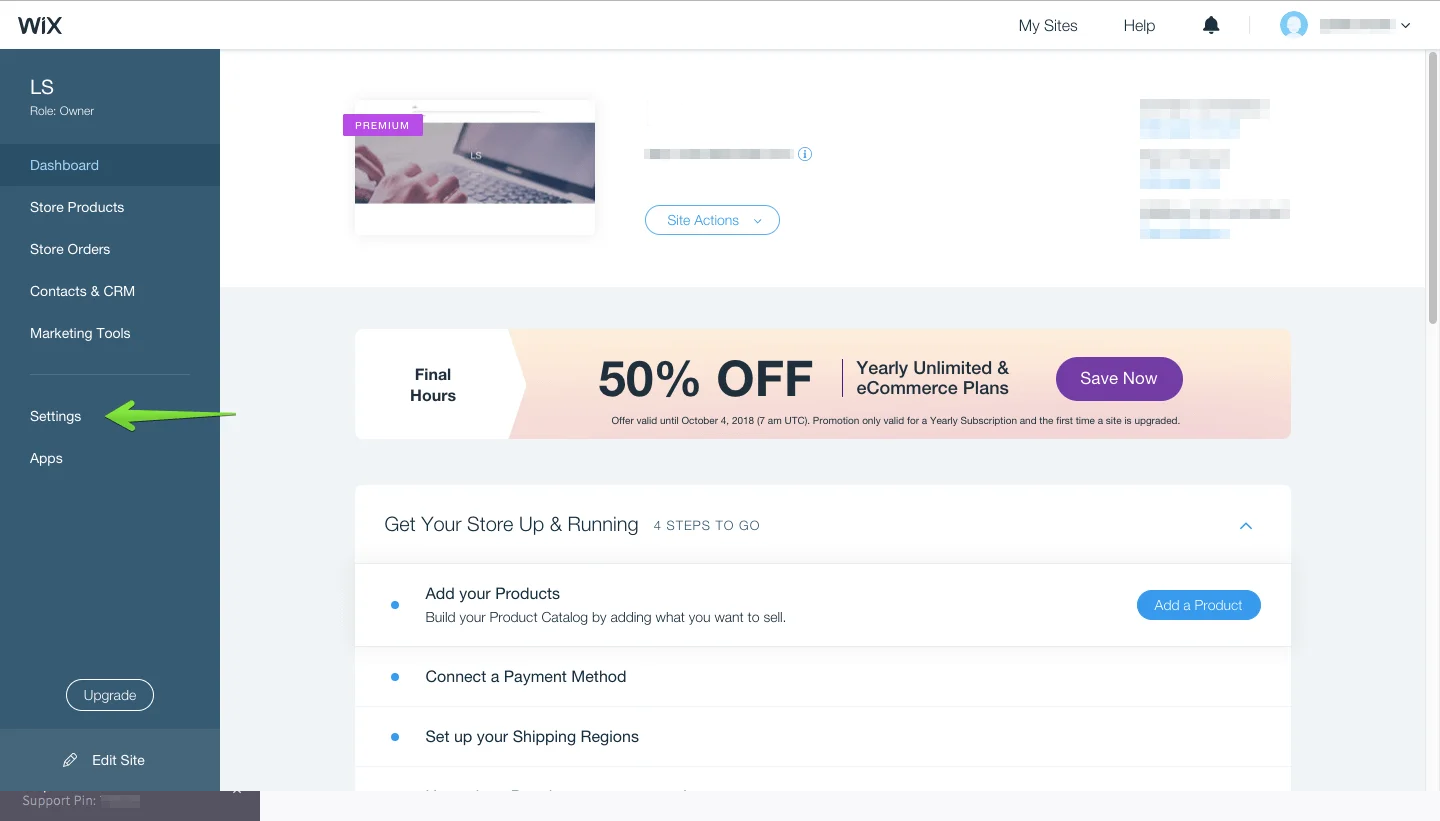
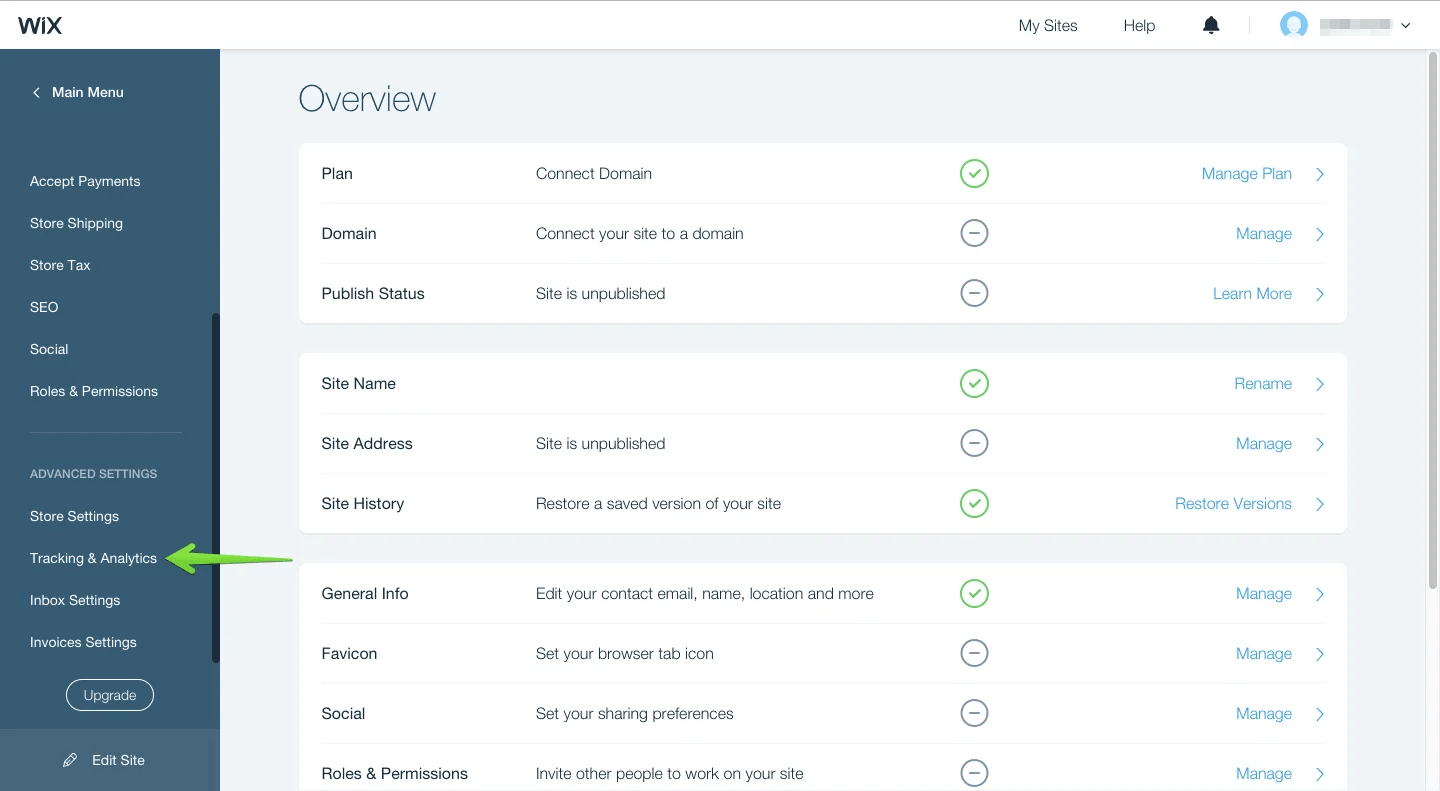
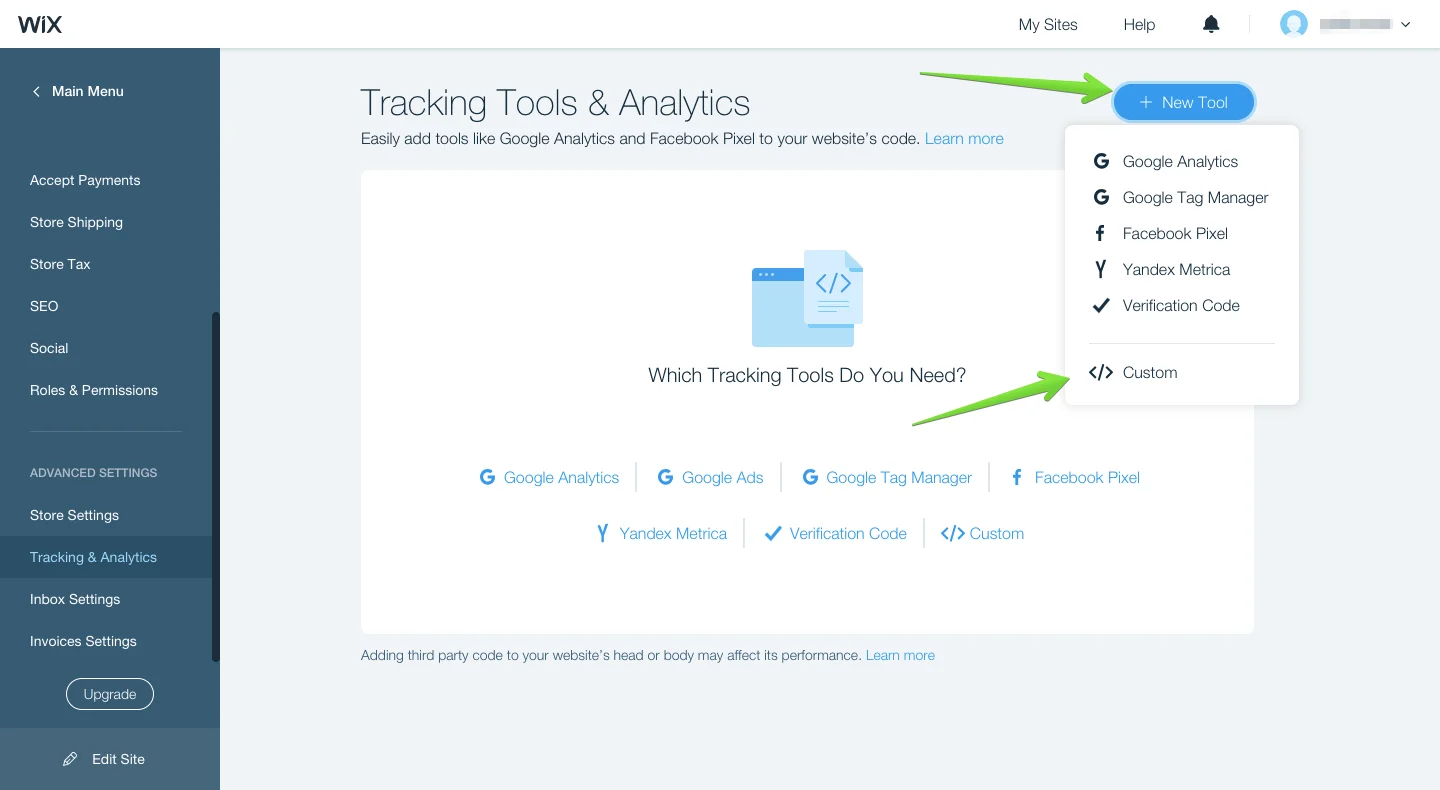
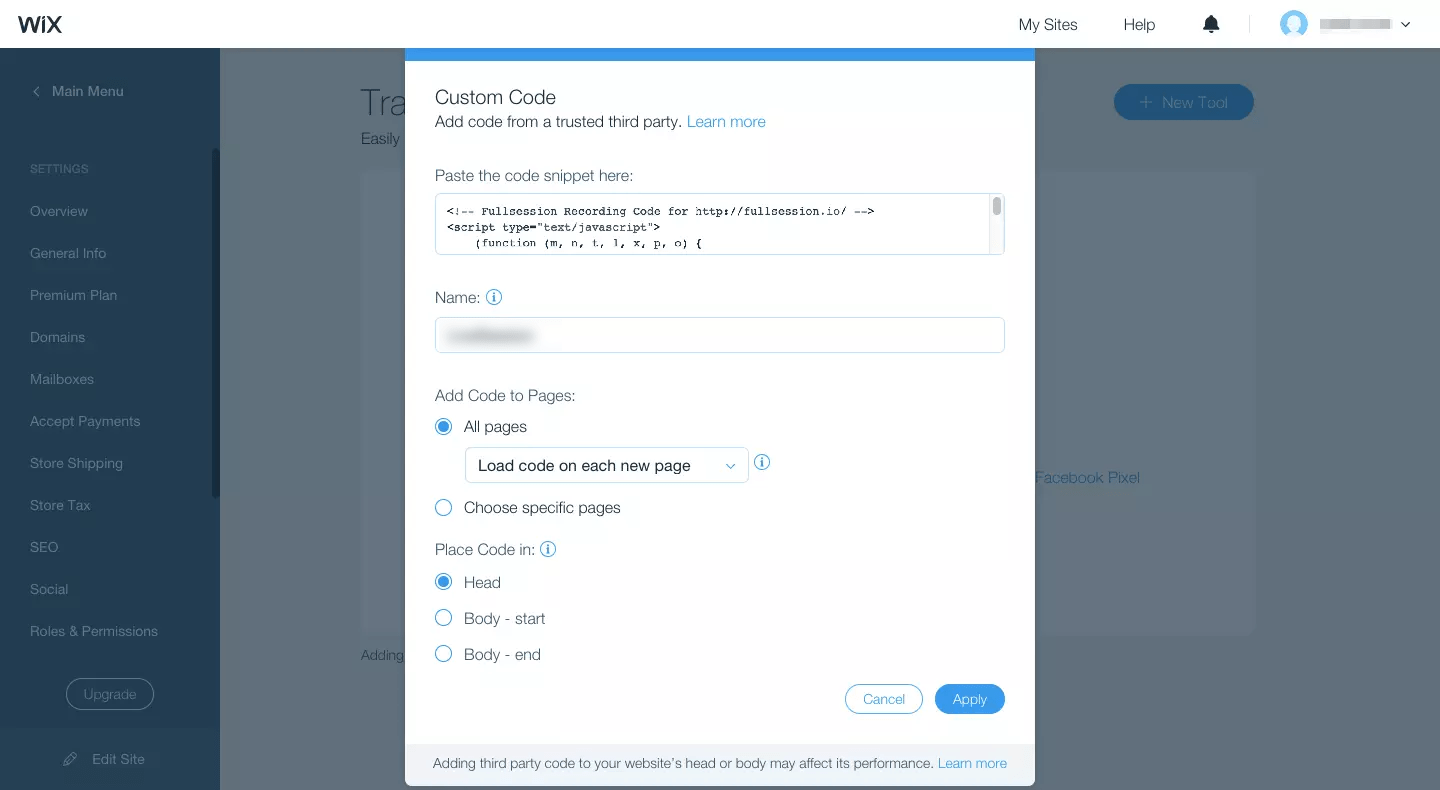
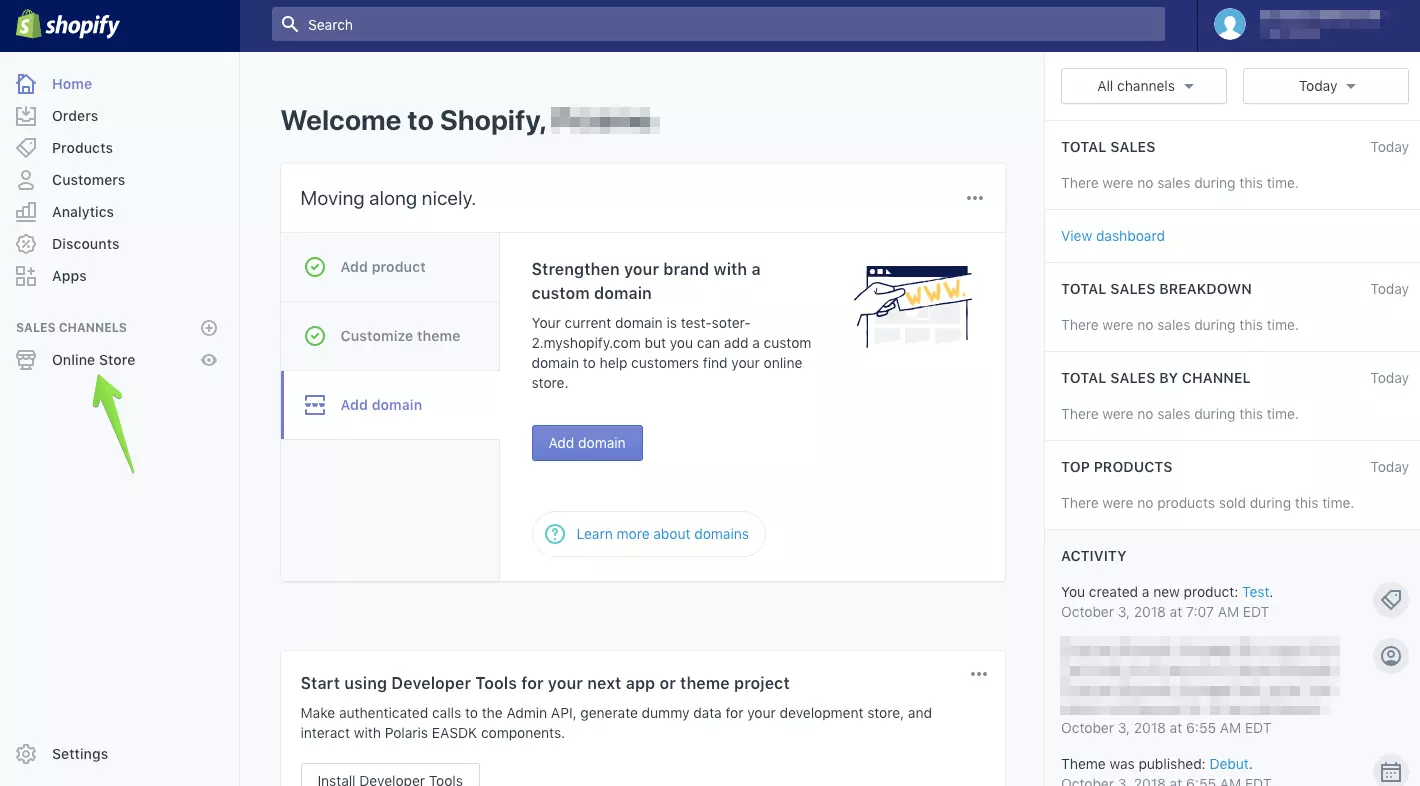
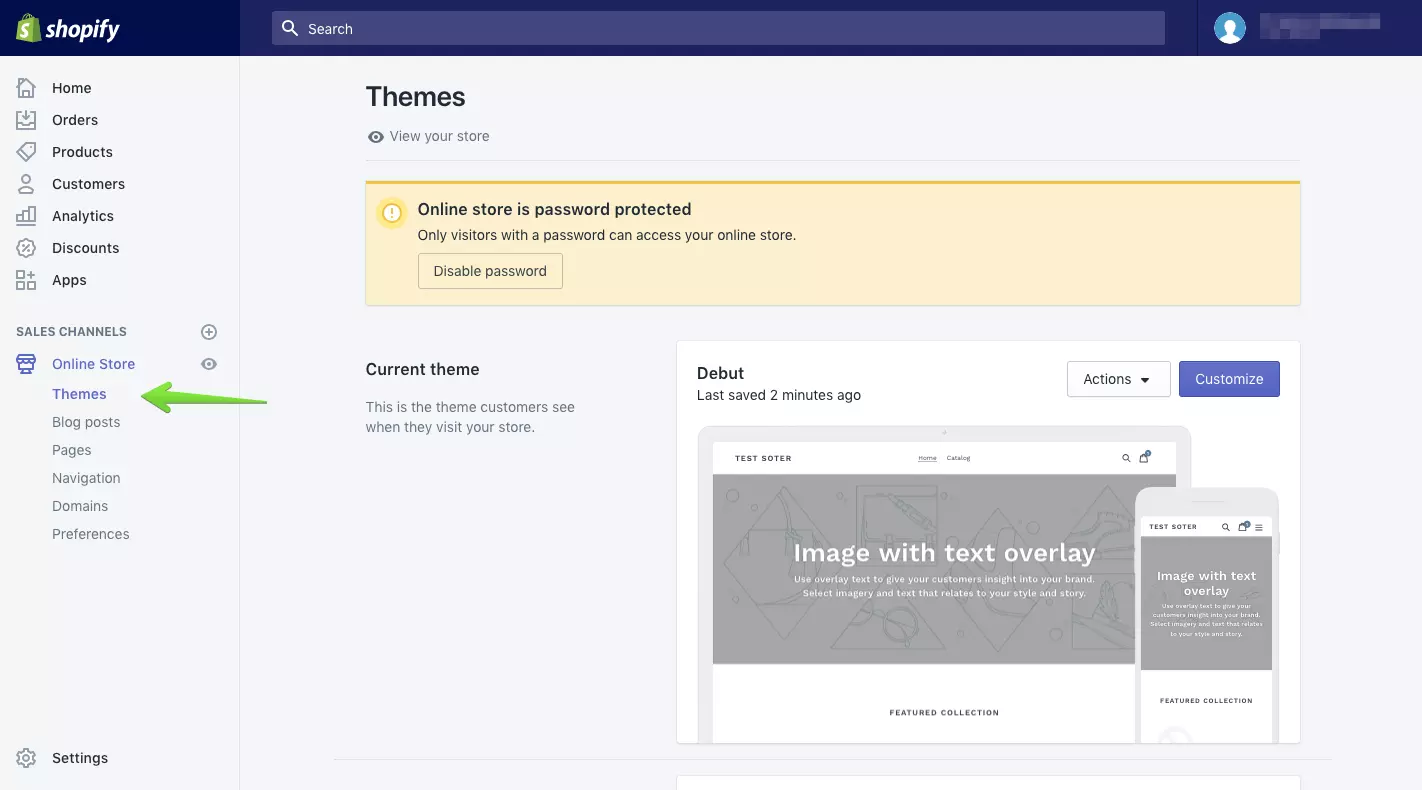
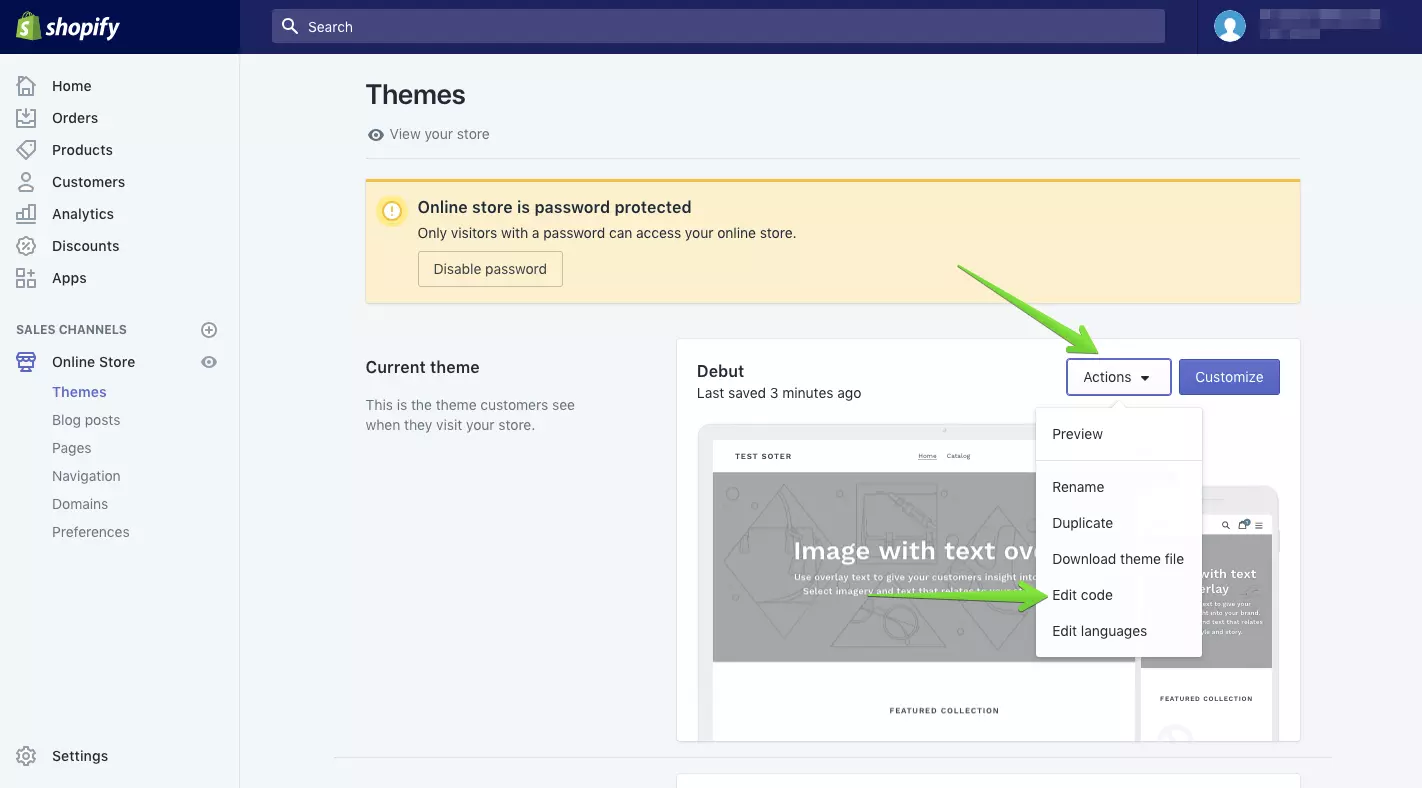
    FullSession also allows you to integrate with third-party platforms like Shopify, BigCommerce, Wix, and WordPress.

    FullSession features

    FullSession provides web analytics tools that let you see user actions and monitor user engagement with your website. 

    With FullSession features, you can identify best-performing web content, website bugs, and other usability issues you must solve to provide customers with the optimal user experience.

    Let’s explain each feature.

    1. Session recording and replay tools

    Our user session recording and replay tools provide a time-stamped record of each user event that occurs in a user session. It helps you see what users do when navigating your site, allowing you to use the insights to improve the user experience.

    You can also use our session recording and replay feature to

    • Identify Javascript errors, user frustration, usability issues, or poor-performing content
    • Analyze usage patterns
    • Track users’ clicks, scroll behavior, and mouse movements
    • Track the pages that users engage with the most
    • Monitor the time they spend on each web page
    • Analyze the performance of specific marketing campaigns

    Website session recording tools help you gain a bird’s-eye view of your website’s performance and understand how to optimize it further.

    You can analyze recorded sessions using user data points like

    • User location and IP address
    • Clicked URL
    • Referrals
    • Visited pages
    • Average time on page
    • Total active time on pages
    • Session list
    • Session event

    We also have a skip inactivity feature that lets you skip segments of user sessions to save time and focus on activities that give you valuable insights.

    2. Interactive heatmaps

    Interactive heatmaps let you visualize how users interact with your website elements, like buttons, headers, CTAs, and form fields. Our heat map feature provides behavioral data to improve your website tracking efforts.

    • Scroll maps help you analyze how far users scroll on your web page
    • Click maps help you visualize where users click
    • Mouse movement map lets you see how users navigate your website

    These features help determine if users are missing the most valuable website areas. With this insight, you can remove distracting website elements, fix broken ones, and improve conversion rates.

    The FullSession interactive heat maps can also help you to

    • Visualize heatmap data on different devices
    • See the URL the user visited
    • Track the number of total views and total clicks
    • Watch error clicks
    • Visualize rage clicks
    • Monitor dead clicks
    • See the average load time on the page
    • See the average time on the page
    • Track the number of users that visited the page
    Click map example
    Mouse movement map example
    Scroll map example
    3. Advanced filtering and segmentation

    Our advanced segmentation and filtering options allow you to create unique customer segments, filter important user events, and identify questionable user recordings and session replays.

    4. Advanced analytics

    The FullSession platform provides an advanced analytics dashboard that lets you quickly identify significant patterns in user actions. It includes different categories that will improve your interpretation of user behavioral data.

    Here are the main ones:

    • Session playlist
    • Top users
    • User trends
    • Device, browser and screen breakdown
    • Health segment
    • Feedback
    • Top pages
    • Clicks analytics
    • Error analytics
    • Slowest pages
    • UTM analytics
    • Top referrers

    With this feature, you can gain insight into user behavior and uncover hidden customer struggles in every user activity.

    5. Customer feedback forms

    Our customer feedback forms allow you to collect real-time user feedback to understand users’ actions, including what they think about their digital experiences and your site’s performance.

    We also provide a customer feedback report to help you analyze the feedback you collect from your customers. It includes several categories that will help you dig deeper into user feedback.

    For instance, you can see a full breakdown of the user profile and feedback details. They include the user’s email address, country, comments submitted, device type, feedback date, and URL visited.

    Each user feedback you collect is connected to a session recording so you can watch and understand what happened during a session.

    6. Notes

    The notes feature allows you to leave comments about user events to improve website analysis and deeply evaluate customer issues. 

    You can write down significant customer actions, share them with your team, and improve collaboration during project development.

    7. Funnels and conversions

    The FullSession funnels and conversions feature offers an in-depth analysis of user journeys, allowing you to monitor, comprehend, and optimize every stage of your conversion funnel. 

    It helps you identify crucial actions that drive conversions, detect issues causing drop-offs, and analyze user interactions to improve the overall user experience. Its main features include:

    • Funnel steps: Visualize user progression through each funnel step, showing conversion and drop-off rates. Track user movement percentages and compare metrics across segments and time periods.
    • Funnel trends: Monitor changes in user flows and conversion rates over time. Spot trends and seasonal variations in user behavior to adjust strategies accordingly.
    • Top events: Identify key actions and events boosting conversion rates. Use insights to replicate successful patterns and optimize journeys.
    • Top issues: Detect actions or obstacles reducing conversion rates. Implement fixes to reduce friction and enhance the user experience.
    • Time engaged: Measure user interaction time between funnel steps to understand user effort. Find areas where excessive time indicates frustration or complexity.
    • Top engaged: Analyze the most engaging funnel steps or features, then enhance engaging features to improve retention and conversion.
    • Revisit rate: Track users leaving the product before advancing to find potential issues. Optimize steps to streamline journeys and reduce exits.
    • Segment analysis: Compare funnel performance across user segments, such as device type, location, or referral source. Tailor experiences based on segment-specific interactions.
    • Time period comparison: Analyze performance over different periods to identify trends. Adjust strategies based on temporal insights to maintain or improve performance.
    8. Error analysis

    FullSession error analysis helps identify, analyze, and resolve errors impacting user experience by leveraging data on error clicks, network errors, console errors, error logs, and uncaught exceptions. 

    This feature provides actionable insights to improve the reliability and user satisfaction of digital products.

    • Error clicks: This method detects non-responsive elements causing client-side JavaScript errors and uses session replays and error click maps to identify and fix issues.
    • Network errors: Monitors server request failures due to timeouts, DNS errors, or server unavailability and analyzes error impact by URL, status code, and request method to resolve connectivity issues.
    • Console errors: Logs JavaScript error messages and events. It also filters and analyzes errors to identify and fix codebase issues, using session replays for context.
    • Error logs: This feature captures detailed error information, including messages, stack traces, and timestamps, and facilitates accurate debugging and issue resolution for an optimized application.
    • Uncaught exceptions: Monitors critical unhandled errors to prevent application crashes and ensures proper error handling and resolution to enhance stability.
    • Error trends and segmentation: Segments data by user attributes, session properties, and error types for deeper insights, visualizes error trends and impacts over time to monitor platform health and validate fixes, and integrates session replays to see errors from the user’s perspective.
    • Alerts and notifications: Integrates with Slack for real-time error alerts and customizes notifications for various error types, ensuring quick team responses.

    Why should you choose FullSession?

    Here are four reasons to choose FullSession to perform web analysis

    • FullSession helps you perform UX analysis without affecting your website performance and page loading time.
    • FullSession can track and analyze user behavior to identify website visitors’ struggles and conversion blockers.
    • Our analytics software provides advanced filtering options that enable you to identify critical user actions and understand each user’s digital experience.
    • FullSession provides a central analytics platform that lets you and your team collaborate more efficiently.

    As you can see, FullSession provides many benefits, so don’t waste time anymore. Start your free trial to create a perfect digital experience for your customers.

    Pricing

    Fullsession Pricing

    FullSession doesn’t include a free plan, but we offer a free trial. The annual subscription allows you to save 20% on our premium plans.

    Here are more details on each plan.

    • The Free plan is available at $0/month and lets you track up to 500 sessions per month with 30 days of data retention, making it ideal for testing core features like session replay, website heatmap​, and frustration signals.
    • The Growth Plan starts from $23/month (billed annually, $276/year) for 5,000 sessions/month – with flexible tiers up to 50,000 sessions/month. Includes 4 months of data retention plus advanced features like funnels & conversion analysis, feedback widgets, and AI-assisted segment creation.
    • The Pro Plan starts from $279/month (billed annually, $3,350/year) for 100,000 sessions/month – with flexible tiers up to 750,000 sessions/month. It includes everything in the Growth plan, plus unlimited seats and 8-month data retention for larger teams that need deeper historical insights.
    • The Enterprise plan starts from $1,274/month when billed annually ($15,288/year) and is designed for large-scale needs with 500,000+ sessions per month, 15 months of data retention, priority support, uptime SLA, security reviews, and fully customized pricing and terms.

    2. Hotjar

    Hotjar

    Investing in a tool like Hotjar can help you improve the user experience and your company’s profits. With session recordings and session replay tools, you can watch what your users are doing online and discover issues in actual user journeys, from the entry page to the exit page.

    You can observe how customers use your site, make design changes, and compare the effects of those changes. It is the favorite tool of UX designers, but it can benefit all teams working in the Information Technology industry.

    Unlike traditional web analytics tools such as Google Analytics, which provide raw data, Hotjar offers sensitive data presented in visual reports, providing immediate feedback on whether your changes have the desired effect.

    Hotjar features

    Hotjar is a qualitative web analytics solution that helps you make informed decisions about your website’s usability, navigation structure, and content organization. Here is a list of Hotjar’s features.

    • website heatmap software​
    • Session recording
    • Session replay tools
    • Conversion funnels
    • Form analytics
    • User feedback pop-up widget
    • Incoming feedback
    • Surveys
    • Usability testing recruitment

    Hotjar gives you a bird’s eye view of your website visitors. You can use it to see how users behave on your site, where they’re clicking, and what they’re paying attention to. 

    If you want to learn how Hotjar compares to its competitors, you can read our Hotjar alternatives comparison.

    Hotjar pricing

    Hotjar pricing

    Hotjar provides a free version. Its paid plans include the Observe, Ask, and Engage plans. If you pay annually, you can get a 20% discount.

    The Observe plan lets you visualize user behavior with heatmaps and see users’ actions with session recording. It is divided into:

    • Basic—costs $0 and allows you to track up to 35 sessions/day
    • Plus—costs $39/month and lets you track up to 100 sessions/day
    • Business—starts from $99/month and lets you track 500 to 270,000 daily sessions
    • Scale—starts at $213/month and lets you track 500 to 270,000 daily session recordings with full access to all features

    Our Hotjar Reviews and Comparison Articles

    Want to learn more about Hotjar and its alternatives? Feel free to check out our in-depth articles:

    3. Inspectlet

    Inspectlet

    With Inspectlet, you’ll have always-on visitor recordings that allow you to step into your customer’s shoes to improve and potentially increase your sales conversion rate. Also, it has an advanced setup that lets you gather data on desktop or mobile devices.

    Inspectlet features

    If you want to know more about the user experience on your website or landing page, Inspectlet is a good place to start. Here is the Inspectlet features list.

    • Automatic event tracking
    • Session recording and session replay tools
    • Screenshots utility
    • Eye-tracking heatmaps, click heatmaps, and scroll heatmaps
    • User-targeted tracking options
    • Advanced filtering options
    • Session and user tagging
    • A/B testing
    • Feedback surveys
    • Form analytics
    • Bug reports

    Inspectlet pricing

    Inspectlet pricing

    Inspectlet offers a free plan and five paid plans. Here are more details of each plan:

    • Free plan – provides access to 2,500 session recordings
    • Micro plan – starts at $39 per month and allows you to track 10,000 session recordings
    • Startup plan – starts at $79 per month and gives you access to 25,000 recorded sessions
    • Growth plan – starts at $149 per month and allows you to analyze 50,000 recorded sessions
    • Accelerate plan – starts at $299 per month and enables you to track 125,000 session recordings
    • Enterprise plan – starts at $499 per month and gives you access to 250,000 recorded sessions

    If you want to read more about how Inspectlet compares to Hotjar, you can check out our review.

    4. Mouseflow

    Mouseflow

    If your site visitors aren’t converting, Mouseflow can tell you why. The service lets you replay the whole visit and see what areas people struggled with the most. You’ll be able to pinpoint and fix problems easily and boost conversions on the web or mobile apps.

    Read our Mouseflow vs VWO comparison to learn more.

    Mouseflow features

    We all want to know what our users think. Mouseflow is a tool that provides an in-depth analysis of your website’s visitors. Here is Mouseflow’s feature list.

    • Click, scroll, attention, movement, geo, and live heatmaps
    • Session recordings and session replay tools
    • Conversion funnel optimization tool
    • Form analysis and optimization
    • User feedback

    Mouseflow pricing

    Mouseflow pricing

    Would you like to use the free forever or paid plan? The free forever plan (500 sessions/month) is good for small businesses and websites but offers limited features. 

    However, if your website has a high monthly traffic, we recommend one of Mouseflow’s paid plans.

    • Starter costs $39 per month for 5,000 sessions/month
    • Growth costs $129 per month for 15,000 sessions/month
    • Business costs $259 per month for 50,000 sessions/month
    • Pro costs $499 per month for 150,000 sessions/month
    • Enterprise offers customized pricing for 200,000+ sessions/month

    Each paid plan has a free trial period. If you need more than 200,000 recordings/month, you can contact Mouseflow sales reps for more information.

    5. Contentsquare

    Contentsquare

    Contentsquare (formerly ClickTale) is a cloud-based session recording software that lets you gain insight into how your customers interact with your digital products. It provides information on web navigation, browsing patterns, and general behaviors of your users on web or mobile apps.

    This session recording and session replay tool is ideal for measuring the goals of marketing campaigns, improving conversion rates, enhancing customer experience, and boosting sales.

    Contentsquare features

    Contentsquare is a platform that fits all your digital needs. It’s one place where marketers, product managers, and IT can use the session replay feature to get customer data and do their jobs better. Here is the list of Contentsquare’s features.

    • Customer journey analysis
    • Zone-based heatmaps
    • Session replay tool
    • AI insights
    • Mobile app analysis
    • Merchandising analysis
    • Friction, page error, and site error detection
    • Impact quantification
    • APIs and web analytics integration

    Contentsquare pricing

    Contentsquare provides a record-everything service. Pricing information is unavailable on the official site, and customers need to contact sales reps for more information. It is worth noting that Contentsquare has subscription-based pricing.

    To learn more about this tool, read our article on Contentsquare competitors.

    6. Smartlook

    Smartlook

    The Smartlook session recording and session replay software is an invaluable tool that can help you see everything your customers do on their screens. 

    You’ll be able to see visitors click, their inputs into form fields, where they spend the most time, and how they go through each page of your website or mobile apps, thanks to an easy-to-use SDK.

    It’s a tool that helps you stay compliant with GDPR. You can install it quickly and easily on your website by adding a small code snippet or using Google Tag Manager.

    If you want to learn more about this tool and its competitors, you can read our article on Smartlook alternatives.

    Smartlook features

    Smartlook helps you get inside your visitor’s mind. You can track where they get stuck on your website and then use that information to improve the user experience. Here is the list of Smartlook features.

    • Session recording and session replay with advanced filtering options
    • Heatmaps you can segment by device type or visitor type
    • Automatic event tracking, statistics, and breakdown
    • Conversion funnels optimization
    • Analytics and reporting
    • Retention tables to understand user engagement and identify churn

    Bonus features for mobile devices

    • User recording on Android or iOS devices
    • Wireframe mode to help you focus on UI elements
    • Games recording and analytics
    • WebGL to see graphic elements of your apps on different devices

    Smartlook pricing

    Smartlook

    Smartlook offers a 30-day free trial. During this trial period, you can enjoy all the features of the business plan. However, there is a limit of 3,000 monthly sessions. 

    You do not need to enter your credit card information to start the trial. After 30 days, you can buy a paid plan or return to the free version. Smartlook offers three paid plans:

    • Pro with 5,000 sessions/month for $55 per month
    • Enterprise provides a tailor-made solution, so you need to contact sales reps

    7. Lucky Orange

    Lucky Orange

    Lucky Orange has a user-friendly interface that allows you to completely control your recordings. It is a good tool for UX designers, product managers, market researchers, digital marketers, and others.

    With session recording and session replay features, you can see mouse movements, scrolls, taps, and gestures on the virtual desktop screen. 

    To learn how this tool compares to other UX analytics solutions, read our article on Lucky Orange alternatives.

    Lucky Orange features

    Lucky Orange lets you optimize your website’s performance fast. It provides data to back up decisions in a useful way for both solo entrepreneurs and large corporations. 

    Here is the list of Lucky Orange’s features:

    • Session recording and session replay
    • Live chat for customer support
    • Conversion funnel optimization to remove roadblocks
    • Detailed visitor profiles with recording history
    • Announcement sharing with placement options and intelligent triggers
    • Dynamic heatmaps
    • Unlimited and customizable dashboards to focus on important data
    • Form analytics
    • Fully customizable surveys with a pre-launch preview

    Lucky Orange pricing

    Lucky Orange pricing

    It offers a free plan for one website. The free plan includes 100 sessions per month, unlimited recordings, and 30 days’ worth of data. 

    Paid plans provide more insights, and you can test them out with a free trial. Also, it offers a 20% discount for yearly payments. Check more pricing details below.

    • Build package includes 5,000 sessions for $39/month
    • Grow package includes 15,000 sessions for $79/month
    • Expand package includes 45,000 sessions for $179/month
    • Scale package includes 300,000 sessions for $749/month
    • Enterprise package lets you create a plan based on your needs

    8. FullStory

    FullStory

    FullStory is like having an extra set of eyes on the inside. It’s like having someone at your place who can see what people are doing while you’re not around. FullStory has a holistic view of your online customer experience.

    FullStory is a platform that combines quantitative and qualitative data to drive digital transformation and growth. It tells you what seems to matter most these days—what appeals to your customers.

    You can check out our article on FullStory competitors to learn more.

    FullStory features

    FullStory lets you get a complete picture of what users do on your website. Here are more details of the FullStory features:

    • Advanced record and session replay options with skip inactivity feature
    • Users and sessions filtering based on any action
    • Developers’ tools and bug reports
    • Conversion funnel optimization
    • Click and scroll heatmaps
    • Collaboration tools include notes, alerts, email digest, and Slack integration
    • Privacy control features
    • Out-of-the-box implementation with JavaScript frameworks

    FullStory pricing

    FullStory pricing

    FullStory offers a free plan for basic needs. It gives you access to 5,000 sessions.

    There are three paid plans—Business, Advanced, and Enterprise–but the downside is that it doesn’t provide transparent pricing for each plan on its website. 

    1. The Business plan offers a 14-day trial and allows you to track up to 5,000 sessions 
    2. The Advanced plan offers everything in the Business plan plus premium product analytics features
    3. The Enterprise plan offers a customized plan, so you’d have to contact sales or request a demo

    So far, we’ve explained the top eight session recordings and replay tools to help you understand user behavior. In the next section, we’ll present a table summarizing the features of each tool to make a quick overview.

    The Best Session Recording and Replay Tools: A Short Overview

    The table below provides a short overview of the session recordings and replay software we mentioned above.

    FeaturesFullSessionHotjarInspectletMouseFlowClicktaleSmartlookLucky OrangeFullStory
    Real-time Session recording
    Funnel analysis
    Conversion tracking
    Behavioral analytics
    Customer segmentation
    A/B testing
    Customer journey mapping
    Dynamic heatmaps
    Free version
    Free trial
    Surveys and customer feedback
    Insights
    Monthly pricing$39$39$39$39n/a$55$39n/a

    Session Recording Tools: Our Verdict

    Fullsession

    As we conclude this comprehensive article, we hope it has provided you with enough information to select suitable session recording tools for your website tracking needs.

    There are so many session recording solutions available, each with differing strengths and weaknesses, so it’s critical to choose a solution that works for you and your team.

    FullSession is the best option for your website. Our UX analytics tool provides real-time session recordings and replay tools that help you monitor users as they browse your website.  

    With this feature, you can better understand user behavior, figure out where users are having issues, and use the insight to improve conversions. And it’s not just session replays. 

    You also get access to a suite of tools to understand your customers’ needs and wants, including heatmaps, conversion funnel analysis, error tracking, customer feedback tools, and more.

    FullSession Pricing Plans

    Fullsession pricing

    The FullSession platform offers a 14-day free trial. It provides three paid plans—Starter, Business, and Enterprise. You can save up to 20% with a yearly subscription!

    Here are more details on each plan.

    1. The Starter plan costs $39/month or $32/year and allows you to monitor up to 5,000 monthly sessions.
    2. The Business plan costs $75/month or $60/year and helps you to track and analyze up to 100,000 monthly sessions.
    3. The Enterprise plan has custom pricing and offers customizable sessions plus full access to all features.

    If you need more information, you can get a demo.

    Try FullSession’s Session Recording Features Today

    It takes less than 5 minutes to view your first user session with FullSession, and it’s completely free!

    FAQs About Session Replay Tools

    Let’s answer the most common questions about session recording tools.

    What are session recording tools?

    session recording tool

    Session recording tools are qualitative research tools that help you record user actions while browsing web pages. 

    Product teams, UX and UI researchers, marketers, and site owners use website session recording software to capture data and analyze user behavior.

    What are session replays?

    Session playback helps you focus on the video and pay closer attention to how visitors interact with your website or app. It allows you to spot all crucial details about users’ behavior.

    Some analytics tools, like FullSession, even let you set up the playback speed of your videos to help you save time during the analysis. Fixing all critical issues you noticed during session replays will improve your customers’ digital experience.

    How can session recordings help you monitor user sessions?

    With session recordings, you can watch recordings of how users interact with your website, web app, or landing page in real-time.

    You can track:

    • How long has the user engaged with your site
    • How many pages they viewed
    • Determine what areas of your site need improvement
    • Determine if you need to redesign your web elements
    • Understand if there are any usability issues.
    • Identify bugs and Javascript errors
    • Learn about customers’ preferences and behaviors

    It helps you tailor your products and services to meet users’ needs.

    How does session recording let you track user behavior?

    a quote about investing in UX and the ROI it brings

    Image source: Intechnic

    Session recordings help you understand and capture data about user navigation on your website and issues they encounter during their visit. You can watch sessions to learn:

    • What your website visitors see on different screen resolutions.
    • What page elements catch attention and engage customers.
    • Where users click or how far they scroll on pages.
    • Users’ mouse movements

    How to choose the best session recording tool?

    There is no one-size-fits-all answer to this question, as the best session recording tool for your needs will depend on several factors.

    However, when choosing a session recording and replay tool, some things to consider include

    • Ease of use: You should choose software that is easy to use and set up so you can start recording sessions quickly.
    • Recording quality: Make sure the tool you choose produces high-quality recordings that will be easy to watch and understand.
    • Compatibility: To avoid headaches, ensure that the tool you choose is compatible with the devices and software you’re using.
    • Pricing: Consider your budget when selecting a session recording and replay tool, as some options can be expensive.

    What is a session recording?

    Session recording is a qualitative research tool that helps you record user sessions in real-time. Product teams can replay the recordings and better understand user behavior by analyzing data, including the user’s clicks, scrolls, mouse movements, etc.

    What is session replay software?

    Video recording can provide website owners with a lot of information about user sessions. 

    Session replay software helps you understand customer behavior in depth and choose marketing strategies that better suit their needs.

    To analyze patterns that occur when users browse through your website or use its interface, you can invite visitors for usability testing and watch and replay videos of their behavior.

    Why is session recording important?

    Session recording lets you learn more about how visitors browse your website, including where they click and what content they view. It will help you understand your visitors’ needs and wants. This method can also allow developers to reproduce bugs and fix technical problems as soon as they happen.

    How do I start a session recording?

    We will take our FullSession as an example because it consists of six easy steps.

    1. Start your free trial
    2. Add your first and last name
    3. Add the URL of your website or web app
    4. Choose where you want to install FullSession
    5. Get your Recording code or User ID code
    6. Verify the installation
    7. Invite your team members

    That was easy, and it will take you only a few minutes to start with the session recording.

    Does Google Analytics have user session recordings?

    Google Analytics is an excellent tool for tracking data and analytics relating to your website’s traffic, but it doesn’t collect everything you need to know.

    For example, if a site visitor accesses a series of pages to fill out a form, you may wonder whether they reached a particular point in that form or not.

    Or perhaps you want to know why they even came to your site in the first place. In both cases, session recording and replay tools allow you to see what users do on your site to understand their actions and improve your website accordingly.

    What is a session replay tool? 

    A session replay tool records and plays back user interactions on a website, allowing you to see exactly how users navigate, click, scroll, and interact with your site. It helps identify usability issues and understand user behavior better.

    What is a session capture tool? 

    A session capture tool records user sessions on your website, collecting data on mouse movements, clicks, form inputs, and page views. This data is then used to create session replays, which can be analyzed to improve user experience and identify any issues users may face.

    How to implement session replay? 

    To implement session replay, follow these steps:

    1. Register for FullSession.
    2. Follow the installation instructions, which typically involve adding a small JavaScript snippet to your website’s code.
    3. Adjust settings to specify which pages or events you want to record.
    4. Once set up, the tool will start recording user sessions automatically.
    5. Use the tool’s dashboard to review session replays, identify issues, and make improvements to your website.


  • How to install FullSession on BigCommerce

    How to install FullSession on BigCommerce

    1. Copy FullSession code that shows on your setup page.How To Install FullSession On BigCommerce
    2. Go to your BigCommerce dashboard
    3. Click on Storefront sectionHow To Install FullSession On BigCommerce
    4. Go to Script Manager tabHow To Install FullSession On BigCommerce
    5. Then click on Create a ScriptHow To Install FullSession On BigCommerce
    6. Paste FullSession code snippet in the Script contents
    7. Name your Code FullSession and select the pages you want to track
    8. Save and you are good to goHow to install FullSession on BigCommerce
  • How to install FullSession on Wix

    How to install FullSession on Wix

    • Copy FullSession code that shows on your setup page.How To Install FullSession On BigCommerce
    • Go to your WIX Dashboard
    • Click on Settings
    • Go to Advanced Settings and click on Tracking & AnalyticsHow To Install FullSession On Wix
    • Click on “+ New Tool” and select “</>Custom”
    • Paste FullSession code snippetHow To Install FullSession On Wix
    • Name your Code ‘FullSession” and select the pages you want to track
    • Select “Apply” and you are good to go
  • How to install FullSession on Shopify

    How to install FullSession on Shopify

    1. Copy FullSession code that shows on your setup page.How To Install FullSession On BigCommerce
    2. Open your Shopify dashboard
    3. Go to Online Store section and click on themes
    4. On your current theme click Actions and then Edit Code
    5. Click on theme.liquid
    6. Paste the FullSession copied code before tag
    7. Save your work and you are good to go.