Category: UX Design and Analytics

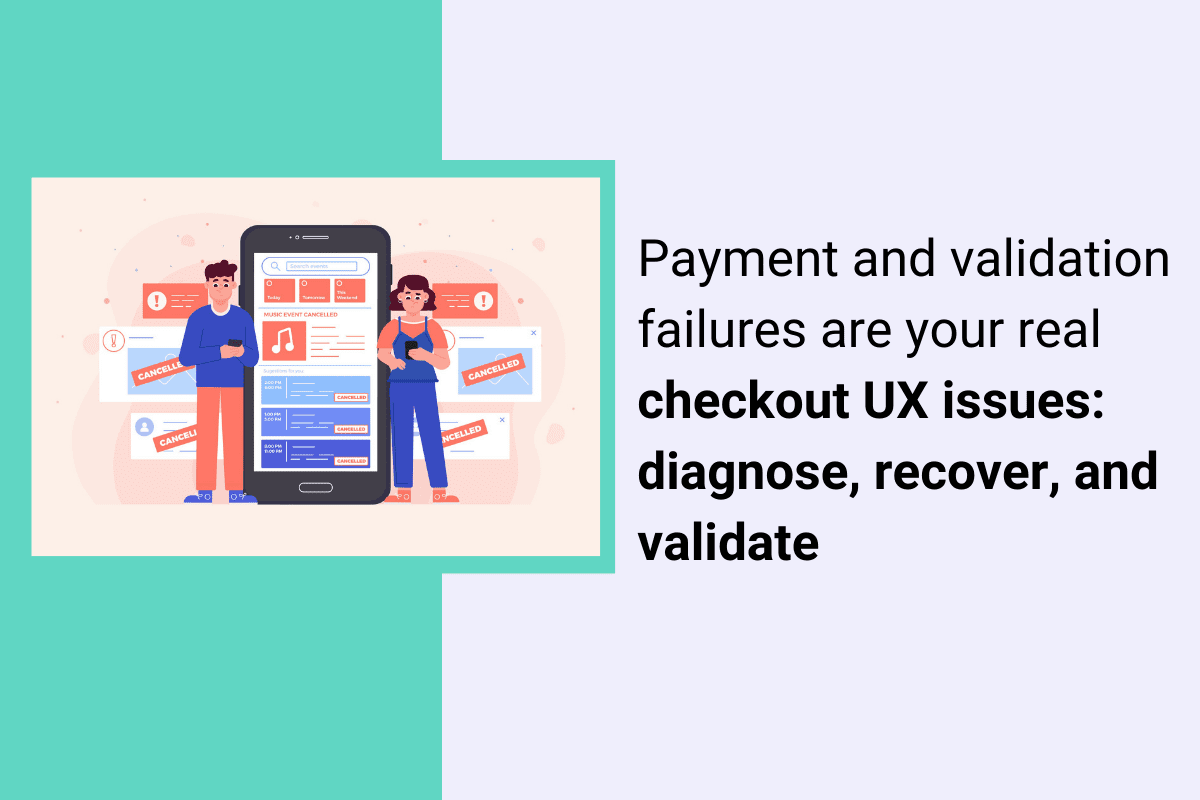
  • Payment and validation failures are your real checkout UX issues: diagnose, recover, and validate

    Payment and validation failures are your real checkout UX issues: diagnose, recover, and validate

    Checkout drop-offs are rarely caused by one “bad UI choice.” They are usually a mix of hesitation (trust, transparency, delivery uncertainty) and failure states (validation loops, slow shipping quotes, 3DS interruptions, declines). This guide gives ecommerce CROs and checkout PMs a repeatable way to find what matters, fix it, and prove impact on RPV, not just clicks.

    If you want to operationalize the workflow with a tool, this maps cleanly to Lift AI and the Checkout Recovery solution.

    Quick Takeaway / Answer Summary (verbatim, 40–55 words)
    Checkout UX issues are moments of doubt, confusion, or failure between “Checkout” and “Order confirmed” that cause drop-off. The fastest way to reduce abandonment is to segment where users exit, classify the root cause, prioritize fixes by impact and effort, then validate with funnel, error, and device-level guardrails.

    What are checkout UX issues?

    Definition (What is “checkout UX issues”?)
    Checkout UX issues are design, content, performance, and failure-state problems that increase the effort or uncertainty required to complete a purchase. They show up as drop-offs, repeated attempts, error loops, slow steps, and “I’m not sure what happens next” moments across account, address, shipping, payment, and review.

    Why does this matter for RPV?
    Because “small” checkout friction compounds. A confusing shipping promise, a coupon edge case, or a mobile keyboard mismatch can remove a meaningful share of otherwise qualified buyers from the revenue path.Industry research consistently lists extra costs, trust concerns, forced account creation, and checkout complexity among top abandonment drivers. If you want a tighter breakdown of how to analyze your own drop-offs, start with cart abandonment analysis.

    Where checkout UX issues cluster: the 5 breakpoints

    Most teams argue about “one-page vs multi-step” checkout. In practice, issues cluster around the decisions and failures inside each step.

    1) Account selection (sign-in vs guest)

    Common issues:

    • Guest checkout exists, but is visually buried
    • Password creation happens too early, or has strict rules that trigger retries
    • “Already have an account?” flows that bounce users out of checkout

    Baymard’s research repeatedly shows that guest checkout needs to be prominent to avoid unnecessary abandonment.

    2) Address and contact

    Common issues:

    • Too many fields, poor autofill, and unclear input formats
    • Inline validation that fires too early, or only on submit
    • Phone and postal code rules that do not match the user’s locale

    3) Shipping and delivery choices

    Common issues:

    • Shipping fees, taxes, or delivery times appear late
    • Delivery promise language is vague (“3–7 business days”) with no confidence cues
    • Slow shipping quote APIs that cause spinners and rage clicks

    4) Payment and authentication

    Common issues:

    • Missing preferred payment methods (wallets, BNPL, local methods)
    • Card entry friction on mobile (keyboard type, spacing, focus)
    • 3DS/SCA interruptions with weak recovery messaging
    • Declines that read like user error, with no guidance on what to do next

    5) Review, promo, and confirmation

    Common issues:

    • Promo codes that fail silently or reset totals
    • Inventory or price changes that appear after effort is invested
    • Confirmation page lacks next-step clarity (receipt, tracking, returns)

    Which checkout UX issues should you fix first?

    Question hook: What should I fix first if I have a long checklist of checkout problems?
    Fix the issues that combine high revenue impact with high frequency and clear evidence, while staying realistic about effort. Start by sanity-checking your baseline against checkout conversion benchmarks. A prioritization model keeps you from spending weeks polishing low-yield UI.

    Use ICEE for checkout: Impact × Frequency × Confidence ÷ Effort

    • Impact: If this breaks, how much RPV is at risk? (Payment step failures usually rank high.)
    • Frequency: How often does it happen? (Segment by device, browser, geo, payment method.)
    • Confidence: Do we have proof? (Replays, errors, field-level signals, support tags.)
    • Effort: Engineering and risk cost. (Some fixes are copy or validation rules. Others touch payments.)

    Practical rule: prioritize “high impact + high frequency” failure states before “nice-to-have” UX polish.

    A diagnostic table you can use today

    Symptom you seeLikely root cause categoryProof to collect
    Drop spikes at “Pay now”Declines, 3DS interruptions, payment method mismatchDecline reason buckets, 3DS event outcomes, replay of failed attempts
    High exit on shipping stepFees shown late, slow quote, unclear delivery promiseQuote latency, rage clicks, users changing address repeatedly
    Form completion stallsValidation loops, autofill conflicts, unclear formatsField error logs, replays showing re-typing, mobile keyboard mismatches
    Promo usage correlates with exitsCoupon edge cases, total changes, eligibility confusionPromo error states, cart total deltas, support tickets tagged “promo”

    Mid-workflow tooling note: this is the point where teams often pair funnel segmentation with session evidence. If you want a single place to go from “drop-off spike” to “what users did,” Lift AI and the checkout recovery workflow are designed for that.

    The practical workflow: diagnose → confirm → fix → validate

    Question hook: How do you diagnose checkout UX issues without guessing?
    Use a repeatable workflow: start with segmented drop-off, classify root cause, confirm with evidence, ship a targeted fix, then validate with guardrails.

    Step 1) Find the drop and segment it (do not average it)

    Start with the simplest question: Where exactly do people exit? Then segment before you brainstorm fixes.

    Segmentation that usually changes the answer:

    • Mobile vs desktop
    • New vs returning
    • Payment method (wallet vs card)
    • Geo and locale
    • Browser and device model
    • Promo users vs no promo

    Deliverable: a shortlist of “top 2–3 drop points” by segment.

    Step 2) Classify the root cause category (so you stop debating opinions)

    Pick one dominant category per drop point:

    • Expectation and transparency: fees, delivery, returns, trust cues
    • Form friction: fields, input rules, validation, autofill
    • Performance: slow shipping quotes, slow payment tokenization, timeouts
    • Payment failure states: declines, 3DS/SCA, retries
    • Content and comprehension: unclear labels, weak microcopy, uncertain next step

    Step 3) Confirm with evidence (proof, not vibes)

    Question hook: What counts as “proof” for a checkout UX problem?
    Proof is a repeatable pattern you can point to: a consistent behavior in replays, a consistent error bucket, or a consistent field-level failure in a segment. If you want a practical way to turn click and scroll behavior into a test backlog, see ecommerce heatmaps and prioritized CRO tests.

    Examples of strong proof: this is where session replay helps because you can see the exact retry loops, hesitation, and dead-ends behind the drop-off, not just the metric.

    • Replays showing users repeatedly toggling shipping methods, then leaving
    • Field-level logs showing postal code validation rejects a specific region format
    • High latency on shipping quote calls correlating with exits
    • 3DS challenge loops causing repeated “Pay” attempts

    Step 4) Fix with recovery-first patterns

    Instead of “make it simpler,” ship fixes that reduce uncertainty and help users recover.

    High-yield fix patterns by breakpoint:

    • Account: make guest checkout obvious; delay account creation until after purchase where possible
    • Forms: add inline validation that is helpful, not punitive; do not wait until submit for everything
    • Shipping: show total cost earlier; make delivery promise concrete and consistent
    • Payment: design for retries; make declines actionable; keep the user oriented during authentication
    • Review: handle promo edge cases with clear microcopy and stable totals

    Step 5) Validate outcomes with guardrails (so you do not “win” the wrong metric)

    Validate on the KPI you actually care about, with checks that prevent accidental damage.

    A simple validation plan:

    • Primary: checkout completion and RPV in the affected segment(s)
    • Guardrails: payment authorization rate, error rate, page performance (especially mobile), refund and support contact rate
    • Time window: compare pre/post with the same traffic mix (campaigns change everything)

    Tooling note: if you are trying to move fast without losing control, you want a workflow that ties funnel movement to what users actually experienced. That is the point of the checkout recovery approach, and it pairs naturally with Lift AI when you need help prioritizing what to test and proving impact.

    Failure-state UX: the part most “best practice” lists skip

    Question hook: Why do “clean” checkouts still have high abandonment?
    Because the checkout UI can be fine, but the failure states are not. Declines, timeouts, and authentication interruptions create confusing loops that users interpret as “this site is broken” or “I’m about to get charged twice.”

    Patterns to implement for payment and auth failures

    • Declines: say what happened in plain language, and offer a next action (try another method, check billing address, contact bank). Avoid blame-heavy copy.
    • Retries: preserve entered data where safe; confirm whether the user was charged; prevent double-submit confusion.
    • 3DS/SCA interruptions: keep a stable frame, show progress, and explain why the step exists. If the challenge fails, explain what to do next.
    • Timeouts: provide a clear “try again” path and record enough detail for debugging.

    This is also one of the most measurable areas: you can bucket declines and auth outcomes and watch whether UX changes reduce repeated attempts and exits.

    Accessibility and localization: small changes that quietly move RPV

    Accessibility is not just compliance. It is checkout completion insurance.

    Minimum accessibility checks for checkout forms:

    • Errors must be identified in text, not only by color or position.
    • Error messages should be associated with the field so assistive tech users can recover.
    • Keyboard navigation and focus states must work across the full checkout, especially modals (address search, payment widgets).

    Localization checks beyond “add multi-currency”:

    • Address formats vary. Avoid forcing “State” or ZIP patterns where they do not apply.
    • Phone validation should accept local formats or clearly explain the required format.
    • Tax and VAT expectations differ by region. Make totals transparent early.

    Scenario A (CRO): Shipping step drop-off after a promo launch 

    A CRO manager sees a sharp drop on the shipping step, mostly on mobile, starting the same day a promotion banner went live. Funnel segmentation shows the drop is concentrated among users who add a promo code, then switch shipping methods. Session evidence shows long loading states after shipping selection and repeated taps on the “Continue” button. The team buckets shipping quote latency and finds a spike tied to the promo flow calling the quote service more often than expected. The fix is not “simplify checkout.” It is to reduce redundant quote calls, display a stable delivery promise while loading, and keep the call-to-action disabled with clear progress feedback. Validation focuses on mobile checkout completion and RPV, with latency and error rate as guardrails.

    Scenario B (Checkout PM): Payment drop-off driven by declines and retries 

    A checkout PM sees drop-off at “Pay now” increase, but only for card payments in one region. Wallet payments look healthy. Decline codes show a rise in “do not honor,” and replays show users attempting the same card multiple times, then abandoning. The UI currently says “Payment failed” with no guidance, and the form clears on retry. The team ships a recovery-first change: preserve safe inputs, add plain-language guidance (“Try another payment method or contact your bank”), and surface wallet options earlier for that region. They also add a “Was I charged?” reassurance message to reduce panic exits. Validation looks at card-to-wallet switching, repeated attempts per session, checkout completion, and RPV in that region, with authorization rate as the key guardrail.

    When to use FullSession for checkout UX issues (RPV-focused)

    If you already know “where” conversion drops but struggle to prove “why,” you need a workflow that connects funnel movement to real user behavior and failure evidence.

    FullSession is a behavior analytics platform that can help when:

    • You need to tie segmented funnel drop-offs to what users actually did in the moments before exiting.
    • You want to prioritize fixes based on observed friction and failure patterns, not stakeholder opinions.
    • You need to validate that changes improved checkout completion and RPV without breaking performance or payment reliability.

    If you want to see where customers struggle in your checkout and validate which fixes reduce drop-off before you roll them out broadly, start with the checkout recovery workflow and use Lift AI to prioritize and prove impact.

    FAQs

    What are the most common checkout UX issues?

    They cluster around hidden costs, trust uncertainty, forced account creation, form friction, and payment failures. The “most common” list matters less than which ones appear in your highest-value segments.

    How do I know if a checkout problem is UX or a technical failure?

    Segment the drop point, then look for evidence. UX friction shows hesitation patterns and repeated attempts. Technical failures show error buckets, timeouts, or sharp drops tied to specific devices, browsers, or payment methods.

    Should I focus on one-page checkout or multi-step checkout?

    Focus on effort and clarity per step, not the number of steps. Many “one-page” checkouts still fail because validation, shipping quotes, or payment widgets create hidden complexity.

    What is the fastest way to reduce checkout abandonment?

    Start with the highest-impact breakpoint (often payment or shipping), segment it, confirm the dominant root cause, then ship a recovery-first fix and validate with RPV and guardrails.

    How should I handle inline validation at checkout?

    Use helpful inline validation that avoids premature errors and makes recovery easy. Validation that only appears on submit, or fires too early, often increases retries and abandonment.

    What should I measure to prove a checkout UX fix worked?

    Measure checkout completion and RPV in the affected segments, plus guardrails like payment authorization rate, error rate, and mobile performance. Track whether the specific failure state you targeted (declines, validation loops, timeouts) decreased.

  • User Behavior Patterns: How to Identify, Prioritize, and Validate What Drives Activation

    User Behavior Patterns: How to Identify, Prioritize, and Validate What Drives Activation

    If you’ve ever stared at a dashboard and thought, “Users keep doing this… but I’m not sure what it means,” you’re already working with user behavior patterns.

    The hard part isn’t finding patterns. It’s deciding:

    • Which patterns matter most for your goal (here: activation),
    • Whether the pattern is a cause or a symptom, and
    • What you should do next without shipping changes that move metrics for the wrong reasons.

    This guide is a practical framework for Product Managers in SaaS: how to identify, prioritize, and validate user behavior patterns that actually drive product outcomes.

    Quick scope (so we don’t miss intent)

    When people search “user behavior patterns,” they often mean one of three things:

    1. Product analytics patterns (what this post is about): repeatable sequences in real product usage (events, flows, friction, adoption).
    2. UX psychology patterns: design principles and behavioral nudges (useful, but they’re hypotheses until validated).
    3. Cybersecurity UBA: anomaly detection and baselining “normal behavior” in security contexts (not covered here).

    1) What is a user behavior pattern (in product analytics)?

    A user behavior pattern is a repeatable, measurable sequence of actions users take in your product often tied to an outcome like “activated,” “stuck,” “converted,” or “churned.”

    Patterns usually show up as:

    • Sequences (A → B → C),
    • Loops (A → B → A),
    • Drop-offs (many users start, few finish),
    • Time signatures (users pause at the same step),
    • Friction signals (retries, errors, rage clicks), or
    • Segment splits (one cohort behaves differently than another).

    Why this matters for activation: Activation is rarely a single event. It’s typically a path to an “aha moment.” Patterns help you see where that path is smooth, where it breaks, and who is falling off.

    2) The loop: Detect → Diagnose → Decide

    Most teams stop at detection (“we saw drop-off”). High-performing teams complete the loop.

    Step 1: Detect

    Spot a repeatable behavior: a drop-off, loop, delay, or friction spike.

    Step 2: Diagnose

    Figure out why it happens and what’s driving it (segment, device, entry point, product state, performance, confusion, missing data, etc.).

    Step 3: Decide

    Translate the insight into a decision:

    • What’s the change?
    • What’s the expected impact?
    • How will we validate causality?
    • What will we monitor for regressions?

    This loop prevents the classic failure mode: “We observed X, therefore we shipped Y” (and later discovered the pattern was a symptom, not the cause).

    3) The Behavior Pattern Triage Matrix (so you don’t chase everything)

    Before you deep-dive, rank patterns using four factors:

    The matrix

    Score each pattern 1–5:

    1. Impact  If fixed, how much would it move activation?
    2. Confidence: How sure are we that it’s real + meaningful (not noise, not instrumentation)?
    3. Effort: How costly is it to address (engineering + design + coordination)?
    4. Prevalence  How many users does it affect (or how valuable are the affected users)?

    Simple scoring approach:
    Priority = (Impact × Confidence × Prevalence) ÷ Effort

    What “good” looks like for activation work

    Start with patterns that are:

    • High prevalence near the start of onboarding,
    • High impact on the “aha path,” and
    • Relatively low effort to address or validate.

    4) 10 SaaS activation patterns (with operational definitions)

    Below are common patterns teams talk about (drop-offs, rage clicks, feature adoption), but defined in a way you can actually measure.

    Tip: Don’t treat these like a checklist. Pick 3–5 aligned to your current activation hypothesis.

    Pattern 1: The “First Session Cliff”

    What it looks like: Users start onboarding, then abandon before completing the minimum setup.

    Operational definition (example):

    • Users who trigger Signup Completed
    • AND do not trigger Key Setup Completed within 30 minutes
    • Exclude: internal/test accounts, bots, invited users (if onboarding differs)

    Decision it unlocks:
    Is your onboarding asking for too much too soon, or is the next step unclear?

    Pattern 2: The “Looping Without Progress”

    What it looks like: Users repeat the same action (or return to the same screen) without advancing.

    Operational definition:

    • Same event Visited Setup Step X occurs ≥ 3 times in a session
    • AND Setup Completed not triggered
    • Cross-check: errors, retries, latency, missing permissions

    Decision it unlocks:
    Is this confusion, a broken step, or a state dependency?

    Pattern 3: The “Hesitation Step” (Time Sink)

    What it looks like: Many users pause at the same step longer than expected.

    Operational definition:

    • Median time between Started Step X and Completed Step X is high
    • AND the tail is heavy (e.g., 75th/90th percentile spikes)
    • Segment by device, country, browser, plan, entry source

    Decision it unlocks:
    Is the content unclear, the form too demanding, or performance degrading?

    Pattern 4: “Feature Glimpse, No Adoption”

    What it looks like: Users discover the core feature but don’t complete the first “value action.”

    Operational definition:

    • Viewed Core Feature occurs
    • BUT Completed Value Action does not occur within 24 hours
    • Compare cohorts by acquisition channel and persona signals

    Decision it unlocks:
    Is the feature’s first-use path too steep, or is value not obvious?

    Pattern 5: “Activation Without Retention” (False Activation)

    What it looks like: Users hit your activation event but don’t come back.

    Operational definition:

    • Users trigger activation event within first week
    • BUT no return session within next 7 days
    • Check: was the activation event too shallow? was it triggered accidentally?

    Decision it unlocks:
    Is your activation definition meaningful or are you counting “activity” as “value”?

    Pattern 6: “Permission/Integration Wall”

    What it looks like: Users drop when asked to connect data, invite teammates, or grant permissions.

    Operational definition:

    • Funnel step: Clicked Connect Integration
    • Drop-off before Integration Connected
    • Segment by company size, role, and technical comfort (if available)

    Decision it unlocks:
    Do you need a “no-integration” sandbox path, better reassurance, or just-in-time prompts?

    Pattern 7: “Rage Clicks / Friction Bursts”

    What it looks like: Repeated clicking, rapid retries, dead-end interactions.

    Operational definition:

    • Multiple clicks in a small region in a short time window (e.g., 3–5 clicks within 2 seconds)
    • OR repeated Submit attempts
    • Correlate with Error Shown, latency, or UI disabled states

    Decision it unlocks:
    Is this UI feedback/performance, unclear affordance, or an actual bug?

    Pattern 8: “Error-Correlated Drop-off”

    What it looks like: A specific error predicts abandonment.

    Operational definition:

    • Users who see Error Type Y during onboarding
    • Have significantly lower activation completion rate than those who don’t
    • Validate: does the error occur before the drop-off step?

    Decision it unlocks:
    Fixing one error might outperform any copy/UX tweak.

    Pattern 9: “Segment-Specific Success Path”

    What it looks like: One cohort activates easily; another fails consistently.

    Operational definition:

    • Activation funnel completion differs materially across segments:
      • role/plan/company size
      • device type
      • acquisition channel
      • first use-case selected
    • Identify the “happy path” segment and compare flows

    Decision it unlocks:
    Do you need different onboarding paths by persona/use case?

    Pattern 10: “Support-Driven Activation”

    What it looks like: Users activate only after contacting support or reading docs.

    Operational definition:

    • Opened Help / Contacted Support / Docs Viewed
    • precedes activation at a high rate
    • Compare with users who activate without help

    Decision it unlocks:
    Where are users getting stuck and can you preempt it in-product?

    5) How to analyze user behavior patterns (methods that don’t drift into tool checklists)

    You don’t need more charts. You need a repeatable analysis method.

    A) Start with a funnel, then branch into segmentation

    For activation, define a simple funnel:

    1. Signup completed
    2. Onboarding started
    3. Key setup completed
    4. First value action completed (aha)
    5. Activated

    Then ask:

    • Where’s the biggest drop?
    • Which segment drops there?
    • What behaviors differ for those who succeed vs fail?

    If you want a structured walkthrough of funnel-based analysis, route readers to: Funnels and conversion

    B) Use cohorts to separate “new users” from “new behavior”

    A pattern that looks “true” in aggregate may disappear (or invert) when you cohort by:

    • signup week (product changes, seasonality)
    • acquisition channel (different intent)
    • plan (different constraints)
    • onboarding variant (if you’ve been experimenting)

    Cohorts are your guardrail against shipping a fix for a temporary spike.

    C) Use session-level evidence to explain why

    Quant data tells you what and where.
    Session-level signals help with why:

    • hesitation (pauses)
    • retries
    • dead clicks
    • error states
    • back-and-forth navigation
    • device-specific usability problems

    The goal isn’t “watch more replays.” It’s: use qualitative evidence to form a testable hypothesis.

    6) Validation playbook: correlation vs causation (without pretending everything needs a perfect experiment)

    A behavior pattern is not automatically a lever.

    Here’s a practical validation ladder go up one rung at a time:

    Rung 1: Instrumentation sanity checks

    Before acting, confirm:

    • The events fire reliably
    • Bots/internal traffic are excluded
    • The same event name isn’t used for multiple contexts
    • Time windows make sense (activation in 5 minutes vs 5 days)

    Rung 2: Triangulation (quant + qual)

    If drop-off happens at Step X, do at least two of:

    • Session evidence from users who drop at X
    • A short intercept (“What stopped you?”)
    • Support tickets tagged to onboarding
    • Error/performance logs

    If quant and qual disagree, pause and re-check assumptions.

    Rung 3: Counterfactual thinking (who would have activated anyway?)

    A common trap: fixing something that correlates with activation, but isn’t causal.

    Ask:

    • Do power users do this behavior because they’re motivated (not because it causes activation)?
    • Is this behavior simply a proxy for time spent?

    Rung 4: Lightweight experiments

    When you can, validate impact with:

    • A/B test (best)
    • holdout (especially for guidance/education changes)
    • phased rollout with clear success metrics and guardrails

    Rung 5: Pre/post with controls (when experiments aren’t feasible)

    Use:

    • comparable cohorts (e.g., by acquisition channel)
    • seasonality controls (week-over-week, not “last month”)
    • concurrent changes checklist (pricing, campaigns, infra incidents)

    Rule of thumb: the lower the rigor, the more cautious you should be about attributing causality.

    7) Edge cases + false positives (how patterns fool you)

    A few common “looks like UX” but is actually something else:

    • Rage clicks caused by slow loads (performance, not copy)
    • Drop-off caused by auth/permissions (IT constraints, not motivation)
    • Hesitation caused by multi-tasking (time window too tight)
    • “Activation” event triggered accidentally (definition too shallow)
    • Segment differences caused by different entry paths (apples-to-oranges)

    If you change the product based on a false positive, you can make onboarding worse for the users who were already succeeding.

    8) Governance, privacy, and ethics (especially with behavioral data)

    Behavioral analysis can get sensitive fast, particularly when you use session-level signals.

    A few pragmatic practices:

    • Minimize collection to what you need for product decisions
    • Respect consent and regional requirements
    • Avoid capturing sensitive inputs (masking/controls)
    • Limit access internally (need-to-know)
    • Define retention policies
    • Document “why we collect” and “how we use it”

    This protects users and it also protects your team from analysis paralysis caused by data you can’t confidently use.

    9) Start here: 3–5 activation patterns to measure next (PM-friendly)

    If your KPI is Activation, start with the patterns that most often block the “aha path”:

    1. First Session Cliff (are users completing minimum setup?)
    2. Permission/Integration Wall (are you asking for trust too early?)
    3. Hesitation Step (which step is the time sink?)
    4. Error-Correlated Drop-off (is a specific bug killing activation?)
    5. Feature Glimpse, No Adoption (do users see value but fail to realize it?)

    Run them through the triage matrix, define the operational thresholds, then validate with triangulation before changing the experience.

    If you’re looking for onboarding-focused ways to act on these insights, right here: User onboarding 

    FAQ

    What are examples of user behavior patterns in SaaS?

    Common examples include onboarding drop-offs, repeated loops without progress, hesitation at specific steps, feature discovery without first value action, and error-driven abandonment.

    How do I identify user behavior patterns?

    Start with an activation funnel, locate the biggest drop-offs, then segment by meaningful cohorts (channel, device, plan, persona). Use session-level evidence and qualitative signals to diagnose why.

    User behavior patterns vs UX behavior patternsWhat’s the difference?

    Product analytics patterns are measured sequences in actual usage. UX behavior patterns are design principles/hypotheses about how people tend to behave. UX patterns can inspire changes; analytics patterns tell you where to investigate and what to validate.

    How do I validate behavior patterns (causation vs correlation)?

    Use a validation ladder: instrumentation checks → triangulation → counterfactual thinking → experiments/holdouts → controlled pre/post when experimentation isn’t possible.

    CTA

    If you want, use this framework to pick 3–5 high-impact behavior patterns to measure next and define what success looks like before changing the experience.

  • How to compare session replay solutions for UX optimization (not just a feature checklist)

    How to compare session replay solutions for UX optimization (not just a feature checklist)

    If you’ve looked at “best session replay tools” articles, you’ve seen the pattern: a long vendor list, a familiar checklist, and a conclusion that sounds like “it depends.”

    That’s not wrong but it’s not enough.

    Because the hard part isn’t learning what session replay is. The hard part is choosing a solution that helps your team improve UX in a measurable way, without turning replay into either:

    • a library of “interesting videos,” or
    • a developer-only debugging tool, or
    • a compliance headache that slows everyone down.

    This guide gives you a practical evaluation methods weighting framework + a 7–14 day pilot plan so you can compare 2–3 options against your real goal: better activation (for SaaS UX teams) and faster iteration on the journey.

    What you’re really buying when you buy session replay

    Session replay is often described as “watching user sessions.” But for UX optimization, the product you’re actually buying is:

    1. Evidence you can act on
      Not just “what happened,” but what you can confidently fix.
    2. Scale and representativeness
      Seeing patterns across meaningful segments not only edge cases.
    3. A workflow that closes the loop
      Replay → insight → hypothesis → change → measured outcome.

    If any one of those breaks, replay becomes busywork.

    Quick self-check: If your team can’t answer “What changed in activation after we fixed X?” then replay hasn’t become an optimization system yet.

    (If you want a baseline on what modern replay capabilities typically include, start here: Session Reply and Analytics)

    Step 1  Choose your evaluation lens (so your checklist has priorities)

    Most teams compare tools as if every feature matters equally. In reality, priorities change depending on whether you’re primarily:

    • optimizing UX and conversion,
    • debugging complex UI behavior, or
    • operating in a compliance-first environment.

    A simple weighting matrix (SaaS activation defaults)

    Use this as a starting point for a SaaS UX Lead focused on Activation:

    High weight (core to the decision)

    • Segmentation that supports hypotheses (activation cohorting, filters you’ll actually use)
    • Speed to insight at scale (finding patterns without manually watching everything)
    • Collaboration + handoffs (notes, sharing, assigning follow-ups)
    • Privacy + access controls (so the team can use replay without risk or bottlenecks)

    Medium weight (important, but not the first lever)

    • Integrations with analytics and error tracking (context, not complexity)
    • Implementation fit for your stack (SPA behavior, performance constraints, environments)

    Lower weight (nice-to-have unless it’s your main use case)

    • Extra visualizations that don’t change decisions
    • Overly broad “all-in-one” claims that your team won’t operationalize

    Decision tip: Pick one primary outcome (activation) and one primary workflow (UX optimization). That prevents you from over-buying for edge cases.

    Step 2  Score vendors on: “Can we answer our activation questions?”

    Instead of scoring tools on generic features, score them on whether they help you answer questions like:

    • Where do new users stall in the activation journey?
    • Which behaviors predict activation (and which friction points block it)?
    • What’s the fastest path from “we saw it” to “we fixed it”?

    Segmentation that supports hypotheses (not just filters)

    A replay tool can have dozens of filters and still be weak for UX optimization if it can’t support repeatable investigations like:

    • New vs returning users
    • Activation cohorts (activated vs not activated)
    • Key entry points (first session vs second session; onboarding path A vs B)
    • Device/platform differences that change usability

    What you’re looking for is not “can we filter,” but can we define a segment once and reuse it as you test improvements.

    Finding friction at scale

    If your team must watch dozens of sessions to find one relevant issue, you’ll slow down.

    In your pilot, test whether you can:

    • quickly locate sessions that match a specific activation failure (e.g., “got to step 3, then dropped”),
    • identify recurring friction patterns, and
    • group evidence into themes you can ship against.

    Collaboration + handoffs that close the loop

    Replay only drives UX improvements if your process turns findings into shipped changes.

    During evaluation, look for workflow support like:

    • leaving notes on moments that matter,
    • sharing evidence with product/engineering,
    • assigning follow-ups (even if your “system of record” is Jira/Linear),
    • maintaining a consistent tagging taxonomy (more on that in the pilot plan).

    Step 3  Validate privacy and operational controls (beyond “masking exists”)

    Most comparison pages stop at “supports masking.” For real teams, the question is:

    Can we use replay broadly, safely, and consistently without turning access into a bottleneck?

    In your vendor evaluation, validate:

    • Consent patterns: How do you handle consent/opt-out across regions and product areas?
    • Role-based access: Who can view sessions? Who can export/share?
    • Retention controls: Can you match retention to policy and risk profile?
    • Redaction and controls: Can sensitive inputs be reliably protected?
    • Auditability: Can you review access and configuration changes?

    Even if legal/compliance isn’t leading the evaluation, these controls determine whether replay becomes a trusted system or a restricted tool used by a few people.

    Step 4  Run a 7–14 day pilot that proves impact (not just usability)

    A good pilot doesn’t try to “test everything.” It tries to answer:

    1. Will this tool fit our workflow?
    2. Can it produce a defensible activation improvement?

    Week 1 (Days 1–7): Instrument, tag, and build a triage habit

    Pilot setup checklist

    • Choose one activation slice (e.g., onboarding completion, first key action, form completion).
    • Define 2–3 investigation questions (e.g., “Where do users hesitate?” “Which step causes drop-off?”).
    • Create a lightweight tagging taxonomy:
      • activation-dropoff-stepX
      • confusion-copy
      • ui-bug
      • performance-lag
      • missing-feedback
    • Establish a ritual:
      • 15–20 minutes/day of triage
      • a shared doc or board of “top friction themes”
      • one owner for keeping tags consistent

    What “good” looks like by Day 7

    • Your team can consistently find relevant sessions for the activation segment.
    • You have 3–5 friction themes backed by evidence.
    • You can share clips/notes with product/engineering without friction.

    Week 2 (Days 8–14): Ship 1–2 changes and measure activation movement

    Pick one or two improvements that are:

    • small enough to ship fast,
    • specific to your activation segment, and
    • measurable.

    Then define:

    • baseline activation rate for the segment,
    • expected directional impact,
    • measurement window and how you’ll attribute changes (e.g., pre/post with guardrails, or an experiment if you have it).

    The pilot passes if:

    • the tool consistently produces actionable insights, and
    • you can link at least one shipped improvement to a measurable activation shift (even if it’s early and directional).

    How many sessions is “enough”? (and how to avoid sampling bias)

    Instead of aiming for an arbitrary number like “watch 100 sessions,” aim for coverage across meaningful segments.

    Practical guardrails:

    • Review sessions across multiple traffic sources, not just one.
    • Include both “failed to activate” and “successfully activated” cohorts.
    • Use consistent criteria for which sessions enter the review queue.
    • Track which issues record one-off weirdness shouldn’t steer the roadmap.

    Your goal is representativeness: evidence you can trust when you prioritize changes.

    Step 5  Make the call with a pilot scorecard (template)

    Use a simple scorecard so the decision isn’t just vibes.

    Scorecard categories (example)

    A) Activation investigation fit (weight high)

    • Can we define/retain segments tied to activation?
    • Can we consistently find sessions for our key questions?
    • Can we group patterns into actionable themes?

    B) Workflow reality (weight high)

    • Notes/sharing/handoffs feel frictionless
    • Tagging stays consistent across reviewers
    • Engineering can validate issues quickly when needed

    C) Privacy + controls (weight high)

    • Access and retention are configurable
    • Sensitive data controls meet internal expectations
    • Operational oversight is clear (who can do what)

    D) Implementation + performance (weight medium)

    • Works reliably in our app patterns (SPA flows, complex components)
    • Doesn’t create unacceptable page impact (validate in pilot)
    • Supports environments you need (staging/prod workflows, etc.)

    E) Integrations context (weight medium)

    • Connects to your analytics/error tooling enough to reduce context switching

    Decision rules

    • Deal-breakers: anything that blocks broad use (privacy controls), prevents hypothesis-based segmentation, or breaks key flows.
    • Tiebreakers: workflow speed (time to insight), collaboration friction, and how quickly teams can ship fixes.

    Where FullSession fits for SaaS activation

    If your goal is improving activation, you typically need two things at once:

    1. high-signal replay that helps you identify friction patterns, and
    2. a workflow your team can sustain without creating compliance bottlenecks.

    And see activation-focused workflows here: PLG activation

    CTA

    Use a pilot scorecard (weighting + test plan) to evaluate 2–3 session replay tools against your UX goals and constraints.
    If you run the pilot for 7–14 days and ship at least one measurable activation improvement, you’ll have the confidence to choose without relying on generic feature checklists.

    FAQ’s

    1) What’s the fastest way to compare session replay tools for UX optimization?
    Use a weighted scorecard tied to your primary UX outcome (like activation), then run a 7–14 day pilot with 2–3 vendors. Score each tool on segmentation for hypothesis testing, time-to-insight, collaboration workflow, and privacy controls—not just features.

    2) Which criteria matter most for SaaS activation optimization?
    Prioritize: (1) segmentation/cohorting aligned to activation, (2) scalable ways to find friction patterns (not only manual watching), (3) collaboration and handoffs to product/engineering, and (4) privacy, access, and retention controls that allow broad team usage.

    3) How long should a session replay pilot be?
    7–14 days is usually enough to validate workflow fit and produce at least one shippable insight. Week 1 is for setup + tagging + triage habits; Week 2 is for shipping 1–2 changes and measuring activation movement.

    4) How many sessions should we review during evaluation?
    Don’t chase a single number. Aim for coverage across meaningful segments: activated vs not activated, key traffic sources, and devices/platforms. The goal is representativeness so you don’t optimize for outliers.

    5) How do we avoid sampling bias when using session replay?
    Define consistent rules for what sessions enter review (specific cohorts, drop-off points, or behaviors). Include “successful” sessions for contrast, and rotate sources/segments so you don’t only watch the loudest failures.

    6) What privacy questions should we ask beyond “does it mask data”?
    Ask about consent options, role-based access, retention settings, redaction controls, and auditability (who changed settings, who accessed what). These determine whether replay becomes a trusted shared tool or a restricted silo.

    7) What should “success” look like after a pilot?
    At minimum: (1) your team can reliably answer 2–3 activation questions using the tool, (2) you ship at least one UX change informed by replay evidence, and (3) you can measure a directional activation improvement in the target segment.

  • UX analytics: From metrics to meaningful product decisions

    UX analytics: From metrics to meaningful product decisions

    Most activation work fails for a simple reason: teams can see what happened, but not why it happened.
    UX analytics is the bridge between your numbers and the experience that created them.

    Definition box: What is UX analytics?

    UX analytics is the practice of using behavioral signals (what people do and struggle with) to explain user outcomes and guide product decisions.
    Unlike basic reporting, UX analytics ties experience evidence to a specific product question, then checks whether a change actually improved the outcome.

    UX analytics is not “more metrics”

    If you treat UX analytics as another dashboard, you will get more charts and the same debates.

    Product analytics answers questions like “How many users completed onboarding?”
    UX analytics helps you answer “Where did they get stuck, what did they try next, and what confusion did we introduce?”

    A typical failure mode is when activation drops, and the team argues about copy, pricing, or user quality because nobody has shared evidence of what users actually experienced.
    UX analytics reduces that ambiguity by adding behavioral context to your activation funnel.

    If you cannot describe the friction in plain language, you are not ready to design the fix.

    The UX analytics decision loop that prevents random acts of shipping

    A tight loop keeps you honest. It also keeps scope under control.

    Here is a workflow PMs can use for activation problems:

    1. Write the decision you need to make. Example: “Should we simplify step 2 or add guidance?”
    2. Define the activation moment. Example: “User successfully connects a data source and sees first value.”
    3. Map the path and the drop-off. Use a funnel view to locate where activation fails.
    4. Pull experience evidence for that step. Session replays, heatmaps, and error signals show what the user tried and what blocked them.
    5. Generate 2 to 3 plausible causes. Keep them concrete: unclear affordance, hidden requirement, unexpected validation rule.
    6. Pick the smallest change that tests the cause. Avoid redesigning the entire onboarding unless the evidence demands it.
    7. Validate with the right measure. Do not only watch activation rate. Watch leading indicators tied to the change.
    8. Decide, document, and move on. Ship, revert, or iterate, but do not leave outcomes ambiguous.

    One constraint to accept early: you will never have perfect certainty.
    Your goal is to reduce the risk of shipping the wrong fix, not to prove a single “root cause” forever.

    The UX signals that explain activation problems

    Activation friction is usually local. One step, one screen, one interaction pattern.

    UX analytics is strongest when it surfaces signals like these:

    • Rage clicks and repeated attempts: users are trying to make something work, and failing.
    • Backtracking and loop behavior: users bounce between two steps because the system did not clarify what to do next.
    • Form abandonment and validation errors: users hit requirements late and give up.
    • Dead clicks and mis-taps: users click elements that look interactive but are not.
    • Latency and UI stalls: users wait, assume it failed, and retry or leave.

    This is where “behavioral context over raw metrics” matters. A 12% drop in activation is not actionable by itself.
    A pattern like “40% of users fail on step 2 after triggering a hidden error state” is actionable.

    A prioritization framework PMs can use without getting stuck in debate

    Teams often struggle because everything looks important. UX analytics helps you rank work by decision value.

    Use this simple scoring approach for activation issues:

    • Impact: how close is this step to the activation moment, and how many users hit it?
    • Confidence: do you have consistent behavioral evidence, or just a hunch?
    • Effort: can you test a narrow change in days, not weeks?
    • Risk: will a change break expectations for existing users or partners?

    Then pick the top one that is high-impact and testable.A realistic trade-off: the highest impact issue may not be the easiest fix, and the easiest fix may not matter.
    If you cannot test the high-impact issue quickly, run a smaller test that improves clarity and reduces obvious failure behavior while you plan the larger change.

    How to validate outcomes without fooling yourself

    The SERP content often says “track before and after,” but that is not enough.

    Here are validation patterns that hold up in real product teams:

    Use leading indicators that match the friction you removed. If you changed copy on a permission step, track:

    • Time to complete that step
    • Error rate or retry rate on that step
    • Completion rate of the next step (to catch downstream confusion)

    Run a holdout or staged rollout when possible. If you cannot, at least compare cohorts with similar acquisition sources and intent.
    Also watch for “false wins,” like increased step completion but higher support contacts or worse quality signals later.

    A typical failure mode is measuring success only at the top KPI (activation) while the change simply shifts users to a different kind of failure.
    Validation should prove that users experienced less friction, not just that the funnel number moved.

    How UX insights get used across a SaaS org

    UX analytics becomes more valuable when multiple teams can act on the same evidence.

    PMs use it to decide what to fix first and how narrow a test should be.
    Designers use it to see whether the interface communicates the intended action without extra explanation.
    Growth teams use it to align onboarding messages with what users actually do in-product.
    Support teams use it to identify recurring confusion patterns and close the loop back to the product.

    Cross-functional alignment is not about inviting everyone to the dashboard.
    It is about sharing the same few clips, step-level evidence, and a crisp statement of what you believe is happening.

    When to use FullSession for activation work

    Activation improvements need context, not just counts.

    Use FullSession when you are trying to:

    • Identify the exact step where activation breaks and what users do instead
    • Connect funnel drop-off to real interaction evidence, like clicks, errors, and retries
    • Validate whether an experience change reduced friction in the intended moment
    • Give product, design, growth, and support a shared view of user struggle

    If your immediate goal is PLG activation, start by exploring the PLG activation workflow and real-world examples to understand how users reach their first value moment.
    When you’re ready to map the user journey and quantify drop-offs, move to the funnels and conversions hub to analyze behavior and optimize conversions.

    Explore UX analytics as a decision tool, not a reporting task. If you want to see how teams apply this to onboarding, request a demo or start a trial based on your workflow.


    FAQs

    What is the difference between UX analytics and product analytics?

    Product analytics focuses on events and outcomes. UX analytics adds experience evidence that explains those outcomes, especially friction and confusion patterns.

    Do I need session replay for UX analytics?

    Not always, but you do need some behavioral context. Replays, heatmaps, and error signals are common ways teams get that context when activation issues are hard to diagnose.If you can only pick one, RPV is often the better north star because it captures both conversion and order value. Still track CVR and AOV to understand what is driving changes in RPV.

    What should I track for activation beyond a single activation rate?

    Track step-level completion, time-to-first-value, retry rates, validation errors, and leading indicators tied to the change you shipped.

    How do I avoid analysis paralysis with UX analytics?

    Start with one product question, one funnel step, and one hypothesis you can test. Avoid turning the work into a “collect everything” exercise.

    How many sessions do I need before trusting what I see?

    There is no universal number. Look for repeated patterns across different users and sources, then validate with step-level metrics and a controlled rollout if possible.

    Can UX analytics replace user research?

    No. UX analytics shows what happened and where users struggled. Research explains motivations, expectations, and language. The strongest teams use both.

  • UX Analytics in Practice: A Framework for Choosing Metrics, Tools, and What to Fix Next

    UX Analytics in Practice: A Framework for Choosing Metrics, Tools, and What to Fix Next

    Most teams “have analytics.” They still argue about UX.

    The difference is not more dashboards. It is whether you can connect user struggle to a measurable activation outcome, then prove your fix helped.

    What is UX analytics?

    A lot of definitions say “quant plus qual.” That is directionally right, but incomplete.

    Definition (UX analytics): UX analytics is the practice of measuring how people experience key journeys by combining outcome metrics (funnels, drop-off, time-to-value) with behavioral evidence (replays, heatmaps, feedback) so teams can diagnose friction and improve usability.

    If you only know what happened, you have reporting. If you can show why it happened, you have UX analytics.

    UX analytics vs traditional analytics for Week-1 activation

    Activation problems are rarely “one number is bad.” They are usually a chain: confusion, misclicks, missing expectations, then abandonment.

    Traditional analytics is strong at:

    • Where drop-off happens (funnel steps, cohorts)
    • Which segment is worse (role, plan, device, channel)

    UX analytics adds:

    • What users tried to do instead
    • Which UI patterns caused errors or hesitation
    • Whether the issue is comprehension, navigation, performance, or trust

    The practical difference for a PM: traditional analytics helps you find the leak, UX analytics helps you identify the wrench that caused it.

    Common mistake: treating “activation” as a single event

    Teams often instrument one activation event, then chase it for months.

    Activation is usually a short sequence:

    • user intent (goal)
    • first successful action
    • confirmation that value was delivered

    If you cannot observe that sequence, you will “fix” onboarding copy while the real blocker is a broken state, a permissions dead-end, or a silent validation error.

    Choose metrics that map to activation, not vanity

    Frameworks like HEART and Goals-Signals-Metrics exist for a reason: otherwise, you pick what is easy to count.

    You do not need a perfect framework rollout. You need a consistent mapping from “UX goal” to “signal” to “metric,” so your team stops debating what matters.

    A good activation metric is one you can move by removing friction in a specific step, not one that only changes when marketing changes.

    A practical mapping for Week-1 activation

    UX goal (activation)What you need to learnSignals to watchExample metrics
    Users reach first value fastWhere time is losthesitation, backtracking, dead endstime-to-first-value, median time between key steps
    Users succeed at the critical taskWhich step breaks successform errors, rage clicks, repeated attemptstask success rate, step completion rate, error rate at step
    Users understand what to do nextWhere expectations failhovering, rapid tab switching, repeated page viewshelp article opens from onboarding, “back” loops, repeat visits to same step
    Users trust the actionWhere doubt happensabandon at payment, permissions, data accessabandon rate at sensitive steps, cancellation before confirmation

    (HEART reminder: adoption and task success tend to matter most for activation, while retention is your downstream proof. )

    Instrumentation and data quality are the hidden failure mode

    Most “UX insights” die here. The dashboard is clean, the conclusion is wrong.

    A typical failure mode is mixing three clocks:

    1. event timestamps
    2. session replay timelines
    3. backend or CRM timestamps

    If those disagree, you will misread causality.

    Your analysis is only as credible as your event design and identity stitching.

    What to get right before you trust any UX conclusion:

    • Define each activation step with a clear start and finish (avoid “clicked onboarding” style events).
    • Use consistent naming for events and properties (so you can compare cohorts over time).
    • Decide how you handle identity resolution (anonymous to known) to avoid double-counting or losing the early journey.
    • Watch for sampling bias (common in replay/heatmaps). If your evidence is sampled, treat it as directional.

    The evidence stack: when to use funnels, replay, heatmaps, and feedback

    Most teams pick tools by habit. Better is to pick tools by question type.

    Use quant to find where to look, then use behavioral evidence to see what happened, then use feedback to learn what users believed.

    A simple “when to use which” path:

    • Funnels and cohorts: “Where is activation failing and for whom?”
    • Session replay: “What did users try to do at the failing step?”
    • Heatmaps: “Are users missing the primary affordance or being drawn to distractions?”
    • Feedback and VoC: “What did users think would happen, and what surprised them?”

    Decision rule: replay first, heatmaps second

    If activation is blocked by a specific step, replay usually gets you to a fix faster than heatmaps.

    Heatmaps help when you suspect attention is distributed wrong across a page. Replays help when you suspect interaction is broken, confusing, or error-prone.

    A triage model for what to fix next

    The backlog fills up with “interesting.” Your job is to ship “worth it.”

    A workable prioritization model is:

    Severity × Reach × Business impact ÷ Effort

    Do not overcomplicate scoring. You mainly need a shared language so design, product, and engineering stop fighting over anecdotal examples.

    If a friction point is severe but rare, it is a support issue. If it is mild but common, it is activation drag.

    Quick scenario: the false top issue

    A team sees lots of rage clicks on a dashboard widget. It looks awful in replay.

    Then they check reach: only power users hit that widget in Week 3. It is not Week-1 activation.

    The real activation blocker is a permissions modal that silently fails for a common role. It looks boring. It kills activation.

    Validate impact without fooling yourself

    Pre/post comparisons are seductive and often wrong. Seasonality, marketing mix shifts, and cohort drift can make “wins” appear.

    A validation loop that holds up in practice:

    1. Hypothesis: “Users fail at step X because Y.”
    2. Change: a small fix tied to that hypothesis.
    3. Measurement plan: one primary activation metric plus 1 to 2 guardrails.
    4. Readout: segment-level results, not just the average.

    Guardrails matter because activation “wins” can be bought with damage:

    • Support tickets spike
    • Refunds increase
    • Users activate but do not retain

    When you need an experiment:

    • If the change is large, or affects many steps, use A/B testing.
    • If the change is tiny and isolated, directional evidence may be enough, but document the risk.

    When to use FullSession for Week-1 activation

    If you are trying to lift Week-1 activation, you usually need three capabilities in one workflow:

    1. pinpoint where activation breaks,
    2. see what users did in that moment,
    3. turn the finding into a prioritized fix list with proof.

    FullSession is a privacy-first behavior analytics platform, so it fits when you need behavioral evidence (replays, heatmaps) alongside outcome measurement to diagnose friction without relying on guesswork.

    If you want a practical next step, start here:

    • Use behavioral evidence to identify one activation-blocking moment
    • Tie it to one measurable activation metric
    • Ship one fix, then validate with a guardrail

    FAQs

    What is the difference between UX analytics and product analytics?

    Product analytics often focuses on feature usage, cohorts, and funnels. UX analytics keeps those, but adds behavioral evidence (like replay and heatmaps) to diagnose why users struggle in a specific interaction.

    Is UX analytics quantitative or qualitative?

    It is both. It uses quantitative metrics to locate issues and qualitative-style behavioral context to explain them.

    What metrics should I track for PLG activation?

    Track a journey sequence: time-to-first-value, task success rate on the critical step, and step-level drop-off. Add 1 to 2 guardrails like support contacts or downstream retention.

    How do I avoid “interesting but low-impact” UX findings?

    Always score findings by reach and activation impact. A dramatic replay that affects 2% of new users is rarely your Week-1 lever.

    Do I need A/B testing to validate UX fixes?

    Not always. For high-risk or broad changes, yes. For small, isolated fixes, directional evidence can work if you track a primary metric plus guardrails and watch for cohort shifts.

    How does HEART help in SaaS?

    HEART gives you categories so you do not measure random engagement. For activation, adoption and task success are usually your core, with retention as downstream confirmation.

    What is Goals-Signals-Metrics in simple terms?

    Start with a goal, define what success looks like (signals), then pick the smallest set of metrics that reflect those signals. It is meant to prevent metric sprawl.

  • 9 Best UX Heatmap Tools to Optimize Your Websites and Apps

    9 Best UX Heatmap Tools to Optimize Your Websites and Apps

    UX Analytics • Heatmaps

    Top 9 UX Heatmap Tools to Validate Design Decisions in 2025

    By Daniela Diaz • Updated 2025

    TL;DR: Design debates shouldn’t be decided by the loudest voice, but by data. UX heatmap tools show where real users click, how far they scroll, and what they ignore.

    Some tools break on dynamic pages. Others slow down your site. The best ones reveal how real customers behave — not how stakeholders assume they do.

    Bottom Line: If you need dynamic, high fidelity heatmaps without sampling, choose FullSession. If you want a free option, Microsoft Clarity is a strong start. If you need built in A/B testing, go with VWO.

    On this page

    What Are UX Heatmap Tools?

    UX heatmap tools act as a visual layer on top of your website analytics. Instead of spreadsheets, they show engagement using colors. Warm colors mean heavy user interaction. Cool colors mean users ignore those elements.

    The Three Types of Heatmaps

    • Click Maps: Show where users click, including dead clicks on non interactive elements.
    • Scroll Maps: Show how far users scroll and how many reach critical content.
    • Movement Maps: Track cursor movement, which correlates strongly with visual attention.

    Why Designers Need Dynamic Heatmaps

    Modern websites rely on dynamic UI: sliders, dropdowns, pop ups, sticky headers, and SPA content. Screenshot based heatmaps fail to follow moving DOM elements. Tools like FullSession capture interactions in real time, so you don’t lose critical signals.

    The 9 Best UX Heatmap Tools Ranked

    1. FullSession (Best for Dynamic & Interactive Content)

    FullSession is built for modern UX. It combines heatmaps with replay so you can see what users click and why they behave that way.

    • Interactive heatmaps: Track clicks on dropdowns, modals, SPA views.
    • Segmented views: Compare mobile vs desktop, browsers, or new vs returning.
    • Connected replay: Watch sessions behind rage click clusters.
    • Privacy first: GDPR and CCPA compliant with auto masking.

    Best for: UX designers and PMs validating design decisions.

    2. Hotjar (Best for General Marketing)

    Hotjar is simple, popular, and accessible.

    • Pros: Click and scroll maps, built in polls and surveys.
    • Cons: Samples sessions heavily, hurting accuracy on low traffic pages.

    3. Crazy Egg (Best for Static Pages)

    • Pros: Confetti reports, simple A/B overlays.
    • Cons: Struggles with dynamic layouts and SPAs.

    4. Microsoft Clarity (Best Free Option)

    • Pros: Unlimited heatmaps and replays.
    • Cons: Weak segmentation and retention windows.

    5. Mouseflow (Best for Funnel Visualization)

    • Pros: Friction score, form abandonment analytics.
    • Best for: Ecommerce checkout optimization.

    6. VWO Insights (Best for A/B Testing)

    • Pros: Compare Variation A vs B heatmaps.
    • Best for: CRO teams running experiments.

    7. Lucky Orange (Best for Live Chat Support)

    • Pros: Live view, integrated chat.
    • Best for: Support focused websites.

    8. Plerdy (Best for SEO Analysis)

    • Pros: SEO checker, conversion dashboards.
    • Best for: SEO professionals.

    9. UXtweak (Best for Usability Testing)

    • Pros: Tree testing, click testing on prototypes.
    • Best for: UX researchers.

    How to Choose the Right Heatmap Tool

    Static vs Dynamic Capture

    If your site uses React, Angular, Vue, or SPAs, screenshot heatmaps will fail. Choose FullSession or Smartlook to support DOM mutations.

    Impact on Performance

    Heavy scripts can damage Core Web Vitals. Look for tools with async loading to preserve LCP.

    Conclusion

    Heatmaps bridge human behavior and raw analytics. If you want a free baseline, choose Clarity. If you’re testing variations, go VWO. If you need interactive heatmaps for real world UX, choose FullSession.

    Frequently Asked Questions

    What is a dead click?

    A dead click happens when a user clicks something that looks interactive but does nothing. It signals UX misalignment.

    Do heatmaps slow down websites?

    Heavy scripts can, but modern tools like FullSession load asynchronously to avoid blocking rendering.

    How many sessions do I need?

    Usually 1,000–2,000 pageviews per device type to get a reliable heatmap.

  • 5 Best Customer Journey Analytics Software Solutions in 2025

    5 Best Customer Journey Analytics Software Solutions in 2025

    Analytics • Journeys

    Top 5 Customer Journey Analytics Tools to Optimize User Flow

    By Daniela Diaz • Updated 2025

    TL;DR: Tracking signups is easy. Understanding the path users take to get there is where the real work lives. Customer journey analytics shows you how people move from first touch to value, and where they fall out along the way.

    If you need deep statistical cohorts, Amplitude is the standard. If you want flexible event tracking, Mixpanel is strong. But if you need to see the human behavior behind the numbers, FullSession connects funnels with real session replays so you can watch exactly where users struggle.

    On this page

    What is Customer Journey Analytics?

    Customer journey analytics is the practice of tracking and analyzing every touchpoint a user has with your product, from the first visit to the thousandth login. Instead of just counting pageviews, it focuses on the sequence of steps that lead to value or churn.

    Beyond traffic: visualizing the path to value

    For product teams, the goal is not only to bring users into the product, but to move them through it. Journey analytics makes that path visible by revealing:

    • The happy path: The ideal sequence of actions users follow when everything works smoothly.
    • Drop off points: Steps where users abandon the journey, such as during onboarding or payment.
    • Loops: Places where people get stuck, like repeatedly visiting pricing or resetting passwords.

    Why product teams need more than Google Analytics

    Google Analytics is useful for acquisition and high level reporting, but it rarely answers questions like:

    • Why did this user visit the pricing page three times and still not start a trial?
    • Why does our new onboarding flow show a 40 percent drop off on step two?

    Customer journey analytics tools answer those questions by combining funnels, segments, and often visual evidence such as session replay.

    The 5 Best Customer Journey Analytics Tools Ranked

    1. FullSession (Best for visualizing friction)

    FullSession takes a visual first approach to journey analytics. Instead of just plotting a funnel, it lets you click into each leak and watch it happen from the user point of view.

    • Funnel analysis: Map multi step journeys such as checkout or onboarding and see exactly where users leave.
    • Session replay: Jump from a drop off step directly into recordings of users who abandoned at that point.
    • Interactive heatmaps: See whether users are distracted by non clickable elements or skipping the primary CTA.
    • Error tracking: Detect when technical failures such as JavaScript errors block progress in the journey.

    Best for: Product managers who need to fix UX friction and improve conversion quickly.

    2. Amplitude (Best for quantitative cohorts)

    Amplitude is a leader in quantitative product analytics. It helps teams find retention patterns and understand how features influence long term behavior.

    • Key features: Pathfinder views for exploring user paths, predictive cohorts, deep retention analysis.
    • Best for: Data mature teams asking questions such as whether users who adopt Feature A retain better than those who adopt Feature B.

    3. Mixpanel (Best for event tracking)

    Mixpanel is built around an event model. Every click, swipe, or view is an event that you can segment, compare, and trend over time.

    • Key features: Flexible segmentation, impact reports for new feature launches, approachable query builder.
    • Best for: SaaS startups and scale ups that want strong event tracking without the depth of Amplitude.

    4. Heap (Best for retroactive data)

    Heap solves the problem of not tagging events upfront. It automatically captures interactions and lets you define events later when new questions arise.

    • Key features: Autocapture of clicks and views, retroactive funnel building, low code configuration.
    • Best for: Fast moving teams that do not want to wait for engineering to wire every new event.

    5. Woopra (Best for end to end attribution)

    Woopra brings together marketing, product, and lifecycle data to show how users move from anonymous visitor to loyal customer.

    • Key features: Real time customer profiles, people reports with full histories, strong CRM and email integrations.
    • Best for: Teams that need to align product usage with marketing and sales outcomes.

    Feature Comparison: FullSession vs. Traditional Analytics

    The why vs. the what

    Traditional analytics tools such as Google Analytics or standard event platforms are very good at explaining what happened. They show that conversion dropped by five percent or that a specific path is less popular.

    They are less effective at explaining why it happened. They cannot easily show that a button looked disabled, that copy was confusing, or that a modal blocked the next step. FullSession closes that gap by pairing metrics with real user sessions.

    Combining funnels with session replay

    The strongest approach is not choosing between funnels and replay, but using them together:

    • Use funnels to pinpoint where the leak occurs.
    • Use session replay to watch how users behave at that step.
    • Use heatmaps to validate that your fix changes engagement with key elements.

    How to Choose the Right Tool for Your Stack

    Your ideal stack depends on how your team works and what questions you need to answer most often.

    • For visual UX insights: Choose FullSession to see friction and behavior directly.
    • For deep statistical analysis: Choose Amplitude to explore retention and long term patterns.
    • For fast setup and autocapture: Choose Heap to analyze interactions without long tagging projects.

    Conclusion

    Mapping the customer journey is the first step. Improving it is what drives growth. By blending quantitative tools such as Amplitude or Mixpanel with qualitative insight from FullSession, product teams can remove friction that stands between users and value.

    Do not just log the journey. Optimize it.

    Frequently Asked Questions

    What is the difference between customer journey analytics and mapping?

    Journey mapping is usually a design exercise that sketches the ideal path users should follow. Journey analytics is the data driven tracking of real user paths so you can measure friction, drop offs, and conversion in production.

    Can Google Analytics 4 track customer journeys?

    GA4 includes path exploration reports that can show how users move across screens. However, these reports can be complex to configure and they do not include the granular session replay context that dedicated tools such as FullSession or Mixpanel provide.

    Why is session replay important for journey analytics?

    Funnels reveal that a drop off happened, but replay shows how it happened. You can see rage clicks on a broken button, confusion around layout, or delays caused by slow loading elements.

    Is FullSession GDPR compliant?

    Yes. FullSession is built with GDPR and CCPA in mind, including automatic masking of sensitive personal data so you can analyze journeys while respecting user privacy.

    Do I need both Amplitude and FullSession?

    Many mature teams use both. Amplitude covers high level retention and cohort analytics, while FullSession is used for deep dives into specific flows, UX issues, and qualitative feedback.

  • Heatmaps + A/B Testing: Prioritize Hypotheses that Win

    Heatmaps + A/B Testing: Prioritize Winners Faster :root{–fs-max:920px;–fs-space-1:8px;–fs-space-2:12px;–fs-space-3:16px;–fs-space-4:24px;–fs-space-5:40px;–fs-radius:12px;–fs-border:#e6e6e6;–fs-text:#111;–fs-muted:#666;–fs-bg:#ffffff;–fs-accent:#111;–fs-accent-contrast:#fff} @media (prefers-color-scheme: dark){:root{–fs-bg:#0b0b0b;–fs-text:#f4f4f4;–fs-muted:#aaa;–fs-border:#222;–fs-accent:#fafafa;–fs-accent-contrast:#111}} html{scroll-behavior:smooth} body{margin:0;background:var(–fs-bg);color:var(–fs-text);font:16px/1.7 system-ui,-apple-system,Segoe UI,Roboto,Helvetica,Arial,sans-serif} .container{max-width:var(–fs-max);margin:0 auto;padding:var(–fs-space-4)} .eyebrow{font-size:.85rem;letter-spacing:.08em;text-transform:uppercase;color:var(–fs-muted)} .hero{display:flex;flex-direction:column;gap:var(–fs-space-2);margin:var(–fs-space-4) 0} .bluf{background:linear-gradient(180deg,rgba(0,0,0,.04),rgba(0,0,0,.02));padding:var(–fs-space-4);border-radius:var(–fs-radius);border:1px solid var(–fs-border)} .cta-row{display:flex;flex-wrap:wrap;gap:var(–fs-space-2);margin:var(–fs-space-2) 0} .btn{display:inline-block;padding:12px 18px;border-radius:999px;text-decoration:none;border:1px solid var(–fs-border);transition:transform .04s ease,background .2s ease,border-color .2s ease,box-shadow .2s ease} .btn:hover{transform:translateY(-1px)} .btn:active{transform:translateY(0)} .btn:focus-visible{outline:2px solid currentColor;outline-offset:2px} .btn-primary{background:var(–fs-accent);color:var(–fs-accent-contrast);border-color:var(–fs-accent)} .btn-primary:hover{box-shadow:0 6px 18px rgba(0,0,0,.15)} .btn-ghost{background:transparent;color:var(–fs-text)} .btn-ghost:hover{background:rgba(0,0,0,.05)} .sticky-wrap{position:fixed;right:20px;bottom:20px;z-index:50} .sticky-cta{background:var(–fs-accent);color:var(–fs-accent-contrast);border:none;border-radius:999px;padding:10px 18px;display:inline-flex;align-items:center;gap:8px;box-shadow:0 10px 24px rgba(0,0,0,.2)} @media (max-width:640px){.sticky-wrap{left:16px;right:16px}.sticky-cta{justify-content:center;width:100%}} .section{margin:var(–fs-space-5) 0; scroll-margin-top:80px} .section h2{margin:0 0 var(–fs-space-2)} .kicker{color:var(–fs-muted)} .grid{display:grid;gap:var(–fs-space-3)} .grid-2{grid-template-columns:1fr} @media(min-width:800px){.grid-2{grid-template-columns:1fr 1fr}} .table{width:100%;border-collapse:separate;border-spacing:0;margin:var(–fs-space-3) 0;border:1px solid var(–fs-border);border-radius:10px;overflow:hidden} .table th,.table td{padding:12px 14px;border-top:1px solid var(–fs-border);text-align:left;vertical-align:top} .table thead th{background:rgba(0,0,0,.04);border-top:none} .table tbody tr:nth-child(odd){background:rgba(0,0,0,.02)} .caption{font-size:.9rem;color:var(–fs-muted);margin-top:8px} .faq dt{font-weight:650;margin-top:var(–fs-space-2)} .faq dd{margin:6px 0 var(–fs-space-2) 0} .sr-only{position:absolute;width:1px;height:1px;overflow:hidden;clip:rect(0 0 0 0);white-space:nowrap} .pill-nav{display:flex;gap:10px;flex-wrap:wrap} .pill-nav a{padding:10px 14px;border-radius:999px;border:1px solid var(–fs-border);text-decoration:none} /* TOC */ .toc{background:linear-gradient(180deg,rgba(0,0,0,.02),rgba(0,0,0,.01));border:1px solid var(–fs-border);border-radius:var(–fs-radius);padding:var(–fs-space-4)} .toc h2{margin-top:0} .toc ul{columns:1;gap:var(–fs-space-3);margin:0;padding-left:18px} @media(min-width:900px){.toc ul{columns:2}} /* Cards on mobile for tables */ .cards{display:none} .card{border:1px solid var(–fs-border);border-radius:10px;padding:12px} .card h4{margin:0 0 6px} .card .meta{font-size:.9rem;color:var(–fs-muted)} @media(max-width:720px){.table{display:none}.cards{display:grid;gap:12px}} /* Optional tiny style enhancement */ a:not(.btn){text-decoration-thickness:.06em;text-underline-offset:.2em} a:not(.btn):hover{text-decoration-thickness:.1em} .related{border-top:1px solid var(–fs-border);margin-top:var(–fs-space-5);padding-top:var(–fs-space-4)} .related ul{display:flex;gap:12px;flex-wrap:wrap;padding-left:18px} { “@context”:”https://schema.org”, “@type”:”Article”, “headline”:”Heatmaps + A/B Testing: How to Prioritize the Hypotheses That Win”, “description”:”Use device-segmented heatmaps alongside A/B tests to identify friction, rescue variants, and focus on changes that lift conversion.”, “mainEntityOfPage”:{“@type”:”WebPage”,”@id”:”https://www.fullsession.io/blog/heatmaps-ab-testing-prioritization”}, “datePublished”:”2025-11-17″, “dateModified”:”2025-11-17″, “author”:{“@type”:”Person”,”name”:”Roman Mohren, FullSession CEO”,”jobTitle”:”Chief Executive Officer”}, “about”:[“FullSession Interactive Heatmaps”,”FullSession Funnels”], “publisher”:{“@type”:”Organization”,”name”:”FullSession”} } { “@context”:”https://schema.org”, “@type”:”FAQPage”, “mainEntity”:[ {“@type”:”Question”,”name”:”How do heatmaps improve A/B testing decisions?”,”acceptedAnswer”:{“@type”:”Answer”,”text”:”They reveal why a result is neutral or mixed by showing attention, rage taps, and below-fold CTAs—so you can rescue variants with targeted UX fixes.”}}, {“@type”:”Question”,”name”:”Can I compare heatmaps across experiment arms?”,”acceptedAnswer”:{“@type”:”Answer”,”text”:”Yes. Filter by variant param, device, and date range to see A vs B patterns side-by-side.”}}, {“@type”:”Question”,”name”:”Does this work for SaaS onboarding and pricing pages?”,”acceptedAnswer”:{“@type”:”Answer”,”text”:”Absolutely. Pair heatmaps with Funnels to see where intent stalls and to measure completion after UX tweaks.”}}, {“@type”:”Question”,”name”:”What about privacy?”,”acceptedAnswer”:{“@type”:”Answer”,”text”:”FullSession masks sensitive inputs by default. You can allow-list fields when strictly necessary; document the rationale.”}}, {“@type”:”Question”,”name”:”Will this slow my site?”,”acceptedAnswer”:{“@type”:”Answer”,”text”:”FullSession capture is streamed and batched to minimize overhead and avoid blocking render.”}}, {“@type”:”Question”,”name”:”How do I connect variants if I’m using a testing tool?”,”acceptedAnswer”:{“@type”:”Answer”,”text”:”Pass the experiment ID or variant label as a query param or data layer variable; FullSession lets you filter by it.”}}, {“@type”:”Question”,”name”:”How is FullSession different from other tools?”,”acceptedAnswer”:{“@type”:”Answer”,”text”:”FullSession combines interactive heatmaps with Funnels and (optional) session replay so you can move from where to why to fix in one workflow.”}} ] } Skip to content
    A/B Prioritization

    Heatmaps + A/B Testing: How to Prioritize the Hypotheses That Win

    By Roman Mohren, FullSession CEO • Last updated: Nov 2025

    ← Pillar: Heatmaps for Conversion — From Insight to A/B Wins

    TL;DR: Teams that pair device‑segmented heatmaps with A/B test results identify false negatives, rescue high‑potential variants, and focus engineering effort on the highest‑impact UI changes. Updated: Nov 2025.

    Privacy: Input masking is on by default; evaluate changes with masking retained.

    On this page

    Problem signals (why A/B alone wastes cycles)

    • Neutral experiment, hot interaction clusters. Variant B doesn’t “win,” yet heatmaps reveal dense click/tap activity on secondary actions (e.g., “Apply coupon”) that siphon intent.
    • Mobile loses, desktop wins. Aggregated statistics hide device asymmetry; mobile heatmaps show below‑fold CTAs or tap‑target misses that desktop doesn’t suffer.
    • High scroll, low conversion. Heatmaps show attention depth but also dead zones where users stall before key fields.
    • Rage taps on disabled states. Your variant added validation or tooltips, but users hammer a disabled CTA; the metric reads neutral while heatmaps show clear UX friction.

    See Interactive Heatmaps

    Root‑cause map (decision tree)

    1. Start: Your A/B test reads neutral or conflicting across segments. Segment by device & viewport.
    2. If mobile underperforms → Inspect fold line, tap clusters, keyboard overlap.
    3. If desktop underperforms → Check hover→no click and layout density.
    4. Map hotspots to funnel step. If hotspot sits before the drop → it’s a distraction/blocker. If after the drop → investigate latency/validation copy.
    5. Decide action. Variant rescue: keep the candidate and fix the hotspot. Variant retire: no actionable hotspot → reprioritize hypotheses.

    View Session Replay

    How to fix (3 steps) — Deep‑dive: Interactive Heatmaps

    Step 1 — Overlay heatmaps on experiment arms

    Compare Variant A vs B by device and breakpoint. Toggle rage taps, dead taps, and scroll depth. Attach funnel context so you see drop‑off adjacent to each hotspot. Analyze drop‑offs with Funnels.

    Step 2 — Prioritize with “Impact‑to‑Effort” tags

    For each hotspot, tag Impact (H/M/L) and Effort (H/M/L). Focus H‑impact / L‑M effort items first (e.g., demote a secondary CTA, move plan selector above fold, enlarge tap target).

    Step 3 — Validate within 72 hours

    Ship micro‑tweaks behind a flag. Re‑run heatmaps and compare predicted median completion to observed median (24–72h). If the heatmap cools and the funnel improves, graduate the change and archive the extra A/B path.

    Evidence (mini table)

    ScenarioPredicted median completionObserved median completionMethod / WindowUpdated
    Demote secondary CTA on pricingHigher than baselineHigherPre/post; 14–30 daysNov 2025
    Move plan selector above fold (mobile)HigherHigher; lower scroll burdenCohort; 30 daysNov 2025
    Copy tweak for validation hintSlightly higherHigher; fewer retriesAA; 14 daysNov 2025

    Demote secondary CTA

    Predicted: Higher • Observed: Higher • Window: 14–30d • Updated: Nov 2025

    Above‑fold selector (mobile)

    Predicted: Higher • Observed: Higher • Window: 30d • Updated: Nov 2025

    Validation hint copy

    Predicted: Slightly higher • Observed: Higher • Window: 14d • Updated: Nov 2025

    Case snippet

    A PLG team ran a pricing page test: Variant B streamlined plan cards, yet overall results looked neutral. Heatmaps told a different story—mobile users were fixating on a coupon field and repeatedly tapping a disabled “Apply” button. Funnels showed a disproportionate drop right after coupon entry. The team demoted the coupon field, raised the primary CTA above the fold, and added a loading indicator on “Apply.” Within 72 hours, the mobile heatmap cooled around the coupon area, rage taps fell, and the observed median completion climbed in the confirm step. They shipped the changes, rescued Variant B, and archived the test as “resolved with UX fix,” rather than burning another sprint on low‑probability hypotheses.

    View a session replay example

    Next steps

    • Add the snippet, enable Interactive Heatmaps, and connect your experiment IDs or variant query params.
    • For every “neutral” test, run a mobile‑first heatmap review and check Funnels for adjacent drop‑offs.
    • Ship micro‑tweaks behind flags, validate in 24–72 hours, and standardize an Impact‑to‑Effort rubric in your optimization playbook.

    FAQs

    How do heatmaps improve A/B testing decisions?
    They reveal why a result is neutral or mixed—by showing attention, rage taps, and below‑fold CTAs—so you can rescue variants with targeted UX fixes.
    Can I compare heatmaps across experiment arms?
    Yes. Filter by variant param, device, and date range to see A vs B patterns side‑by‑side.
    Does this work for SaaS onboarding and pricing pages?
    Absolutely. Pair heatmaps with Funnels to see where intent stalls and to measure completion after UX tweaks.
    What about privacy?
    FullSession masks sensitive inputs by default. Allow‑list only when necessary and document the rationale.
    Will this slow my site?
    FullSession capture is streamed and batched to minimize overhead and avoid blocking render.
    How do I connect variants if I’m using a testing tool?
    Pass the experiment ID / variant label as a query param or data layer variable; then filter by it in FullSession.
    We’re evaluating heatmap tools—how is FullSession different?
    FullSession combines interactive heatmaps with Funnels and optional session replay, so you can go from where → why → fix in one workflow.
    document.addEventListener(‘click’, function(e){ var t = e.target; if(t.matches(‘.bluf a, .hero a’)){ window.dataLayer = window.dataLayer || []; window.dataLayer.push({event:’bluf_click’, label:t.href}); } if(t.matches(‘.sticky-cta’)){ window.dataLayer = window.dataLayer || []; window.dataLayer.push({event:’trial_start’, label:’sticky’}); } if(t.matches(‘#next-steps .pill-nav a’)){ window.dataLayer = window.dataLayer || []; window.dataLayer.push({event:’switch_offer_view’, label:t.textContent.trim()}); } if(t.matches(‘#faqs dt’)){ window.dataLayer = window.dataLayer || []; window.dataLayer.push({event:’faq_expand’, label:t.textContent.trim()}); } });

  • Why You Need a Mouse Heatmap for Website Optimization 

    Why You Need a Mouse Heatmap for Website Optimization 

    As a website owner, you’ve probably struggled to understand why visitors aren’t converting or why certain pages have high bounce rates. If traditional analytics leaves you confused, a mouse heatmap can solve these problems best. 

    Mouse heatmaps give you visual insights into user behavior so you can identify and fix website issues faster, increase user satisfaction and boost conversion rates.

    FullSession is an advanced user behavior analytics tool that lets you capture all user interactions, create mouse heatmaps and get heatmap data instantly without affecting your website performance. It helps you see exactly where users are struggling with your site.

    You can combine these insights with click and scroll heatmaps and other user behavior tools like session recordings and replays, website feedback forms, conversion funnel analysis and error tracking to get the complete picture of the customer journey.

    You can start a free trial or get a demo to learn more.

    In this article, we will explain the basics of mouse heatmaps and show you how to use FullSession to transform your website optimization strategy and drive better results.

    Key Takeaways

    • A mouse heatmap visualizes user interactions on a website, showing where users click, scroll and move their mouse to help you improve design and content placement.
    • Heatmap shows user engagement patterns and frustration points so you can make data-driven decisions to improve user experience and conversion rates.
    • Combining mouse heatmaps with other website analytics tools gives you a complete picture of the customer journey.
    • FullSession provides one of the leading website heatmap tools for creating and analyzing mouse heatmaps, delivering accurate user behavior data to help you optimize your website for peak performance.

    Improve Your Website UX and UI

    Learn how FullSession’s interactive heat maps help you find cold spots and dead zones on your site.

    What is a Mouse Heatmap?

    mouse heatmap

    A mouse tracking heatmap captures and visualizes user interactions by recording mouse movements and displaying them through color coding, a process called heatmap analysis. 

    Mouse movement heatmap helps you understand how users perceive your website content to optimize the site design and layout for fast and easy navigation. 

    How Mouse Tracking Heatmap Works

    Mouse heatmaps record detailed user interactions, including hovering, clicking, and pausing, giving you a complete view of user behavior.

    Servers process this heatmap data to analyze user behavior patterns and visualize it using color gradients. Diverse colors in a heatmap represent different levels of user engagement, with warmer colors indicating more activity on a web page.

    You can overlay the heatmap directly onto a screenshot or live webpage version. It allows you to see how users interact with your site in real time and spot areas that need improvement.

    Examining mouse cursor patterns helps you make a detailed user experience analysis to optimize your website, web app or landing page.

    Use Cases for Mouse Tracking Heatmap

    Mouse heatmaps are super useful for many scenarios. Let’s break it down.

    E-commerce product pages

    Mouse click heatmap is gold for e-commerce conversion optimization. It shows you what products grab users’ attention or get ignored. This info lets you strategically place products and promotions to increase sales.

    Landing pages

    For landing pages, mouse heatmaps reveal if visitors engage with CTA buttons or get distracted by other page elements. This info helps you optimize your landing page design to increase conversions.

    Blog posts and content pages

    This website heatmap type is useful for content creators. It shows how far down the page users scroll and what sections they spend the most time on. It helps create more attractive content that makes users reach the end of the page or strategically reposition key blog post sections.

    Navigation and interactive elements

    By looking at mouse tracking data, you can optimize navigation menus and other interactive elements for a better browsing experience. It can lead to higher user satisfaction and longer site visits.

    Use this info to make better decisions to improve user experience, engagement and business results.

    Visualize, Analyze, and Optimize with FullSession

    See how to transform heatmap data into actionable insights for peak website performance.

    10 Key Mouse Heatmap Benefits

    Mouse heatmaps are among the best digital analytics tools for creating user-centric, high-performing websites. Here are the key benefits:

    1. Visual data interpretation: UX heatmap tools convert complex user interaction data into easily digestible visual insights.
    2. Instant overview of user behavior: Heatmaps provide an immediate snapshot of how users interact with your website.
    3. Improved user experience: Heatmaps offer insights to UX/UI designers, allowing them to identify areas of interest and confusion for users.
    4. Conversion rate optimization: Heatmaps help identify potential barriers to conversion by showing where users get stuck or distracted.
    5. Content optimization: For content-heavy pages, heatmaps reveal how far users scroll and which sections they engage with most.
    6. A/B testing support: Mouse heatmaps are excellent tools for comparing different page versions.
    7. Identification of technical issues: Heatmaps can reveal if users repeatedly click on non-clickable elements or struggle to find important information.
    8. Mobile optimization: Mouse heatmaps (or touch heatmaps for mobile) help ensure your site is optimized for various devices and screen sizes.
    9. Reduced bounce rates: By identifying areas where users lose interest or struggle, you can make informed improvements to keep visitors engaged.
    10. Cost-effective research: Mouse heatmaps provide practical user behavior insights without the need for expensive and time-consuming user testing sessions.

    Let’s walk you through creating a mouse heatmap with FullSession and show how you can get the most out of heatmap analysis for your website optimization efforts.

    How to Create Mouse Heatmap With FullSession

    Adding mouse heatmaps to your site with FullSession is easy and will give you great insights. 

    Sign up and install FullSession

    First, start a free trial. Once you’re signed up, you’ll get a unique tracking code. Add this code to your website’s HTML just before the closing </body> tag. It will start collecting user interaction data.

    Configure data collection

    FullSession mouse heatmap configuration

    In your FullSession dashboard go to the heatmap section. Here, you can select which page you want to track, set the heatmap name, and see who created the heatmap and when. You can track specific user segments or time periods for more targeted insights.

    Collect data

    Let FullSession collect the data. If you are a new user, the time will depend on your website’s traffic, but one day should be enough to get meaningful data.

    View results

    FullSession will show you the heatmap at the top of your webpage. Warmer colors mean more mouse activity. Look at the movement patterns, where the cursor is lingering and where it’s not being used.

    Act on insights

    Use the heatmap data to inform your website optimization decisions. For example, if users are hovering over nonclickable elements, consider making them clickable. If they ignore important content, you might need to reposition it or make it more visible.

    Repeat and rinse

    Website optimization is a continuous process. Create new heatmaps to see how changes affect user behavior and improve your site based on those insights.

    How to Read Mouse Heatmap Data With FullSession

    FullSession mouse heatmap

    Reading a mouse heatmap with FullSession is straightforward, thanks to its user-friendly interface and extensive features. Here’s how to interpret the data effectively.

    Select a page or URL

    FullSession heatmap settings

    Start by choosing the specific page or URL you want to analyze. It allows you to focus on particular areas of your website that may need optimization.

    Choose device type

    FullSession lets you filter heatmap data by desktop or mobile devices. This feature is important as user behavior often differs significantly across different devices.

    Set time period

    FullSession heatmap settings

    Define the timeframe for your analysis. It could be the last day, week, month, or custom period. Comparing different periods can reveal trends or changes in user behavior.

    Select user segment

    user segmentation for heatmap analysis

    FullSession allows you to analyze specific user segments, which can provide more targeted insights. For example, you might want to focus on new visitors or users from a particular geographic region.

    Review key metrics

    Before diving into the heatmap itself, take note of important metrics FullSession provides:

    • Total views and total clicks
    • Average load time on the page
    • Average time on page
    • Total number of users who visited the page in the selected period

    Analyze click types

    heatmap analysis

    FullSession categorizes clicks into different types:

    • Regular clicks: Normal user interactions
    • Rage clicks: Repeated rapid clicks, often indicating user frustration
    • Error clicks: Clicks that result in error messages
    • Dead clicks: Clicks on non-interactive elements

    This segmentation helps identify potential usability issues or areas of user confusion.

    Interpret the heatmap

    FullSession heatmap tool

    Now, look at the heatmap overlay. Areas with warmer colors (red, orange) indicate higher mouse activity, while cooler colors (blue, green) show less activity.

    Pay attention to:

    1. Hot spots: Areas with high activity that might be working well
    2. Cold spots: Areas users are ignoring, which might need improvement
    3. Unexpected patterns: User behavior that doesn’t align with your expectations

    Compare and contrast

    Use FullSession’s features to compare heatmaps across devices, periods, or user segments. It can reveal how different users interact with your site and help you tailor your design accordingly.

    Remember, the goal is to use these insights to make informed decisions about design changes, content placement, and overall user experience improvements.

    Turn User Behavior into Growth Opportunities

    Learn how to visualize, analyze, and optimize your site with FullSession.

    Mouse Heatmap vs Click Heatmap vs Scroll Heatmap

    FullSession also has click maps and scroll heatmaps. Combined, these heatmaps give you a complete view of how visitors interact with your website.

    FullSession click maps

    Click heatmaps show where users click or tap on your website. They highlight the most interactive elements and show which CTAs are working. Click heatmaps help determine what’s being clicked most on your page and if users are clicking on non-clickable elements, which can help you optimize button and link placement.

    FullSession scroll maps

    Scroll heatmaps show how far down the page users scroll, where they lose interest and leave the page. These maps are key to determining the length of your pages and where to put important info for maximum visibility.

    Here’s a comparison table of the three heatmap types.

    FeatureMouse heatmapClick mapScroll map
    TracksCursor movementsClicks and tapsScroll depth
    Key insightUser attention and interestUser interaction and CTAsContent visibility and engagement
    Main benefitReveals areas attracting attentionIdentifies most clicked elementsShows how much content users see
    Use caseOptimizing layout and navigationImproving CTA placementDetermining optimal page length

    As you can see, combining these three heatmap types in FullSession lets you create a more intuitive, engaging and high-performing website that truly serves your users’ needs.

    Using Mouse Heatmaps With Other FullSession UBA Tools

    FullSession has a range of User Behavior Analytics (UBA) tools that complement and build on the insights from mouse heatmaps. By using these tools together, you can gain a deeper understanding of user behavior and make better decisions about website optimization.

    Session recordings and replays

    session recordings and replays

    Session recordings are video-like replays of individual user interactions on your website. When used with mouse tracking heatmaps, these recordings provide context for the aggregate data.

    For example, if your heatmap shows an area of high mouse activity but low clicks, you can watch session recordings to see why multiple users hesitate or what’s causing the confusion.

    This combination allows you to identify and eliminate pain points in the customer journey more effectively.

    Website feedback forms and reports

    website feedback forms

    You can strategically place website feedback forms based on mouse heat maps. For example, if your heatmap shows an area where users are pausing or showing signs of confusion, you can deploy a feedback form in that location to gather user input.

    This qualitative data adds to the quantitative data from heatmaps to give a fuller picture of user experience issues and potential solutions.

    Conversion funnel analysis

    conversion funnel analysis

    Mouse heatmaps can be powerful when applied to each step of your conversion funnel. You can identify potential roadblocks or distractions that prevent conversions by seeing how users interact with different elements on each funnel page.

    FullSession’s conversion funnel analysis tool allows you to track user progression through these stages. When combined with heatmap data, you get a clear picture of where and why users are dropping off and can target optimizations.

    Website error tracking

    Website error tracking

    FullSession’s error tracking feature can show correlations between user behavior and technical issues when used with mouse heatmaps.

    For example, if your heatmap shows repeated clicking in an area where errors occur frequently, it could be a frustrating user experience due to a technical problem. This combination of tools allows you to prioritize fixing errors that have the biggest impact on user behavior and satisfaction.

    FullSession gives you a complete toolkit to understand and optimize the user experience. This integrated approach allows you to make data-driven decisions that will improve not only individual page elements but also the overall customer journey on your website.

    Improve Your Website Performance

    Learn how to visualize, analyze, and optimize your site with FullSession.

    Conclusion About Mouse Heatmap

    Mouse heatmaps have changed how we see and optimize website user interaction. By using mouse heatmaps, you get to see your website through your users’ eyes. It is invaluable in spotting areas of interest, pain points, and improvement opportunities that would otherwise go unseen.

    When integrating them into a broader analytics strategy, mouse heatmaps deliver the most value.

    The role of mouse heatmaps in website optimization will only get bigger. With machine learning and AI advancements, we can expect more advanced analysis of heatmap data and potentially predictive insights and automated optimization suggestions.

    Remember, knowledge is power. Mouse heatmaps give you the knowledge to create websites users love interacting with.

    FAQs About Mouse Heatmap

    Let’s answer the most common questions about mouse heatmaps.

    What does a heatmap tell you?

    A heatmap visually represents user interactions on a webpage, showing areas of high and low engagement through color gradients.

    How do you track mouse movement?

    Mouse movement is typically tracked using JavaScript code embedded in the webpage that records cursor positions and movements.

    What is mouse mapping?

    Mouse mapping is the process of recording and analyzing cursor movements on a webpage to understand user behavior and interaction patterns.

    What is the significance of a heatmap?

    Heatmaps provide valuable insights into user behavior, helping identify popular content, optimize layouts, and improve user experience and conversion rates.

    How do I track mouse activity?

    You can track mouse activity using specialized analytics tools like FullSession, which offer heatmap functionality and cursor tracking features.

    What is the best mouse movement?

    There’s no “best” mouse movement, as it depends on the context and user intent. Efficient movements that achieve the user’s goal are generally optimal.

    How do you simulate mouse movement?

    Mouse movement can be simulated using automation tools or scripts that programmatically control cursor position and clicks, often used for testing or demonstration purposes.


  • 9 Best UX Heatmap Tools to Optimize Your Websites and Apps

    9 Best UX Heatmap Tools to Optimize Your Websites and Apps

    UX heatmap tools visually represent user activity on web pages or app interfaces through color-coded overlays. They highlight hot and cold areas where users click, scroll and move their cursor.

    By showing you user behavior patterns, heatmaps give you practical insights to inform design changes and improve the user experience. This visual approach to data analysis means you can spot areas for optimization and make your interfaces more user-friendly and engaging.

    For example, FullSession, as an all-in-one user behavior analytics tool, gives you three types of interactive heat maps to track customer engagement with dynamic elements and spot usability and performance issues on your site in real time.

    It combines instant heatmap data with other UX research tools like session recordings and replays, website feedback tools, conversion funnel analysis and error tracking to help you evaluate the whole user journey and the effectiveness of specific page elements.

    In this blog post, we will share the list of the best UX heatmap tools you can use to enable faster user interface adjustments, optimize user experience, increase customer satisfaction, and ultimately boost conversions.

    Key Takeaways

    • FullSession is an advanced user behavior analytics software that captures all user interactions and gives accurate visual insights to help you improve your website, web app or landing page performance. Key features include session recordings and replays, website heatmap tools, website feedback forms and reports, conversion funnel analysis and error tracking. FullSession is GDPR, CCPA and PCI compliant, making your data private and secure. Pricing starts at $39/month with a 20% discount for annual plans, so it’s suitable for all business sizes. Book a demo now.
    • Plerdy is a UX and SEO optimization tool that analyzes user behavior to help you boost conversion rates. It provides heatmaps, session recordings, conversion funnels and an SEO checker. Plerdy is a budget-friendly solution, but it lacks advanced reporting features. Pricing starts at $32/month. It suits SMBs that need UX and SEO features in one platform.
    • UXtweak is a UX research and usability testing tool for businesses that want to dive deep into user behavior. Features include heatmaps, session replays, usability testing and surveys. It’s for medium to large companies that need comprehensive UX analytics tools. Pricing starts at $99/month, but setup for usability testing can be time consuming and the free plan has limited features.
    • Sprig is a product experience platform that collects real-time user feedback through in-context surveys. It offers targeted feedback collection, text analysis and automated insights. Spring is for product teams and UX researchers. Its pricing starts at $175/month. Advanced features like text analysis are only available on higher-tier plans.
    • Microsoft Clarity is a free user behavior tool with heat maps, session recordings, and event tracking tools. It records unlimited traffic data but lacks advanced analytics features. Microsoft Clarity is for small to medium-sized businesses looking for a free solution to track user interaction data.
    • LiveSession is a product analytics tool that tracks user behavior with session recordings, heatmaps and detailed user segmentation. It’s for ecommerce businesses and digital marketers. Pricing starts at $65/month with a free trial.
    • Attention Insight is an AI-powered attention prediction tool that helps businesses optimize visual elements on their website. Features include AI-generated heatmaps, visual clarity scoring and design comparison. It integrates with popular design tools like Figma and Sketch, and the pricing starts at $31/month. It’s great for pre-launch testing but only predicts attention and doesn’t have advanced user behavior tracking features.
    • VWO Insights is a user behavior analytics tool that improves website usability through heatmaps, session recordings and funnel tracking. It integrates with various CRMs and has detailed segmentation. Pricing starts at $172/month, which may be higher for small businesses and has a steeper learning curve for beginners.
    • Matomo is an open-source website analytics tool focusing on data privacy and user control. It has heatmaps, session recordings, funnel tracking and A/B testing. Matomo’s self-hosting option gives you full data ownership and privacy compliance. The open-source version is free; the cloud version costs $26/month. The cloud version can be expensive for high-traffic sites, and self-hosting requires technical expertise.

    Improve Your Website UX and UI

    Learn how FullSession’s interactive heat maps help you find cold spots and dead zones on your site.

    Best 9 UX Heatmap Tools Right Now

    There are dozens of tools with core heatmap software functionality, but only a few that stand out. Here are the nine best UX heatmap tools of 2025:

    1. FullSession (Get a demo)
    2. Plerdy
    3. UXtweak
    4. Sprig
    5. Microsoft Clarity
    6. LiveSession
    7. Attention Insights
    8. VWO Insights
    9. Matomo

    Let’s start with our analysis.

    1. FullSession

    FullSession is an advanced user behavior analytics tool that helps you visualize all user engagement, analyze trends and patterns with laser precision and optimize your website, web app or landing page for peak performance.

    FullSession provides interactive heatmap functionality to help you conduct user experience analysis. It lets you capture and evaluate user interactions through click, scroll and mouse movement heatmaps.

    You can see cold spots and hot spots on your website. It helps you identify what’s causing user frustration or what’s driving engagement so you can make design changes.

    Unlike many traditional heatmap tools, FullSession provides real-time data visualization to see how users interact with your site as you make changes. It means you can optimize your user experience faster.

    These heatmaps can help you significantly increase conversion rates by guiding your team on where to place critical calls to action or how to structure content for better visibility.

    You can filter user actions and:

    • Preview the heatmap on different devices
    • See the URL the user visited
    • See the number of total views and total clicks
    • Evaluate the scroll depth
    • Watch how users navigate the page
    • Watch error clicks
    • Track rage clicks
    • Monitor dead clicks
    • See the average load time on page
    • See the average time on page
    • Track the number of users that visited the page

    You can combine visual heatmap data with session recordings and replay tools, customer feedback tools, CRO tools and error tracking.

    FullSession also takes user privacy and data security seriously and complies with GDPR, CCPA and PCI regulations.

    Visualize, Analyze, and Optimize with FullSession

    See how to transform user data into actionable insights for peak website performance.

    Best for

    FullSession is for:

    • E-commerce businesses to optimize checkout
    • SaaS companies to improve user onboarding
    • Digital marketers to analyze marketing campaigns
    • UX designers and data analysts to improve website usability
    • Quality assurance teams to find and fix site issues
    • Product development teams to optimize customer journeys
    • Customer experience teams to improve customer satisfaction

    Key features

    • Advanced data segmentation: Segment users and events based on different criteria to see trends and patterns and improve engagement and conversions.
    • Session recordings and replays: Replay user sessions to see exactly how visitors navigate your site. Sensitive data is excluded from recordings.
    • Interactive heatmaps: Toggle between click, scroll and movement heatmaps to find hot and cold spots. Test different web page elements to see what works best and get instant data without lag.
    • In-app feedback forms: Create feedback forms to collect insights directly from users. You can link these responses to session recordings to understand the full context of user feedback.
    • Conversion funnel analysis: Use conversion rate optimization tools to analyze conversion funnels to see where users drop off and improve your website to increase completion rates.
    • Error tracking: Automatically detect and fix issues like JavaScript errors or failed API calls so they don’t affect the user experience.

    Supported platforms

    FullSession tracks user behavior on websites, web apps and landing pages.

    Integrations

    FullSession integrates with many popular platforms including Shopify, WordPress, Wix and BigCommerce. You can connect it to your tech stack through open APIs, webhooks and Zapier.

    Customer support

    FullSession provides customer support via live chat and email and an in-depth help center with lots of resources.

    Pricing

    Fullsession Pricing

    FullSession offers a Free plan along with three paid plans: Growth, Pro, and Enterprise. The Free plan is available at $0/month and includes 500 monthly sessions, 30-day data retention, session replay, heatmaps, and frustration signals, perfect for teams just getting started.

    You can upgrade to higher plans with more features as your business grows. If you sign up for an annual subscription, you will get 20% off any plan.

    Visit the Pricing page to learn more.

    Pros

    • Real time tracking of dynamic website elements
    • Fast heatmap generation with zero impact on website performance
    • Privacy focused, doesn’t record sensitive data
    • Handles big data, shows you the important events quickly
    • Limits tracking to your own site, no data misuse
    • Cross team collaboration with one platform

    Cons

    • It doesn’t support native mobile app tracking

    Turn User Behavior into Growth Opportunities

    Learn how to visualize, analyze, and optimize your site with FullSession.

    2. Plerdy

    Plerdy is an all-in-one UX and SEO tool that helps you analyze user behavior and improve website performance.

    With heatmaps, session recordings and conversion funnels, Plerdy makes it easy to see how visitors interact with your site and find areas to improve—all on a budget for small to medium-sized businesses.

    User rating

    Plerdy review

    Image source: G2

    Plerdy has an average user rating of 4.7 out of 5 stars based on 290 reviews on G2.

    Best for

    Plerdy is for small to medium sized businesses looking for a budget-friendly solution to track user behavior and increase conversion rates. It suits digital marketers and UX designers who want to evaluate website performance without spending too much time on setup.

    Key features

    • Heatmaps for user interactions: Analyze click, scroll and hover heatmaps to see what parts of your website get the most attention.
    • Session recordings: Record and replay user sessions to see how visitors navigate your website and find issues or friction points.
    • Conversion funnels: See user behavior across different stages of the funnel to see where users drop off and where you can improve to increase conversions.
    • SEO checker: Plerdy has a built-in SEO tool to help you find on-page optimization opportunities to improve search rankings.
    • Pop-up forms: Create custom forms to collect feedback, generate leads or promote offers and track performance and engagement.

    Supported platforms

    Plerdy supports tracking on both desktop and mobile websites.

    Integrations

    Plerdy integrates with diverse tools like Google Analytics, HubSpot, and Trello and works with CRMs via API and Zapier.

    Customer support

    Plerdy offers email support and a knowledge base with tutorials and guides.

    Pricing

    Plerdy pricing

    Plerdy offers a free plan with limited features, while paid plans start at $32/month. Paid plans have advanced features like conversion funnels, more session recordings and extra heatmap features.

    Pros

    • Budget-friendly for small businesses
    • Heatmaps and SEO in one place
    • Easy setup with a simple dashboard
    • Free plan available
    • Integrates with many tools

    Cons

    • Limited features in the free plan
    • The steep learning curve for advanced features
    • No custom reporting

    3. UXtweak

    UXtweak is a UX research platform that helps you understand user behavior and improve website usability. It has heatmaps, session replays and usability testing features to give you insights to improve the overall user experience.

    User rating

    UXtweak review

    Image source: G2

    UXtweak has an average user rating of 4.7 out of 5 stars, based on 39 reviews on G2.

    Best for

    UXtweak is for UX researchers and product teams who need deep user behavior insights and want to do usability testing. It suits medium to large businesses looking for an all-in-one UX research tool.

    Key features

    • Heatmaps: Track user clicks, scrolls and mouse movements to see what parts of your website get the most attention.
    • Session replays: Capture real user sessions to see how visitors navigate your site, find pain points and improve their experience.
    • Usability testing: Do remote usability testing to get feedback from real users. Set up tasks and see how users interact with your site or prototype.
    • Conversion funnel analysis: See where users drop off in the conversion process and adjust your site’s design to reduce friction and increase conversions.
    • Surveys and user feedback: Create user surveys to get feedback on your site’s usability and performance and integrate feedback into your design process.

    Supported platforms

    UXtweak supports desktop and mobile websites.

    Integrations

    UXtweak integrates with Google Analytics, Slack and Jira.

    Customer support

    UXtweak offers live chat, email, a help center, and many resources and tutorials.

    Pricing

    UXtweak has a free plan with limited features. Its paid plans start at $99/month.

    Paid plans have advanced features like usability testing, session replays and unlimited heatmaps, which suit growing teams and larger businesses.

    Pros

    • Advanced UX research and behavior analytics toolset
    • Has usability testing, which is rare for heatmap tools
    • Easy to use with customizable features

    Cons

    • Pricing might be too high for small businesses
    • Usability testing setup can take time
    • The free plan has limited features 

    4. Sprig

    Sprig is an all-in-one product experience platform that helps you get real-time insights from your website visitors. Known for in-context surveys and user feedback collection, Sprig lets companies understand customer behavior, preferences and pain points directly from the source.

    User rating

    Sprig review

    Image source: G2

    Sprig has an average user rating of 4.6 out of 5 stars, based on 81 reviews on G2.

    Best for

    Sprig is for product teams and UX researchers who need user feedback to improve product design and functionality. It suits customer-centric companies.

    Key features

    • User interaction visualization: See where users click and scroll within a product and identify which areas are engaging or overlooked.
    • AI analysis: Leverage AI to analyze heatmap data, automatically uncovering trends in user behavior that can inform design and functionality improvements.
    • In-context surveys: Create short, non-intrusive surveys on your site to gather real-time feedback from visitors without disrupting their experience.
    • Targeted feedback: Segment users based on behavior or actions and trigger surveys at specific moments in their journey to get more relevant insights.
    • Product testing: Use Sprig to get feedback on new features, prototypes or updates and iterate on design based on real user input.
    • Text analysis: Automatically analyze open-ended survey responses to identify trends, pain points and opportunities.
    • Automated insights: Sprig uses machine learning to categorize and highlight key findings from survey data so you can see the most important feedback.

    Supported platforms

    Sprig supports both desktop and mobile websites.

    Integrations

    Sprig integrates with Slack, Jira, Figma, and Google Analytics.

    Customer support

    Sprig offers support via email, live chat and a help center with lots of resources to help you set up and optimize your feedback campaigns.

    Pricing

    Sprig has a free plan with basic features. Paid plans start at $175/month, which unlocks text analysis and more advanced targeting. Custom enterprise plans are available for larger teams with specific needs.

    Pros

    • Real-time user feedback collection without disrupting the user experience
    • Automated insights and text analysis save time on data interpretation
    • Targeted feedback collection based on user behavior

    Cons

    • Pricing might be too high for small businesses
    • Text analysis is only available on higher plans
    • Limited customization for survey design

    5. Microsoft Clarity

    Microsoft Clarity is a free user behavior analytics tool that lets you see how visitors behave on your website. With heatmaps, session recordings and strong analytics, Microsoft Clarity gives you valuable insights for free.

    User rating

    Microsoft Clarity review

    Microsoft Clarity has an average user rating of 4.5 out of 5 stars based on 36 reviews on G2.

    Best for

    Microsoft Clarity is for small to medium-sized businesses and website owners looking for a low-cost way to analyze user interactions.

    Key features

    • Heatmaps: Use click, scroll and movement heatmaps to see which parts of your site get the most engagement.
    • Session recordings: Watch real-time user sessions to see how users navigate your site and find pain points.
    • Engagement metrics: Track rage clicks, dead clicks and excessive scrolling to see where users are frustrated or confused.
    • Filters and segmentation: Segment users by behavior, device and geography to get more granular insights into specific user groups.
    • No traffic limits: Get unlimited traffic and analyze as many sessions as you need.

    Supported platforms

    Microsoft Clarity works on both desktop and mobile websites.

    Integrations

    Clarity integrates with Google Analytics. You can add it to your existing tech stack with custom APIs.

    Customer support

    Microsoft Clarity has online resources (docs and help center) but no dedicated support. It’s easy to get started.

    Pricing

    Clarity is free to use with no paid plans or traffic limits.

    Pros

    • Free to use with unlimited traffic
    • Easy setup with a simple interface
    • Heatmaps and session recordings
    • No impact on website performance

    Cons

    • Lacks advanced analytics features 
    • No live chat or email support 
    • Limited report customization

    6. LiveSession

    LiveSession is a product analytics tool that helps you track and analyze how visitors interact with your website. With session recordings, heatmaps and user segmentation, LiveSession gives you actionable insights to understand user behavior and improve user experience.

    User rating

    LiveSession has an average user rating of 4.6 out of 5 stars, based on 27 reviews on G2.

    LiveSession review

    Image source: G2

    Best for

    LiveSession is for businesses that want to get into user interactions and e-commerce sites, SaaS companies, and digital marketers who want to improve website usability and increase conversions.

    Key features

    • Session recordings: Record and replay user sessions to see how visitors navigate your website and find areas for improvement.
    • Heatmaps: See where users click, scroll and move their mouse to find out what parts of your site are most engaging and where users lose interest.
    • User segmentation: Segment users by behavior, location or device to get detailed insights into how different audiences interact with your website.
    • Custom event tracking: Set up and track specific events on your site, like form submissions or button clicks to see how well elements are performing.
    • Error tracking: Detect issues like JavaScript errors or failed interactions and fix them to deliver a smooth user experience.

    Supported platforms

    LiveSession supports both desktop and mobile websites.

    Integrations

    LiveSession integrates with Google Analytics, Slack and various CRM systems through APIs and Zapier.

    Customer support

    LiveSession has live chat and email support. The platform also has a help center with articles and tutorials to get you started.

    Pricing

    LiveSession has a free trial and paid plans starting at $65/month. Pricing scales are based on the number of sessions you need to analyze.

    Pros

    • Provides session replays and heatmaps for detailed insights
    • Easy to segment users and track specific events

    Cons

    • Higher pricing may not be suitable for smaller businesses
    • Some advanced features require a bit of a learning curve

    7. Attention Insight

    Attention Insight is an AI-powered attention prediction tool for businesses that want to know which parts of their website will grab users’ attention.

    Using machine learning and visual behavior prediction, Attention Insight gives you heat maps showing where users will focus their attention even before the design goes live.

    User rating

    Attention Insight review

    Attention Insight has an average user rating of 4.8 out of 5 stars, based on 29 reviews on G2.

    Best for

    Attention Insight is for UX designers and marketers who want to predict user behavior and optimize their designs before launching.

    Key features

    • AI attention heatmaps: Generate heatmaps that will show you where users will focus their attention based on design elements so you can optimize layouts before going live.
    • Visual clarity score: See how clear and visually appealing your design is with a score to improve readability and user engagement.
    • Pre-launch testing: Test your website or app design before it goes live to see what will grab the most attention and adjust accordingly.
    • Real-time attention analysis: Get insights into how users interact with your website’s visual elements to make sure key areas like call-to-action buttons stand out.
    • Design comparison: Compare different designs or layouts to see which one performs better in terms of attention focus so you can make data driven design decisions.

    Supported platforms

    Attention Insight works on desktop and mobile websites.

    Integrations

    Attention Insight integrates with Figma, Adobe XD and Sketch so you can analyze designs within your favorite workflow.

    Customer support

    Attention Insight has email and live chat support and a help center with tutorials and guides.

    Pricing

    Attention Insight has a 7-day free trial with limited features. Its paid plans start at $31/month. Paid plans have unlimited heatmap analysis and higher resolution for larger projects.

    Pros

    • AI-powered predictions save time on A/B testing
    • Integrates with Figma and Sketch
    • Real-time feedback on visual elements
    • Easy to use with quick setup

    Cons

    • Limited free trial with restricted features
    • Only predicts attention, doesn’t record sessions

    8. VWO Insights

    VWO Insights is a user behavior analytics tool that helps you understand how visitors engage with your website through heat maps, session recordings, and funnel analysis.

    It’s part of the VWO (Visual Website Optimizer) platform, which has a suite of CRO software tools.

    VWO Insights is all about giving you deep insights into user behavior so you can improve site usability, reduce bounce rates and increase conversions.

    User rating

    VWO Insights has an average user rating of 4.2 out of 5 stars, based on 59 reviews on G2.

    Best for

    VWO Insights is for mid-to-large businesses and digital marketers who want to improve website usability and increase conversion rates.

    Key features

    • Heatmaps: See where users click, scroll and move their mouse on your website. It will show you what’s getting attention and what’s being ignored.
    • Session recordings: Record and replay user sessions to see how visitors navigate your site and where they get stuck.
    • Funnels and form analytics: Track user behavior through your conversion funnels and see where drop-offs occur. Form analytics will show you where the friction is during form submissions.
    • On-page surveys: Collect user feedback with custom surveys on your webpage to understand their pain points and improve user experience.
    • Segmentation and filtering: Segment users by behavior, device, geography and more so you can target and analyze specific groups of visitors for more granular insights.

    Supported platforms

    VWO Insights supports tracking across both desktop and mobile websites.

    Integrations

    VWO Insights integrates with Google Analytics, Slack, WordPress, and various CRM systems via API.

    Customer support

    VWO Insights has a live chat, email, and knowledge base with extensive documentation and tutorials.

    Pricing

    VWO Insights has a free trial. Its paid plans start at $172/month. Pricing increases based on the number of user sessions you want to track.

    Pros

    • Heatmaps, session recordings and funnel tracking in one platform
    • Integrates with popular tools and CRMs
    • Customizable on-page surveys for user feedback
    • Detailed user segmentation for more granular insights

    Cons

    • Higher pricing than some competitors
    • Steeper learning curve for inexperienced users
    • Advanced features require extra setup

    9. Matomo

    Matomo is an open-source web analytics platform for businesses that want to track user behavior and have full control over their data. 

    Matomo emphasizes privacy and data ownership, so it’s a good choice for businesses prioritizing GDPR compliance and user privacy.

    User rating

    Image source: G2

    Matomo has an average user rating of 4.2 out of 5 stars, based on 91 reviews on G2.

    Best for

    Matomo is for businesses and organizations that prioritize data privacy and want full control over their analytics.

    Key features

    • Heatmaps: See user interactions like clicks, scrolls, and movements to see what’s getting attention and needs improvement.
    • Session recordings: Watch how users navigate your site, replay their sessions and see where the pain points are.
    • Conversion funnel tracking: See where users drop off in your sales or sign-up funnels and refine your process to increase conversions.
    • A/B testing: Test different versions of your pages to see which one performs better for user engagement and conversions.
    • Custom reports: Generate reports on the metrics that matter most to you.
    • Self-hosting: Matomo can be self-hosted on your servers so you have full data ownership and compliance.

    Supported platforms

    Matomo supports desktop and mobile websites and can be deployed on cloud or self-hosted servers, offering flexibility in managing your data.

    Integrations

    Matomo integrates with WordPress, Shopify, and Google Analytics with custom APIs and plugins.

    Customer support

    Matomo has email support and a knowledge base. Priority support is available with some paid plans and there’s a community forum for additional advice.

    Pricing

    Matomo offers a free open-source version for businesses that want to self-host. For those who prefer a cloud solution, paid plans start at $26 per month and scale based on traffic and features.

    Pros

    • Full data control with self-hosting option
    • Emphasis on privacy and GDPR compliance
    • Many analytics tools including heatmaps and session recordings
    • Free open source version for self-hosting
    • Customizable reports and dashboards

    Cons

    • Cloud version can become expensive for high-traffic sites
    • Setup for the self-hosted version requires technical expertise
    • Fewer third-party integrations compared to other analytics tools

    Best 9 UX Heatmap Tools Comparison Table

    Let’s compare heatmap software features for our top nine options.

    FullSessionPlerdyUXtweakSprigMicrosoft ClarityLiveSessionAttention InsightVWO InsightsMatomo
    Heatmaps
    Session recordings
    Conversion funnels
    Error tracking
    User feedback
    SEO tools
    Monthly pricing$39$32$99$175Free$65$31$172$26

    Best 9 UX Heatmap Tools: Our Verdict

    After testing the top UX heatmap tools, FullSession is the best for businesses that need complete user behavior insights.

    Its advanced features, privacy-first approach and ease of use suit all businesses, from startups to big enterprises.

    Here’s why FullSession is the best UX heatmap tool:

    • Real-time heatmap data processing for immediate user engagement tracking
    • No impact on website performance, maintaining optimal speed and responsiveness
    • Improved security and privacy measures, eliminating sensitive user information from recordings
    • Advanced data filtering and segmentation for large volumes of session data
    • Ethical, non-intrusive data collection without tracking users across the internet or using data for advertising
    • Faster user behavior analysis and decision-making capabilities
    • Improved customer experience due to maintained website performance
    • Increased user trust due to ethical data collection practices

    Ready to optimize your website performance and user experience with precision? 

    Book a demo today to see how FullSession can help you.

    Conclusion About Best 9 UX Heatmap Tools

    UX heatmap tools are a must-have for any online business that wants to improve user experience, engagement and conversions.

    They give you insights into how visitors interact with your site so you can make informed decisions to improve usability and performance.

    Whether tracking where users click, how they scroll or where they encounter friction, heatmap tools are invaluable for creating a fully optimized website.

    While all the tools have great features, FullSession is the most promising. Its ability to track dynamic elements in real-time, speed up data analysis, protect user privacy and improve team collaboration makes it the best for businesses that want to get into user behavior and drive real improvements.

    Book a demo today.

    FAQs About Best 9 UX Heatmap Tools

    Let’s answer the most common questions about UX heatmap software.

    What is a heatmap in UX design?

    A heatmap in UX design is a visual representation of user interactions on a webpage. It shows where users click, scroll or hover so designers can see what parts of the site get the most attention. 

    Heatmap software power users to see how users engage with their products and optimize web and mobile experiences.

    What is the best heat mapping tool?

    FullSession is one of the best heat mapping tools because of its real time tracking, privacy protection and ability to handle big data all in one intuitive interface.

    It also has multiple heatmaps: click, mouse movement and scroll maps.

    Does Google Analytics do heatmaps?

    No, Google Analytics doesn’t provide native heatmaps. It’s focused on website users and traffic, providing raw data.