Category: Resources

Resources

  • How to install FullSession on BigCommerce

    How to install FullSession on BigCommerce

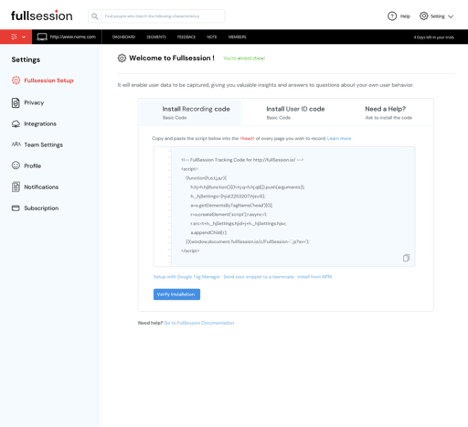
    1. Copy FullSession code that shows on your setup page.How To Install FullSession On BigCommerce
    2. Go to your BigCommerce dashboard
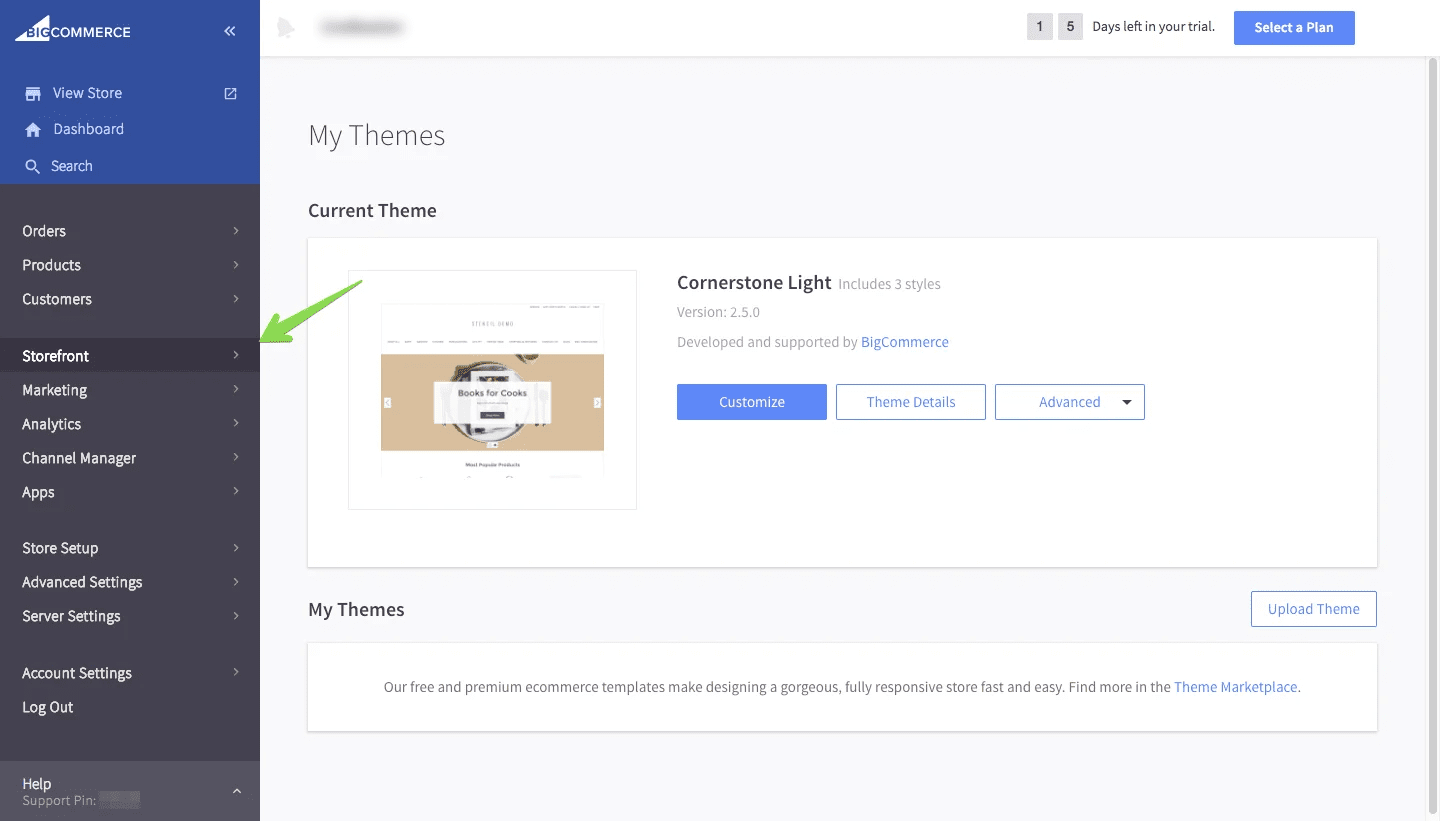
    3. Click on Storefront sectionHow To Install FullSession On BigCommerce
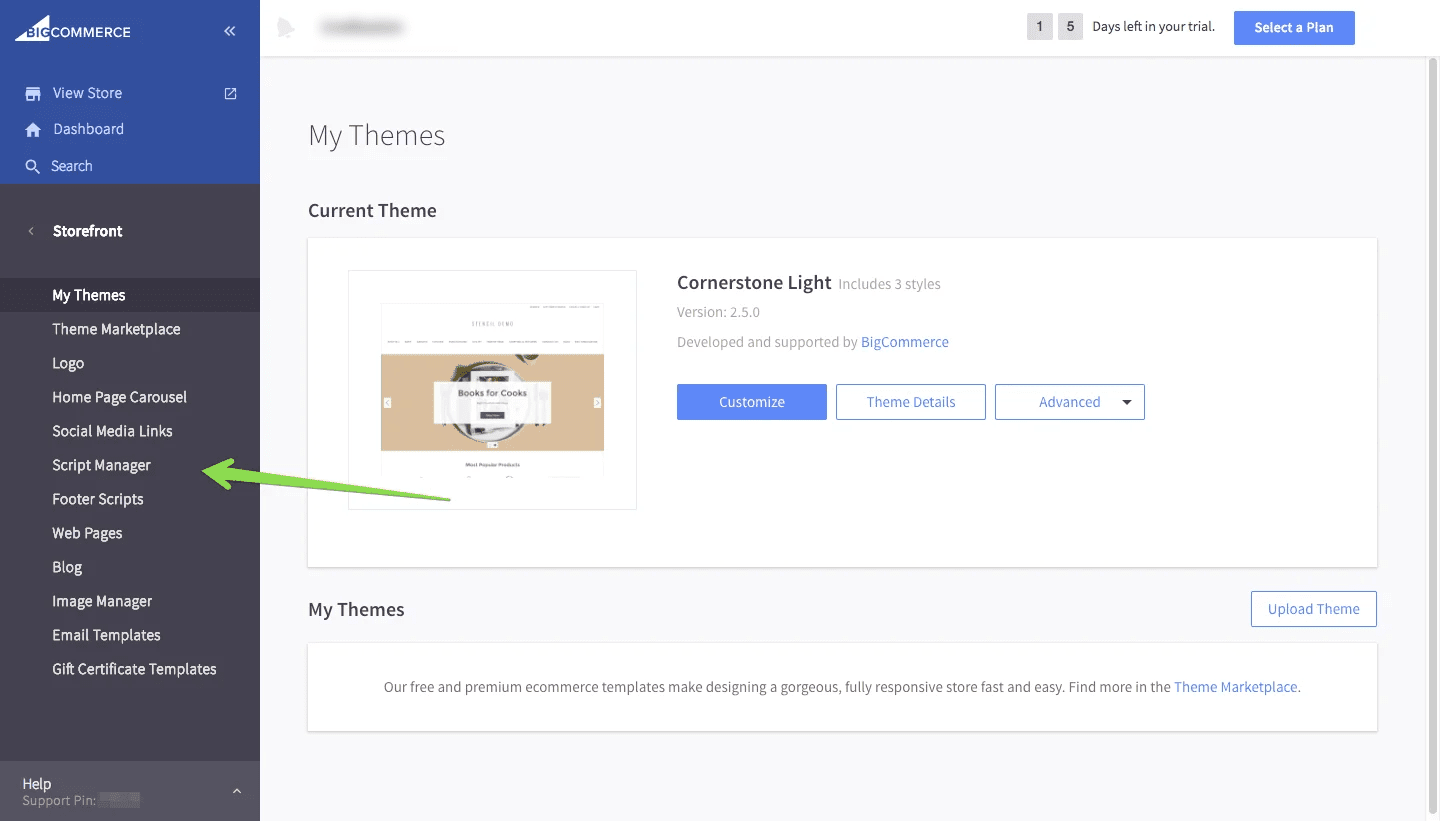
    4. Go to Script Manager tabHow To Install FullSession On BigCommerce
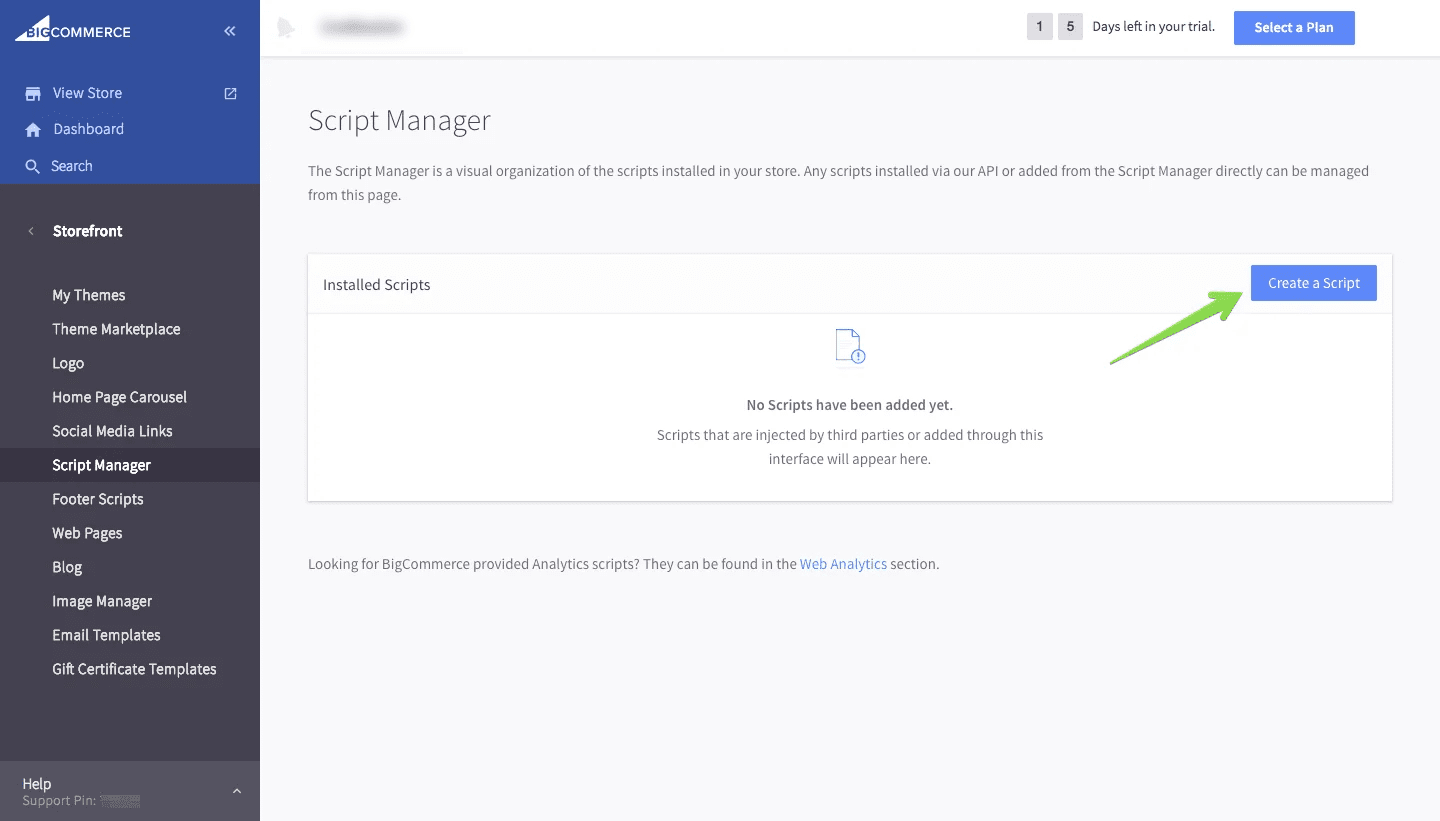
    5. Then click on Create a ScriptHow To Install FullSession On BigCommerce
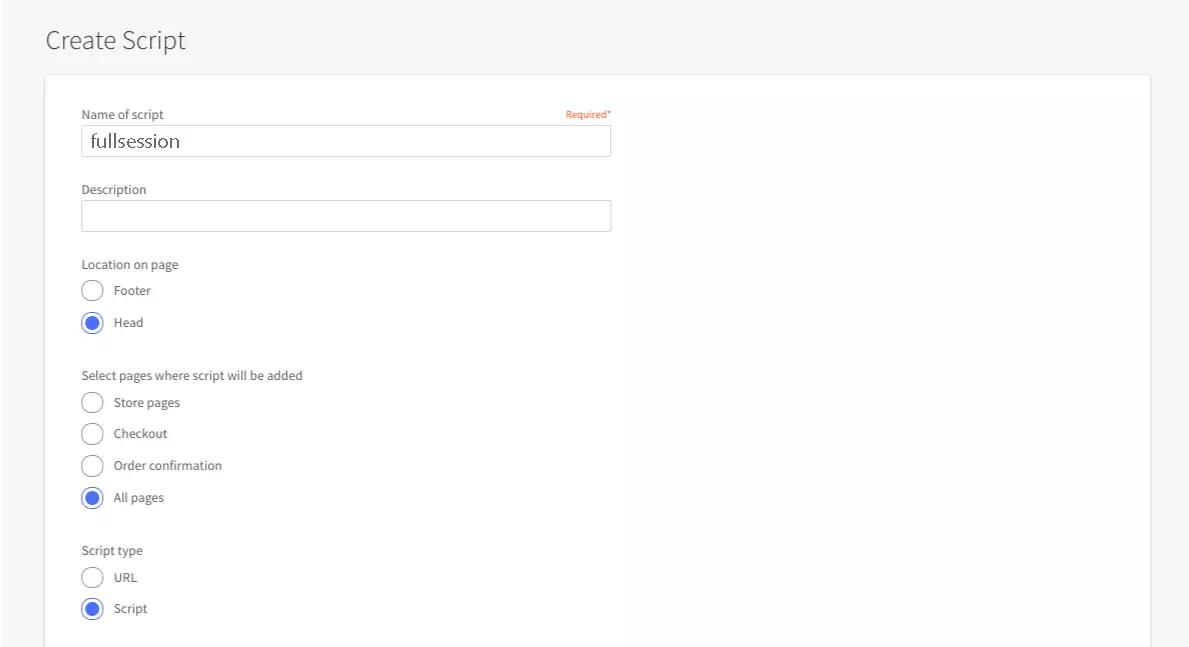
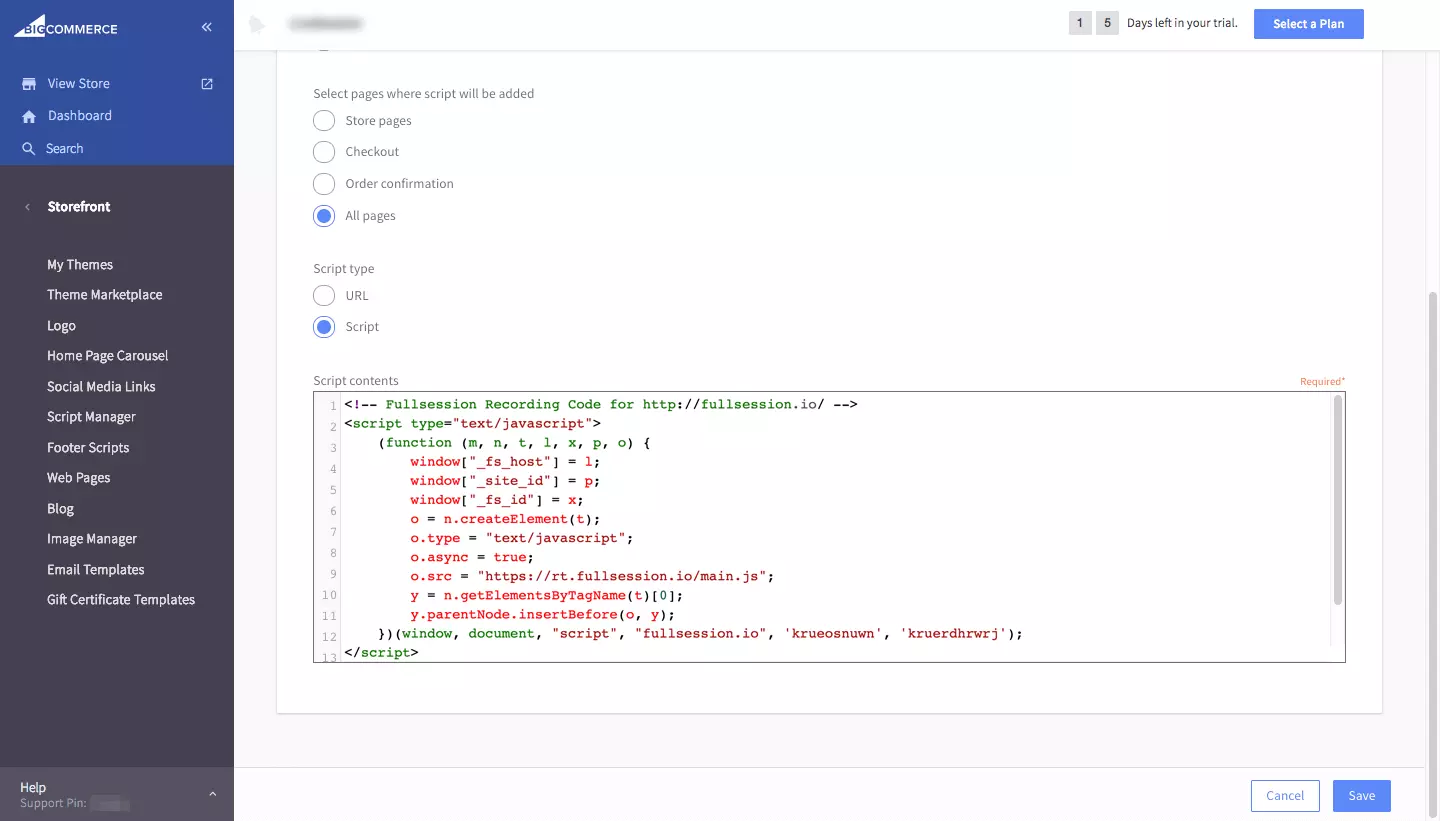
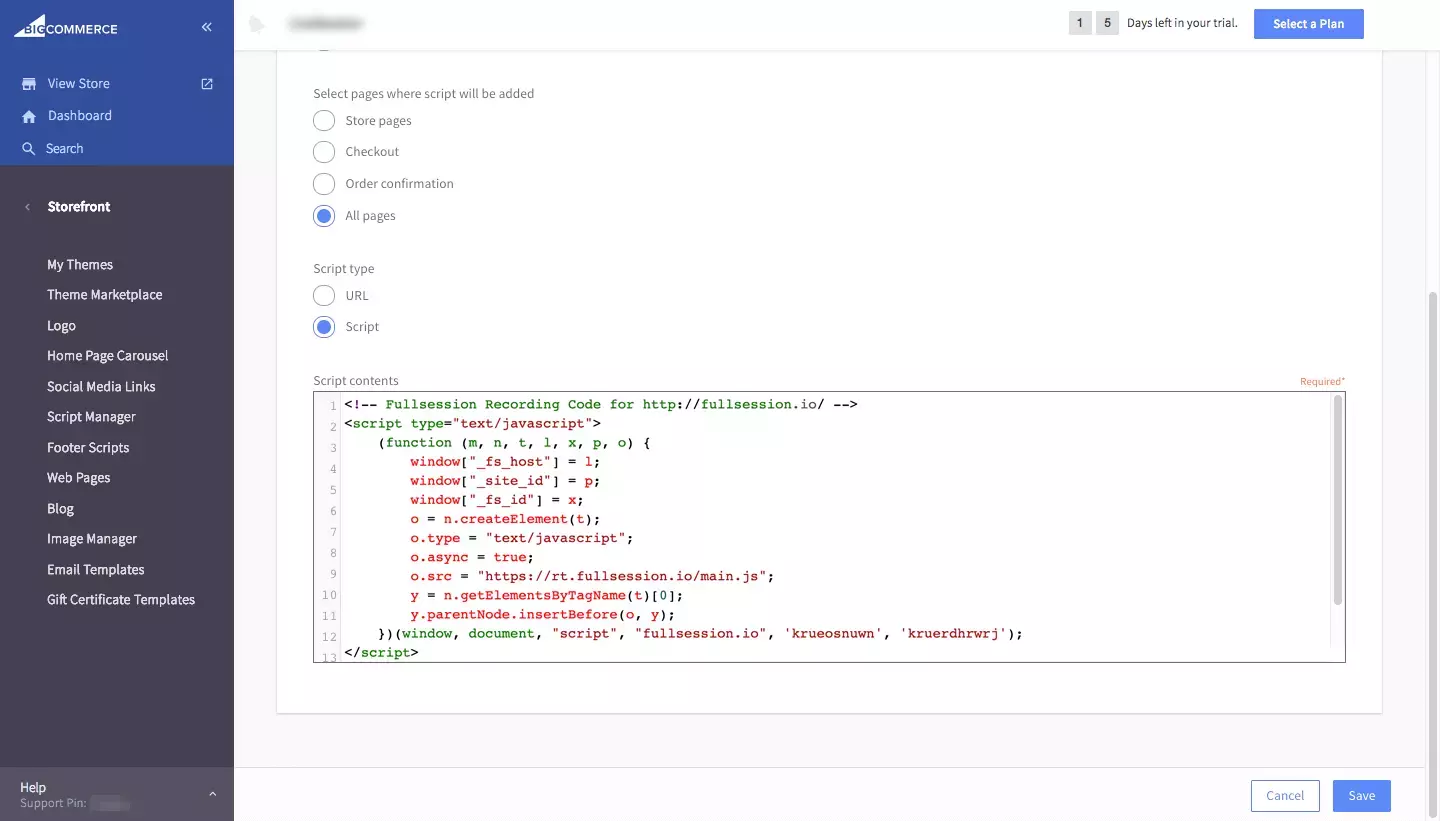
    6. Paste FullSession code snippet in the Script contents
    7. Name your Code FullSession and select the pages you want to track
    8. Save and you are good to goHow to install FullSession on BigCommerce
  • How to install FullSession on Wix

    How to install FullSession on Wix

    • Copy FullSession code that shows on your setup page.How To Install FullSession On BigCommerce
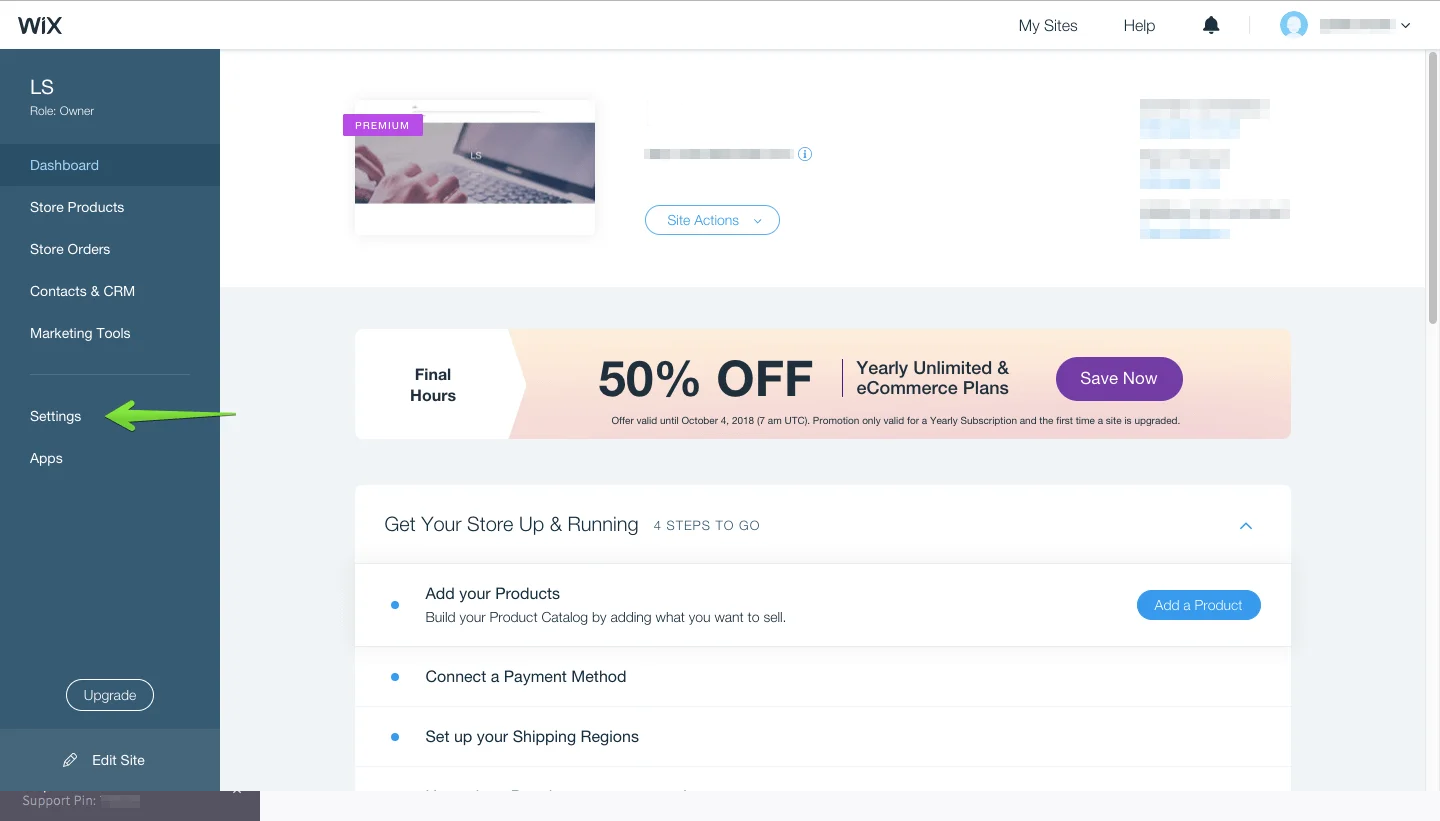
    • Go to your WIX Dashboard
    • Click on Settings
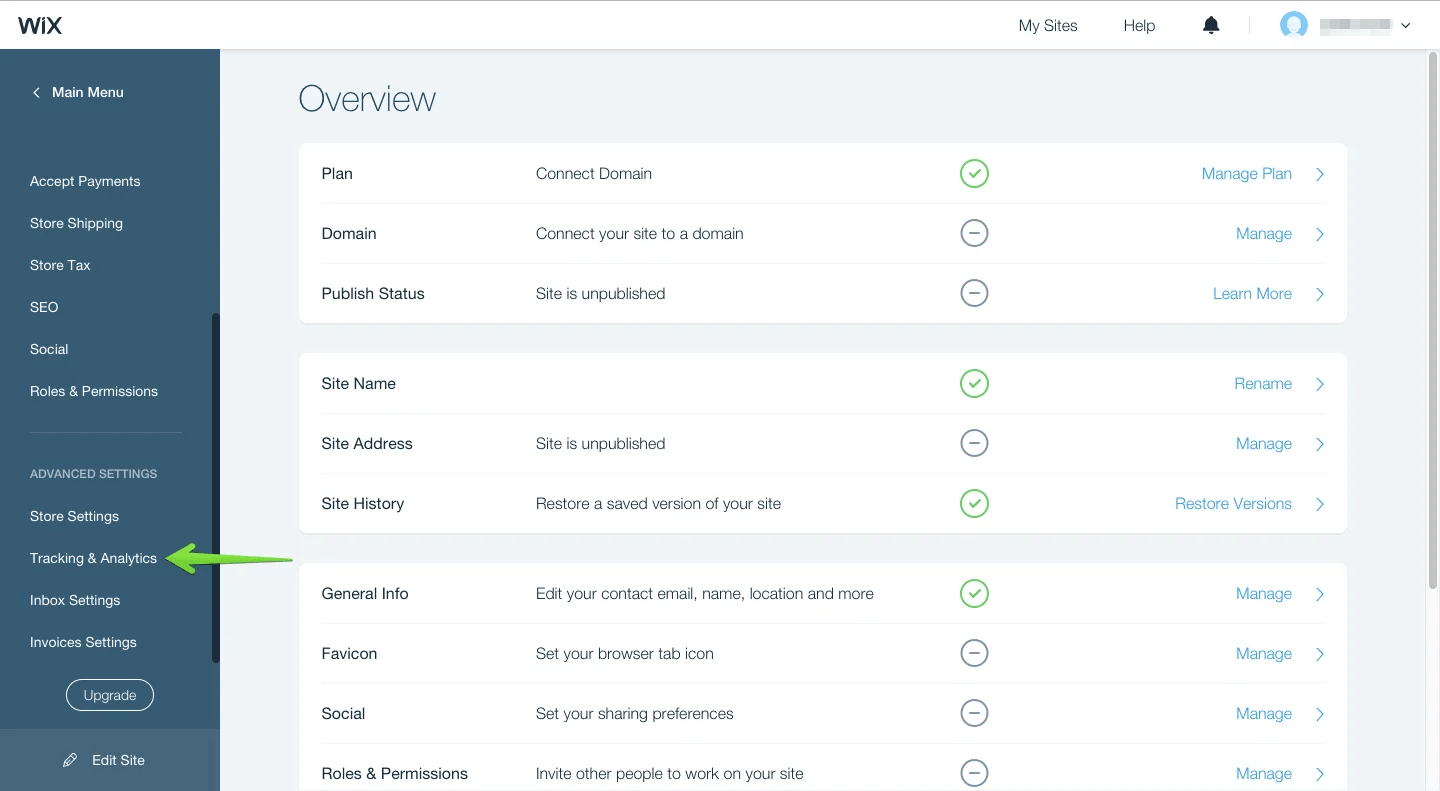
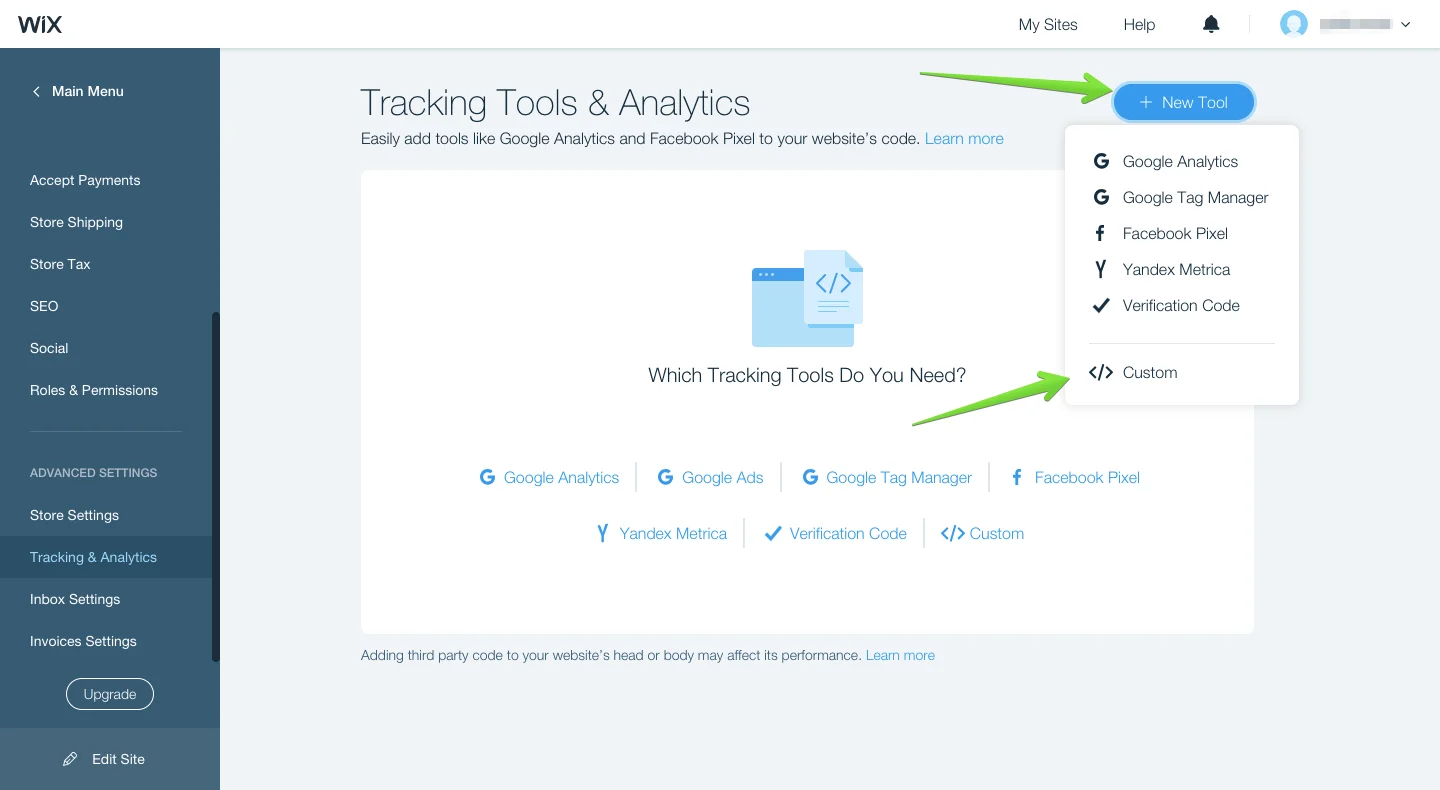
    • Go to Advanced Settings and click on Tracking & AnalyticsHow To Install FullSession On Wix
    • Click on “+ New Tool” and select “</>Custom”
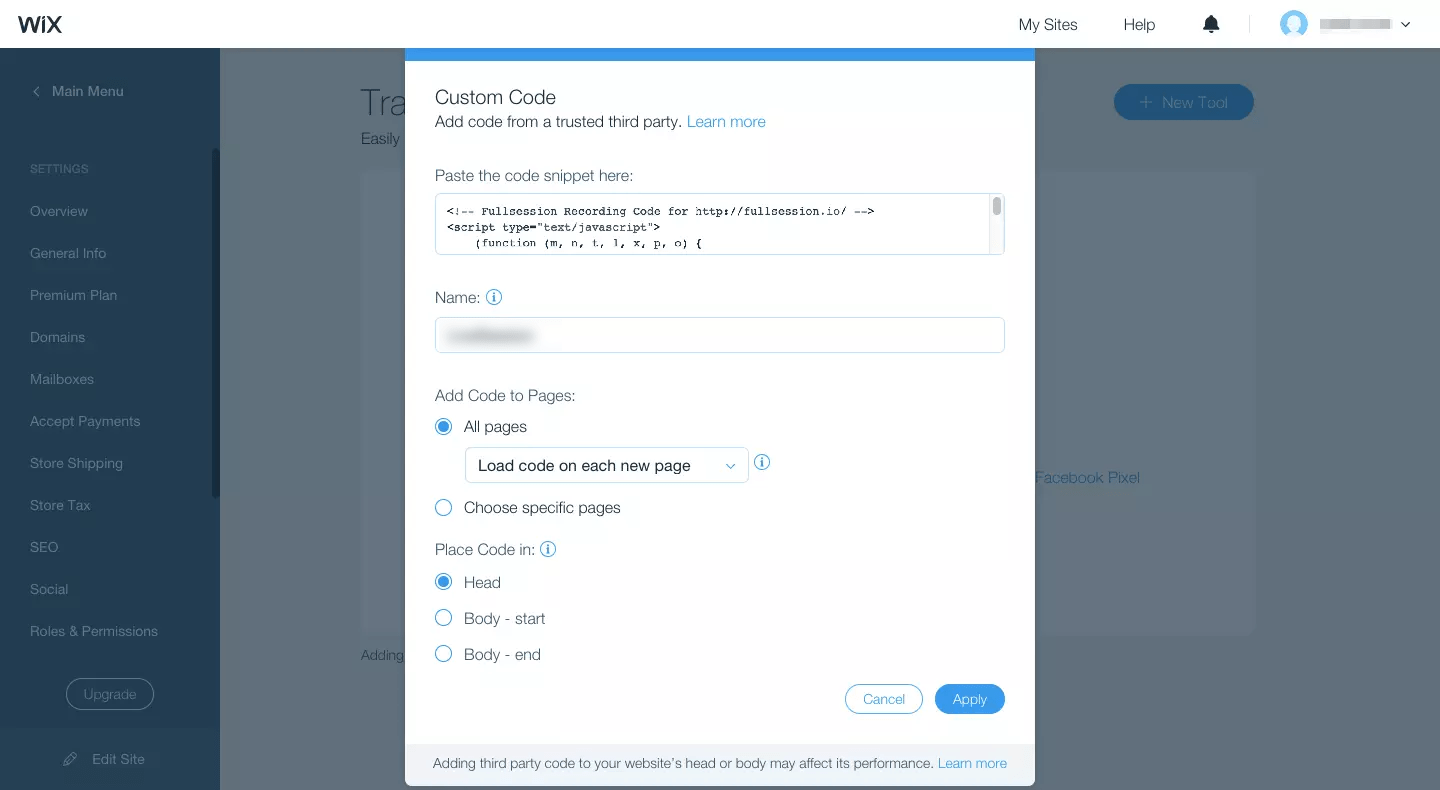
    • Paste FullSession code snippetHow To Install FullSession On Wix
    • Name your Code ‘FullSession” and select the pages you want to track
    • Select “Apply” and you are good to go
  • How to install FullSession on Shopify

    How to install FullSession on Shopify

    1. Copy FullSession code that shows on your setup page.How To Install FullSession On BigCommerce
    2. Open your Shopify dashboard
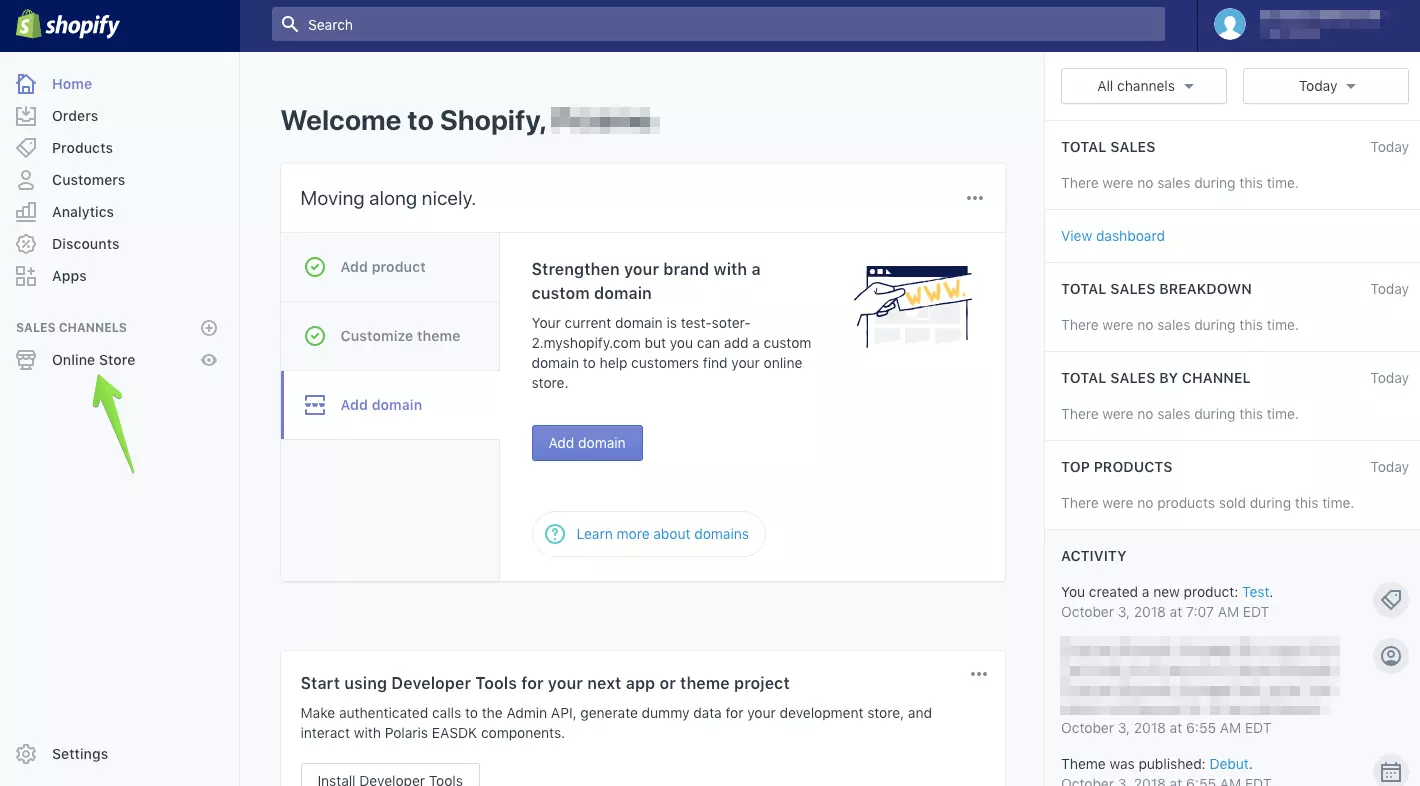
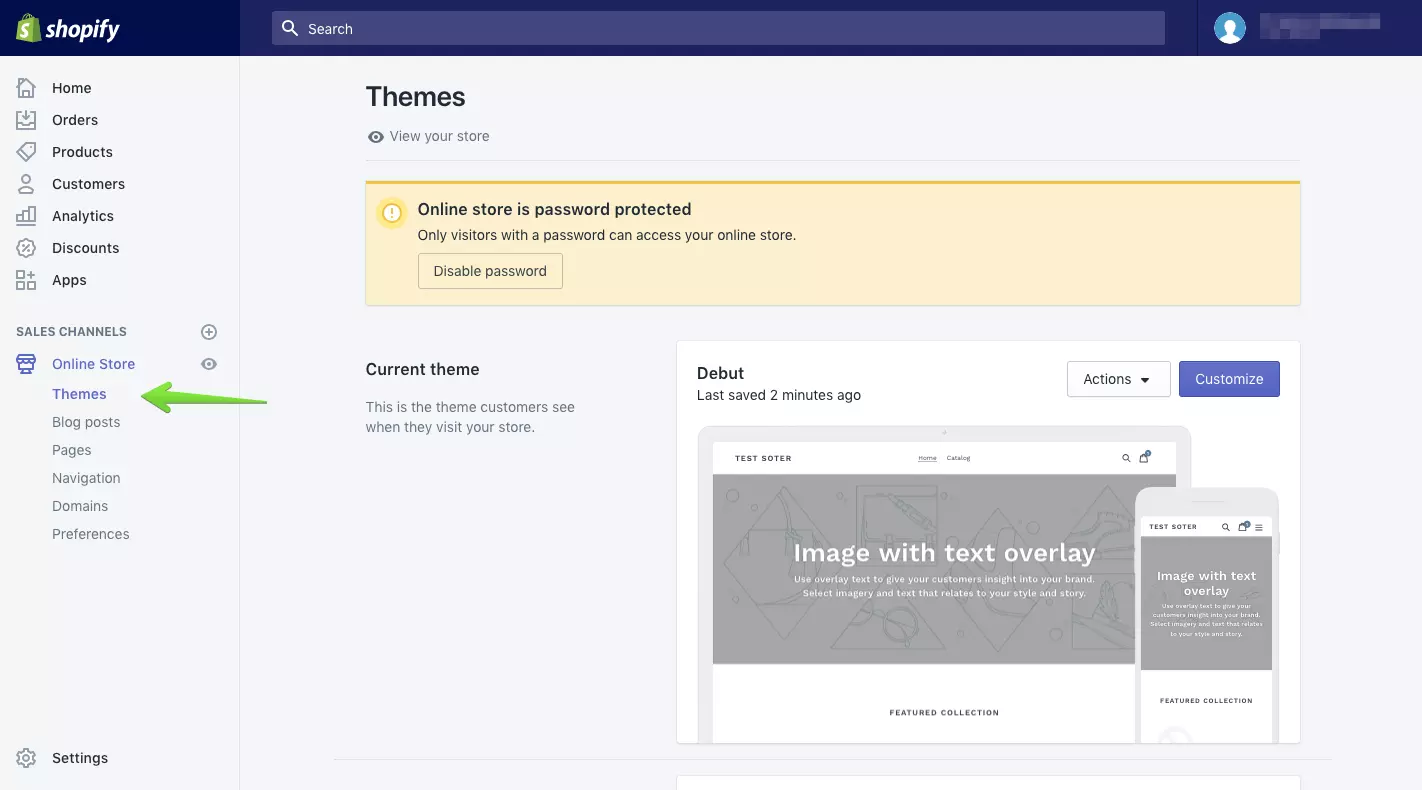
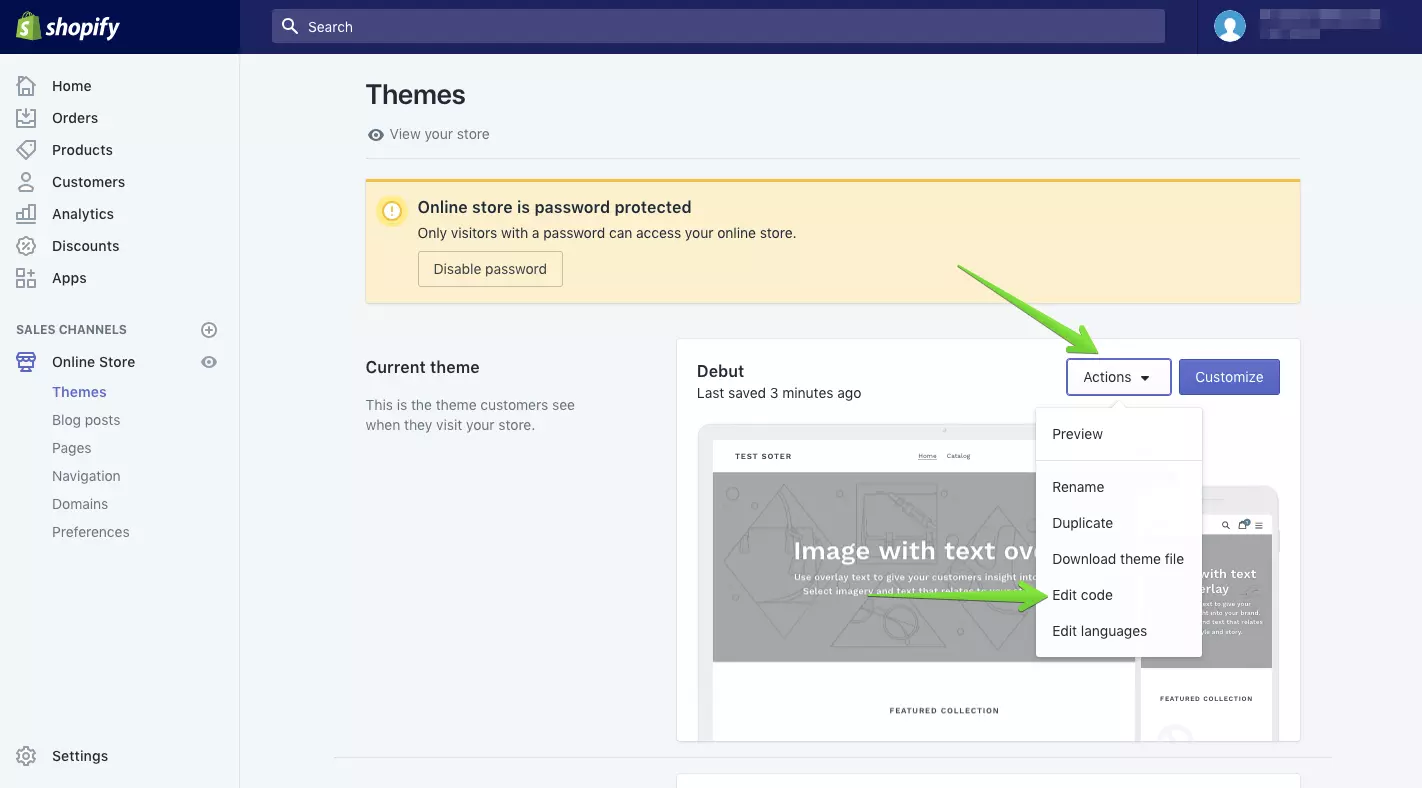
    3. Go to Online Store section and click on themes
    4. On your current theme click Actions and then Edit Code
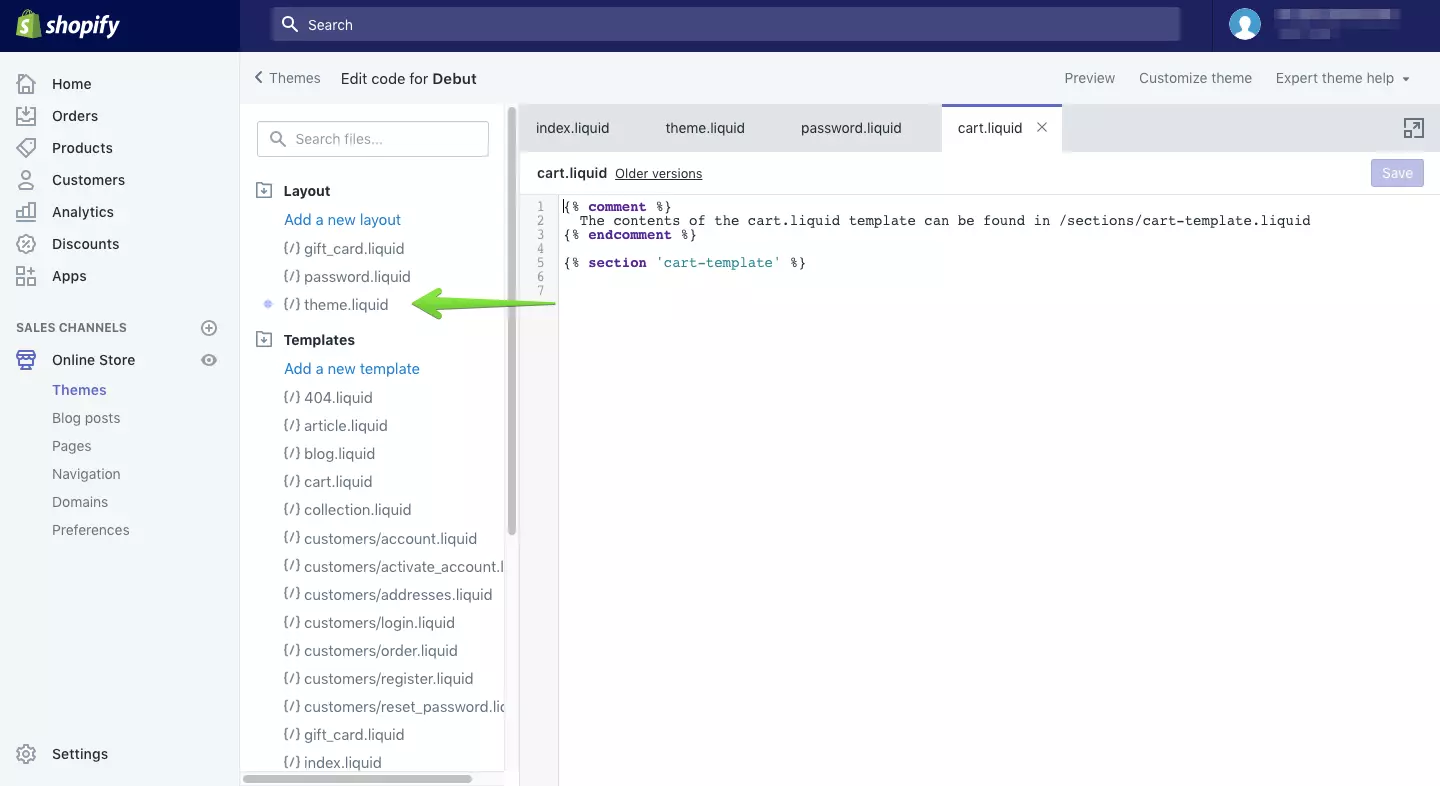
    5. Click on theme.liquid
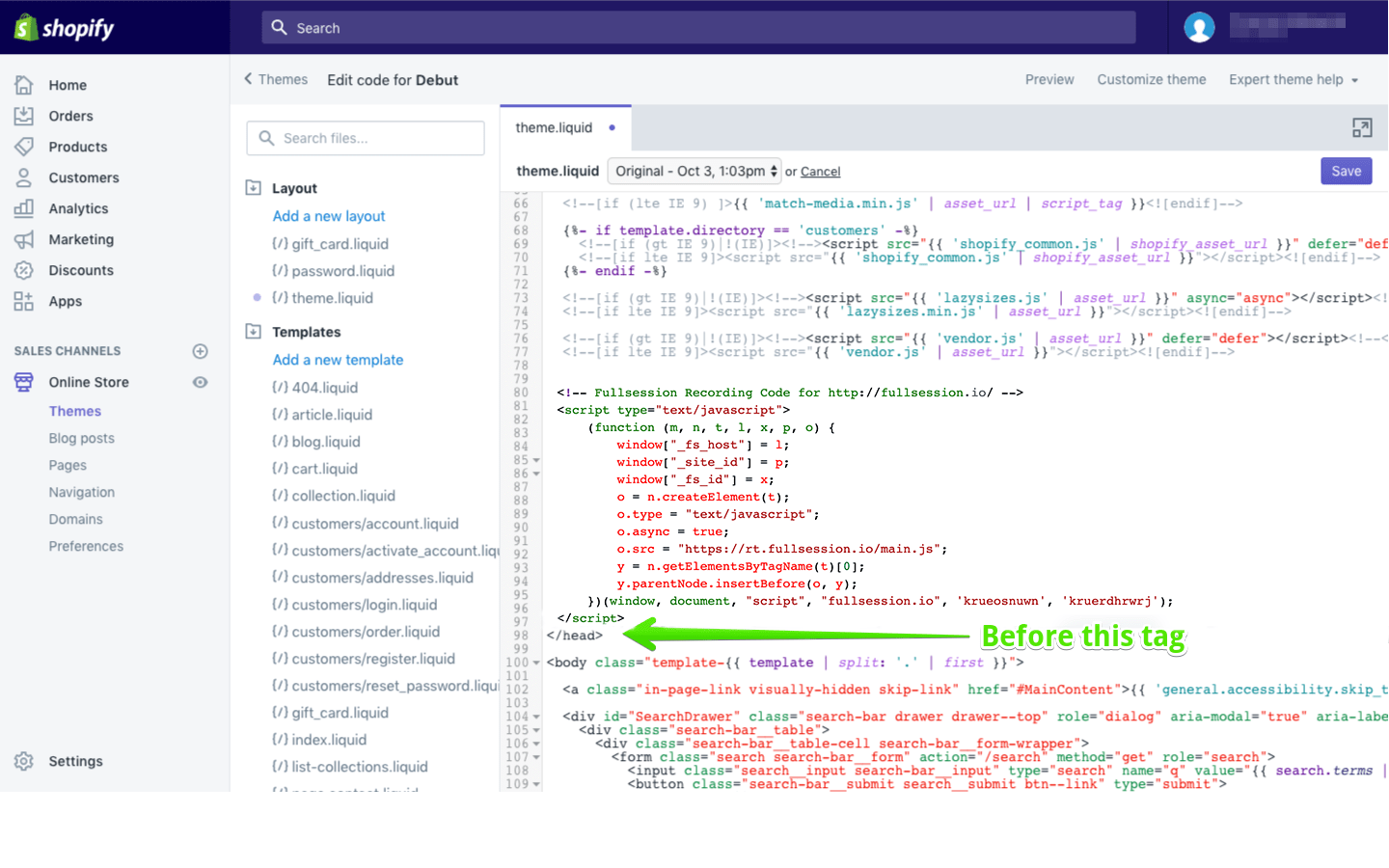
    6. Paste the FullSession copied code before tag
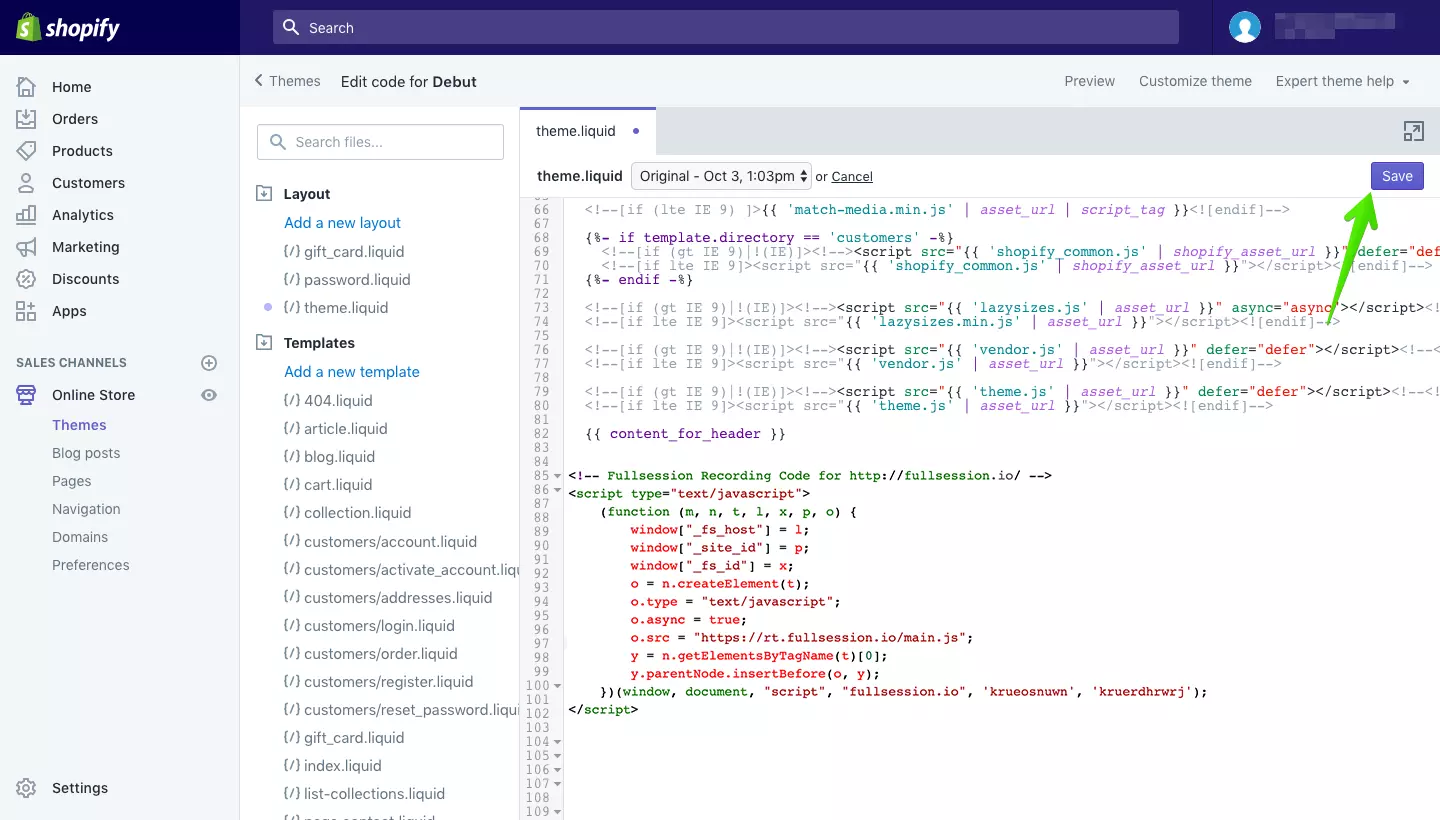
    7. Save your work and you are good to go.
  • How to install FullSession on WordPress

    How to install FullSession on WordPress

    1. Copy FullSession code that shows on your setup page.
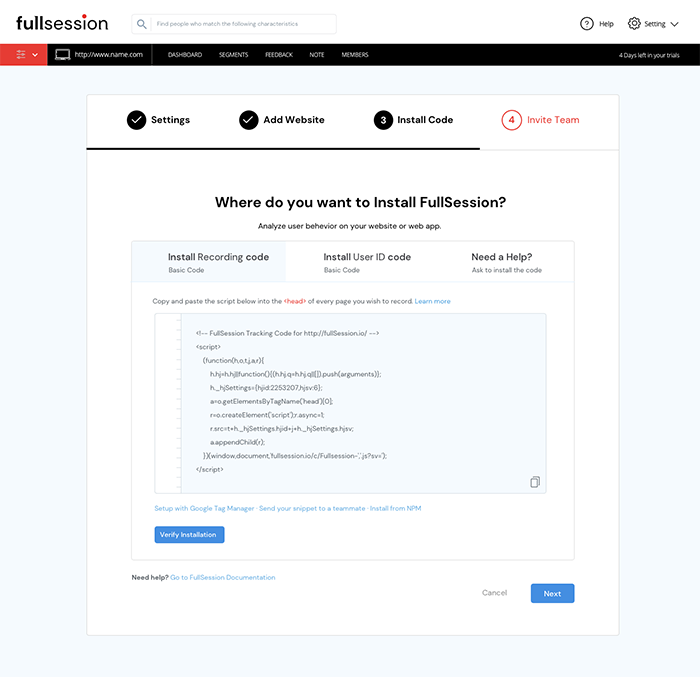
    How To Install FullSession On BigCommerce
    1. Open your WordPress dashboard
    2. Go to Appearance section.
    3. Open Editor
    4. Open Theme Header FileFullSession onboard screenshot
    5. Paste copied code into this file before </head> closing tag.
  • How to install FullSession script on your Website

    Copy FullSession code that shows on your setup page.

    Paste the copied code into the <head> of every page you wish to track. Then verify your installation as shown in the setup page above.